> For the complete documentation index, see [llms.txt](https://www.analytics-docs.laplacetec.com/guide/llms.txt). Markdown versions of documentation pages are available by appending `.md` to page URLs; this page is available as [Markdown](https://www.analytics-docs.laplacetec.com/guide/en/customdashboard/custom/chart/geospatial.md).
# Map chart
{% hint style="info" %}
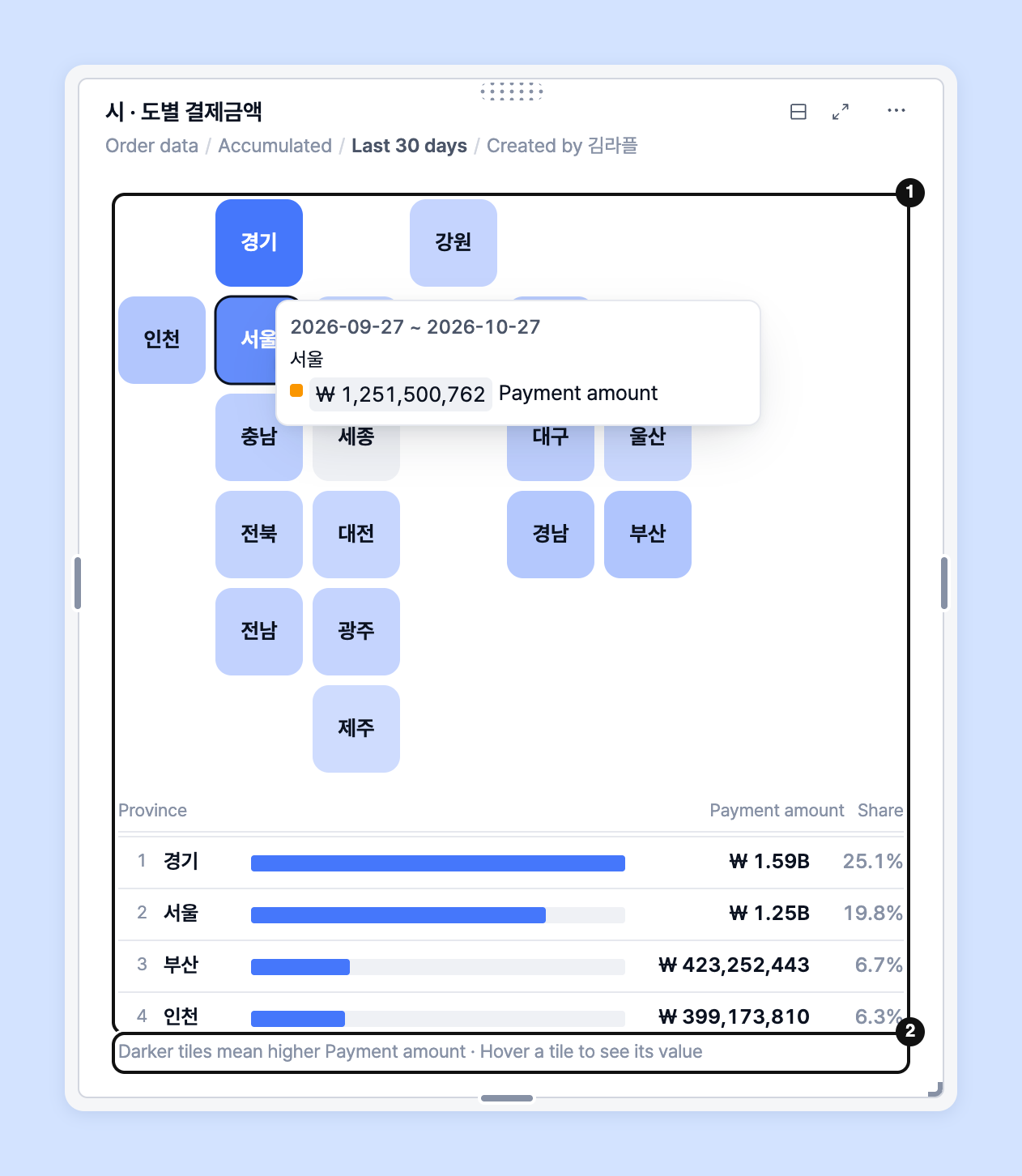
This chart helps you see which regions your top performance comes from for the dimensions over the selected period. In the custom dashboard, it's drawn as a **tile map** that divides the country into province-level tiles.
{% endhint %}
## How to use
Once you've set the data source, dimensions and data filters on the Data tab, click **Map** in the type grid on the **Chart** tab of the settings panel on the right.
1. Click the **Data** tab in the settings panel on the right, then choose one of the region fields (country · province/state · city/county/district · town/neighborhood) as a dimension.

2. Click the **Chart** tab, then click **Map** in the type grid.

3. Select the measure to show as tile color.

{% hint style="info" %}
* Without a region dimension, you'll see the notice "The map is drawn when the chart is split by a region (province, etc.)". Complete step 1 first.
* You can only choose measures you've set in the data source on the **Data** tab. To add a measure, add the measure you want to visualize to the data source and try again.
* Charts that work well ✨\
Regional analysis can be visualized in any chart, but bar charts, scorecards, bump charts, quadrant charts and Pareto charts are especially good for it.
{% endhint %}
## View the tile map
A tile map gives each province a tile of the same size and **colors tiles darker the larger the value**. Small regions aren't hidden, so regions are easy to compare.
1. Hover over a tile to see that region's value and share. The list on the right (or below) is sorted from the largest value.
2. Clicking a tile or list row either shows only that province in the list or drills down to the regions below it (cities, counties, districts, etc.), depending on the dimension. The note under the map tells you which. To see everything again, click **Show all regions** or **All regions**.
3. You can change how the tile map looks on the **Chart** tab.

* **Legend**: Choose where the tile color legend goes: **Auto · Right · Bottom · Hidden**. The default is Hidden.
* **Figure width**: Splits the width between the map and the list on the right. You can also drag the handle between the map and the list on the dashboard card.
## Ask your dedicated manager
Having trouble using the custom dashboard?
Contact us through the inquiry page or by email below. Your manager will be happy to help.
> 💬 [Contact us on our website](https://www.analytics.laplacetec.com/contact)
**Email:** [**product@laplacetec.com**](mailto:product@laplacetec.com)