> For the complete documentation index, see [llms.txt](https://www.analytics-docs.laplacetec.com/guide/llms.txt). Markdown versions of documentation pages are available by appending `.md` to page URLs; this page is available as [Markdown](https://www.analytics-docs.laplacetec.com/guide/en/customdashboard/custom/chart/waterfall.md).
# Waterfall chart
{% hint style="info" %}
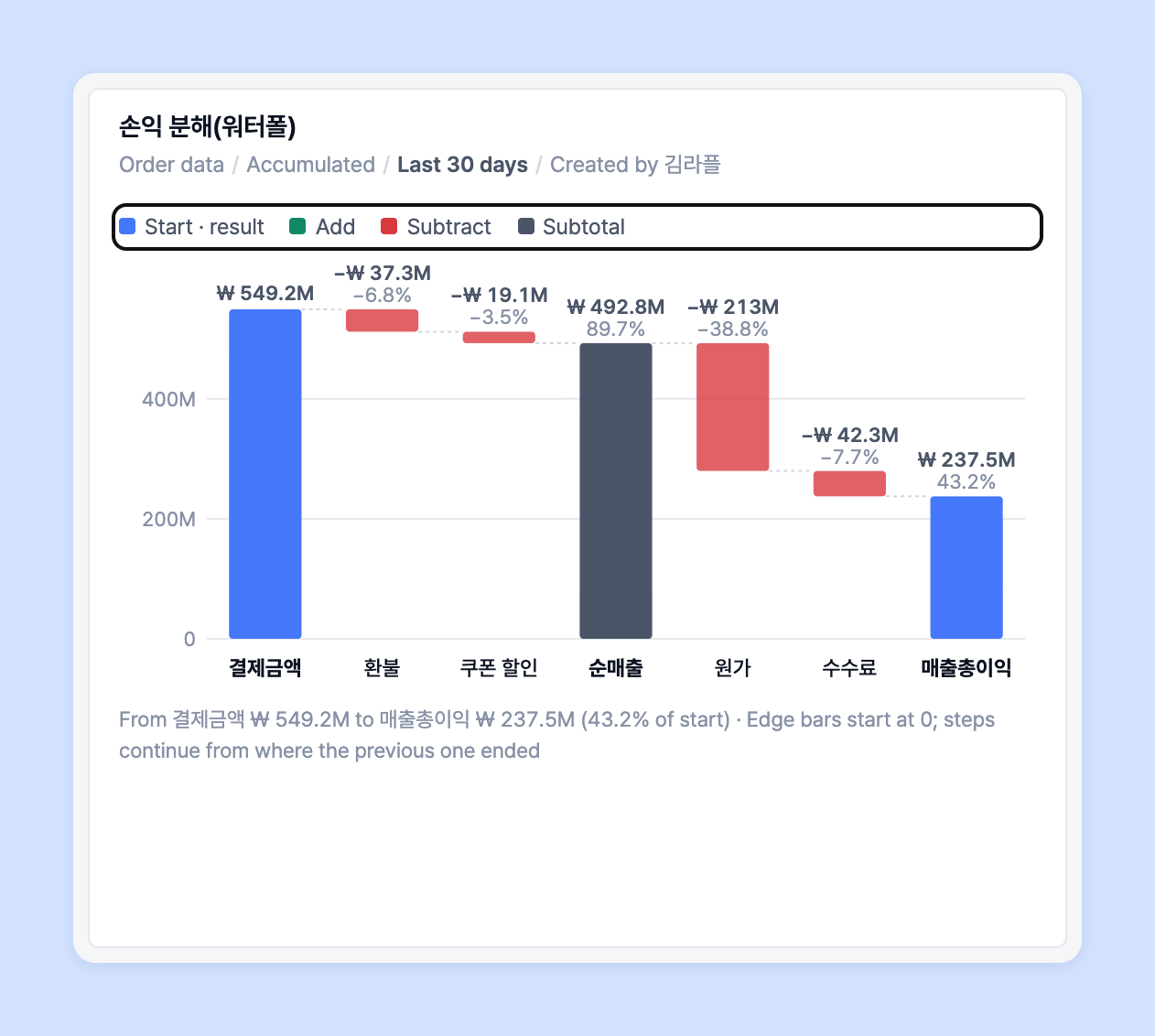
This chart starts from a value and adds or subtracts at each step to show what's left in the end. For example, you can see at a glance how much net profit remains after subtracting discounts · refunds · ad spend from revenue in turn. It doesn't use dimensions or frequency, and is drawn with values for the **entire period (cumulative)**.
{% endhint %}
## How to use
Once you've set the data source and data filters on the Data tab, click **Waterfall** in the type grid on the **Chart** tab of the settings panel on the right.
1. On the **Data** tab, choose **two or more** measures. It helps to put the measure that will be the starting value (e.g. revenue) first.

2. Click the **Chart** tab, then click **Waterfall** at the very end of the type grid. The frequency switches to **Cumulative** automatically, and a notice appears above the chart.

{% hint style="info" %}
* A waterfall is drawn only when the frequency is **Cumulative**. If you change the frequency to something else, you'll see the notice "This chart uses whole-period values", set **Frequency** in the date bar above the chart back to **Cumulative**.
* At first, the steps are filled in the order of the measures you chose. The first measure is the starting value, the rest are subtracted, and a result is added at the end.
{% endhint %}
3. Arrange the steps the way you want under **Steps**.
* The first step is the **Start** value. From the next step on, use the **+ / −** button to switch between adding and subtracting.
* Use the **↑ ↓** buttons to change the order and the **×** button to remove a step. You can also click a step's name to rename it.
* Use the + **Step** button to add a measure step, and the + **Subtotal** button to show the running total up to that point. If you deleted the result step, add it back with the + **Result** button.
* To return to the initial state, click **Default steps**.
4. Assign a measure to the final **Result** step to compare it with the computed value. If you don't want to compare, choose **Use the computed value**.

{% hint style="info" %}
When you compare the result with a measure (e.g. net sales) and the value after adding and subtracting the steps differs from that measure, the difference is shown as an **Other** step. Check whether a step is missing or whether filters differ between sources.
{% endhint %}
5. Choose the **Value labels** and **Orientation**.

* **Value labels**: Choose from **Value + % of start** (default), **Value** or **None**.
* **Orientation**: **Vertical** (default) or **Horizontal**. Horizontal is easier to read when there are many steps or long names.
6. Click **Save** at the top to place the waterfall chart on the dashboard card. Bar colors are divided into **Start · result**, **Add**, **Subtract** and **Subtotal**.
{% hint style="warning" %}
* At least **two steps** (one starting value plus a value to add or subtract) are needed to draw the chart.
* Ratio · unit-price measures (e.g. conversion rate, ARPPU) can't be added or subtracted. Switch to amount · count measures.
* If you remove a measure used in a step from the **Data** tab, the chart is drawn without that step.
{% endhint %}
## Ask your dedicated manager
Having trouble using the custom dashboard?
Contact us through the inquiry page or by email below. Your manager will be happy to help.
> 💬 [Contact us on our website](https://www.analytics.laplacetec.com/contact)
**Email:** [**product@laplacetec.com**](mailto:product@laplacetec.com)