> For the complete documentation index, see [llms.txt](https://www.analytics-docs.laplacetec.com/guide/llms.txt). Markdown versions of documentation pages are available by appending `.md` to page URLs; this page is available as [Markdown](https://www.analytics-docs.laplacetec.com/guide/en/customdashboard/custom/datasettings/flowchart.md).
# Flow analysis
{% hint style="info" %}
Flow analysis examines users' order history based on order data and base product data, and visualizes the purchase journey from the first purchase through repurchases up to the nth purchase. This shows which products users buy and which products they choose on their next purchase.
{% endhint %}
## Data settings
In the chart editor, open the **Data** tab in the settings panel on the right, then click the **Flow chart** icon under **Analytics mode**. All of the settings below are on the **Data** tab.
### Data source
The **data source** step is where you choose the source data for the analysis. Depending on your goal, you can choose from the data you have connected, such as orders, ads, base product data, and Cafe24 Analytics.

1. Choose order data or base product order data.
2. Below the data source, choose the measure to visualize.
### Breakdown
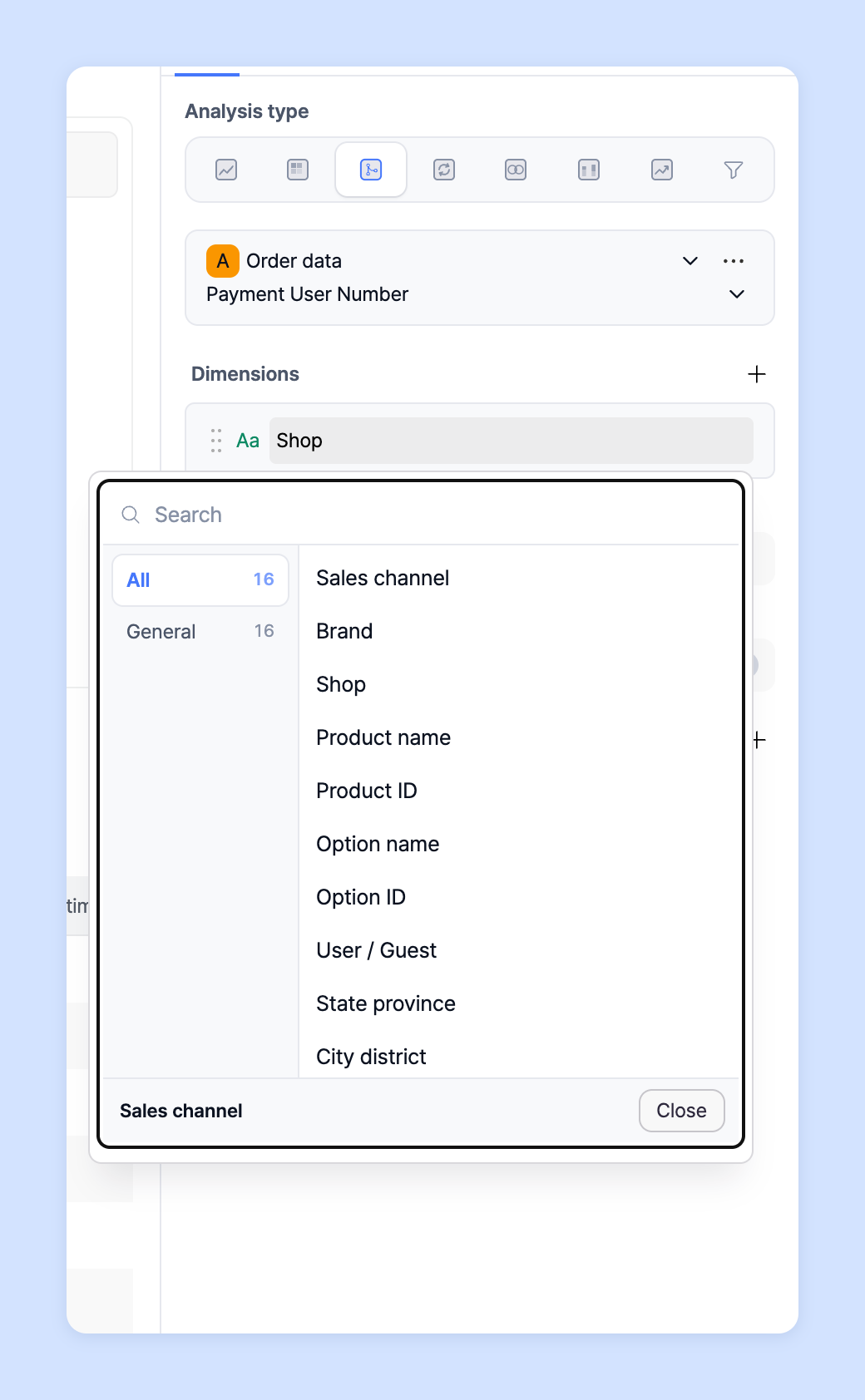
Set the breakdown used to visualize the chart; the chart is drawn according to the breakdown you choose.
* As with basic chart analysis, you can add multiple breakdowns and view them together in one chart.
* Click the default **'Store'** breakdown to change it to the one you want.
### Conversion window
The **conversion window** sets the criteria for counting a purchase as a conversion after a specific user action. The range of purchases counted as conversions changes with this setting, so you can view the conversion flow that fits your analysis.

* **Not set**: Visualizes all customer paths with no time limit and no filtering such as "only count conversions within n days".
* **Converted within 7 days**: Counts purchases made within 7 days of the reference point as conversions.
* **Converted within 14 days**: Counts purchases made within 14 days of the reference point as conversions.
* **Converted within 28 days**: Counts purchases made within 28 days of the reference point as conversions.
* **Custom**: Enter your own conversion window. (Up to 365 days)
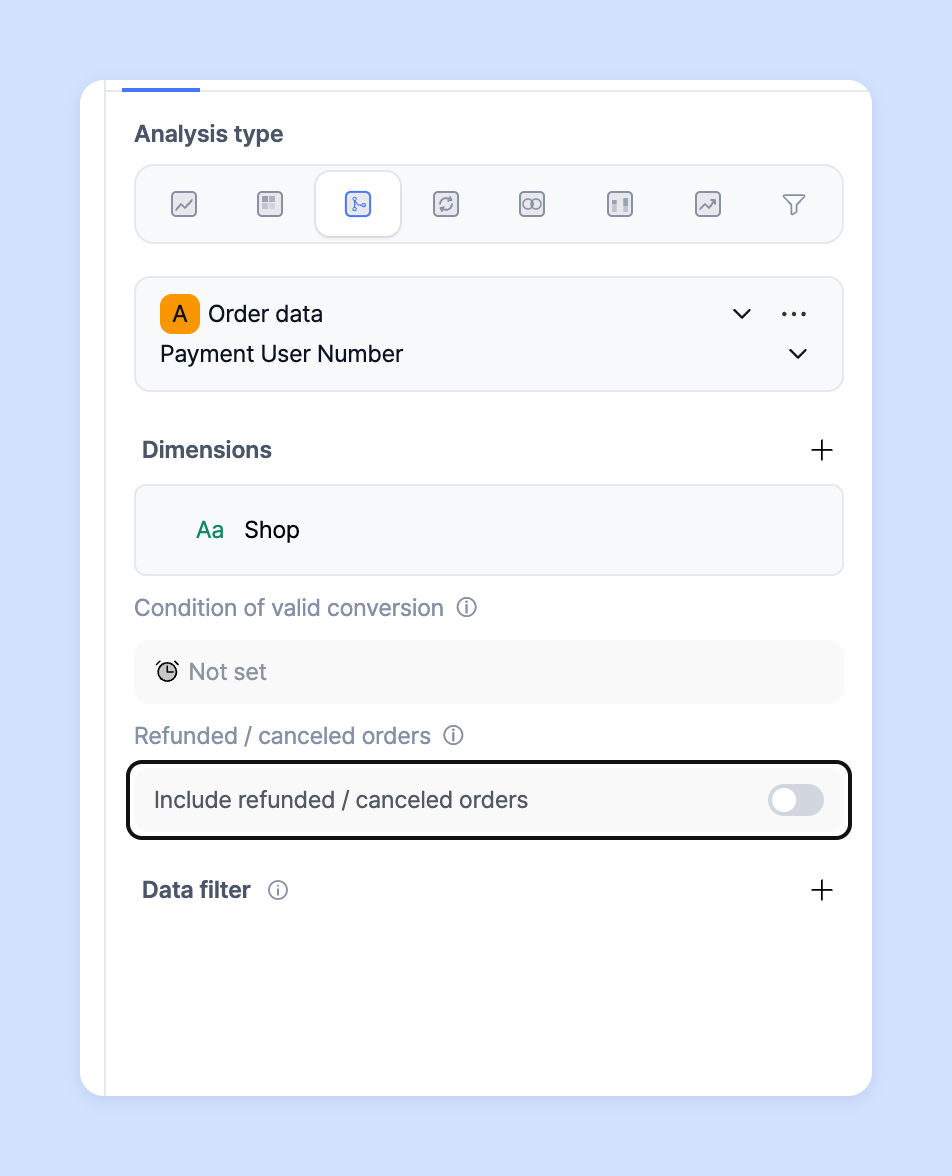
### Refunded / canceled orders
The **Include refunded / canceled orders** switch sets whether refunded or canceled orders are included in the results.\
Turn it **on** to include refunded and canceled orders in the analysis; turn it **off** to get results based on data that excludes them.
## Chart settings
On the **Chart** tab of the settings panel, set the number of steps to visualize and how many items to show at each step so you can follow the purchase flow step by step.
### Steps to visualize
Set the maximum number of steps the flow chart draws.\
You can set between 2 and 10 steps.

1. Click the **+** button to the right of **Steps to visualize** to add one step.
2. Click the **−** button to remove one step. You can also type a number directly in the middle field.
### Top N per step
Under **Top N per step**, choose how many items to visualize at each step (3 · 5 · 7 · 10 · 15 · 20).
You can choose up to 20 per step; items beyond that number are grouped into **Others**.\
This keeps the main purchase flows while preventing the chart from becoming overly complex.
## Table settings
On the **Table** tab › **Table type** of the settings panel, choose either **Node** or **Link**. In flow analysis, nodes are reference points for understanding the structure,\
and links are the key unit for interpreting the actual changes that happen within that structure.
### Node
A node is a **state** in which users are within the flow.\
Each node corresponds to a specific step, channel, or condition and shows the number and share of users who reached that point.

Nodes show you:
* The number and share of users who reached each step
* The relative size of each step within the overall flow
* Whether a particular step is growing or shrinking
Nodes are well suited to **summarizing the flow structure at a glance**,\
helping you quickly understand the current distribution of states.\
However, nodes focus on "what the state is now" rather than "why this state came about".
### Link
A link is the **movement (flow)** between one node and another.\
Each link shows the number and share of users who moved from one step to the next.

Links show you:
* Where users went after a particular step
* The points and paths where churn or conversion happens
* Which connection the change in flow came from
Links show **where change actually happened** within the flow,\
and are well suited to interpreting movement paths and conversion structure.\
Problems or wins at a particular step show up more clearly in the **changes in the links** going into and out of that node than in the node itself.
## Ask your dedicated manager
Having trouble using flow analysis?
Contact us through the inquiry page or by email below. Your manager will be happy to help.
> 💬 [Contact us on our website](https://www.analytics.laplacetec.com/contact)
**Email:** [**product@laplacetec.com**](mailto:product@laplacetec.com)