> For the complete documentation index, see [llms.txt](https://www.analytics-docs.laplacetec.com/guide/llms.txt). Markdown versions of documentation pages are available by appending `.md` to page URLs; this page is available as [Markdown](https://www.analytics-docs.laplacetec.com/guide/en/customdashboard/custom/datasettings/standardchart/multi.md).
# Multiple data sources
## Multiple data sources
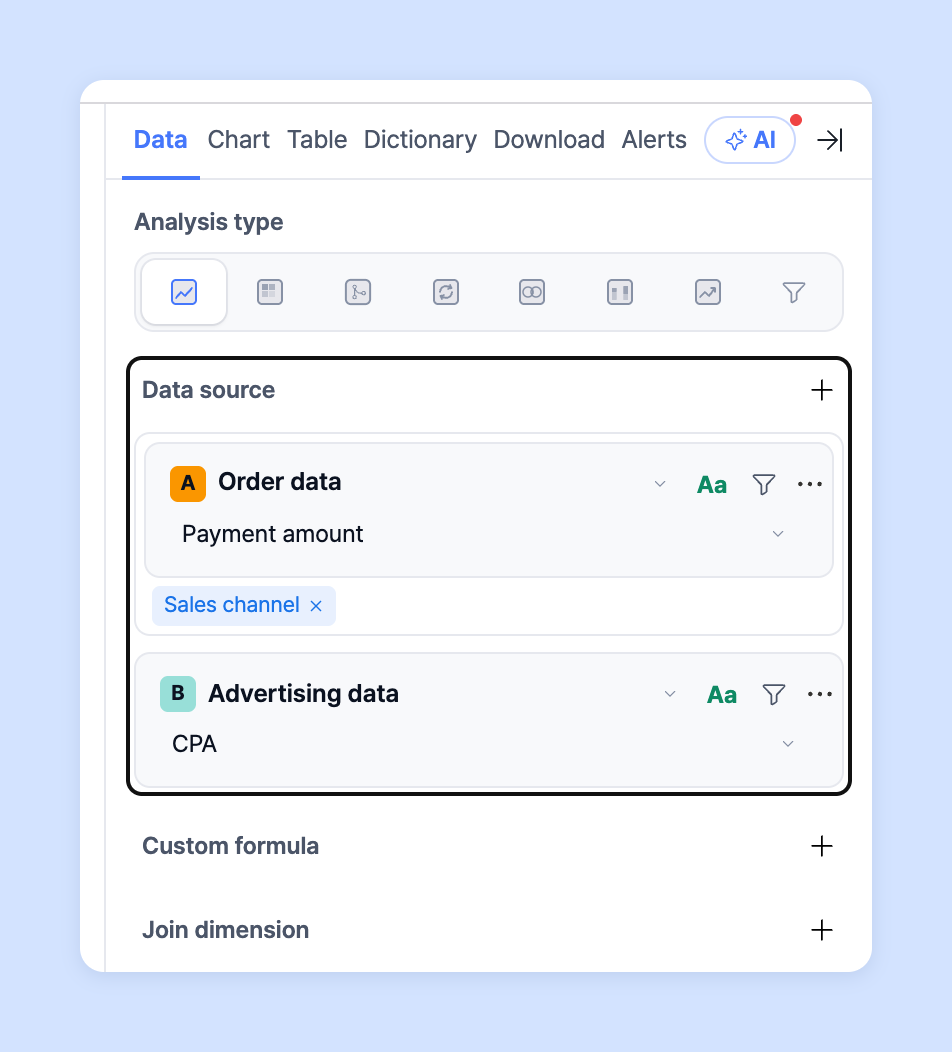
On the **Data** tab › **Data source** of the settings panel on the right side of the chart editor, you can select multiple data sources to visualize from the data connected to Laplace (**orders, ads, base products, GA4**). After choosing one data source, click **Data source** again and choose another; the sources stack in order as A, B. On each source card, choose that source's **Measures**.
* You can combine sources such as order data + base product data, base product data + ad data, or ad data + event data.
{% hint style="info" %}
When visualizing a chart with a single data source, you can only visualize the measures that source provides. With multiple data sources, you can visualize measures from each source at once, which is very useful.
{% endhint %}
## Custom measures
You can create custom measures with expressions based on the measures you set in your data sources. Custom measures are automatically added to the table and also to the measure list on the **Chart** tab, so you can visualize them in the chart. Create custom measures on the **Data** tab › **Custom formula**.
1. In **Custom formula**, click **New formula**.
2. First enter the **Formula name** (measure name) that will appear in the table and list.
3. Enter measures and functions in **Expression**.
4. Choose a **Number format** (**Number** · **Currency** · **Share** · **Text**) and click **Save**.

{% hint style="info" %}
You can build complex expressions using addition, subtraction, division, multiplication, parentheses, and numbers.
With multiple data sources, you can use the measures selected in each source in your expression. In the expression, they appear with the source letter (A, B) as a prefix, such as `'A__sales'`.
👉 [Learn more about custom formula syntax →](/guide/en/customdashboard/custom/custom_formula.md)
{% endhint %}
## Breakdown
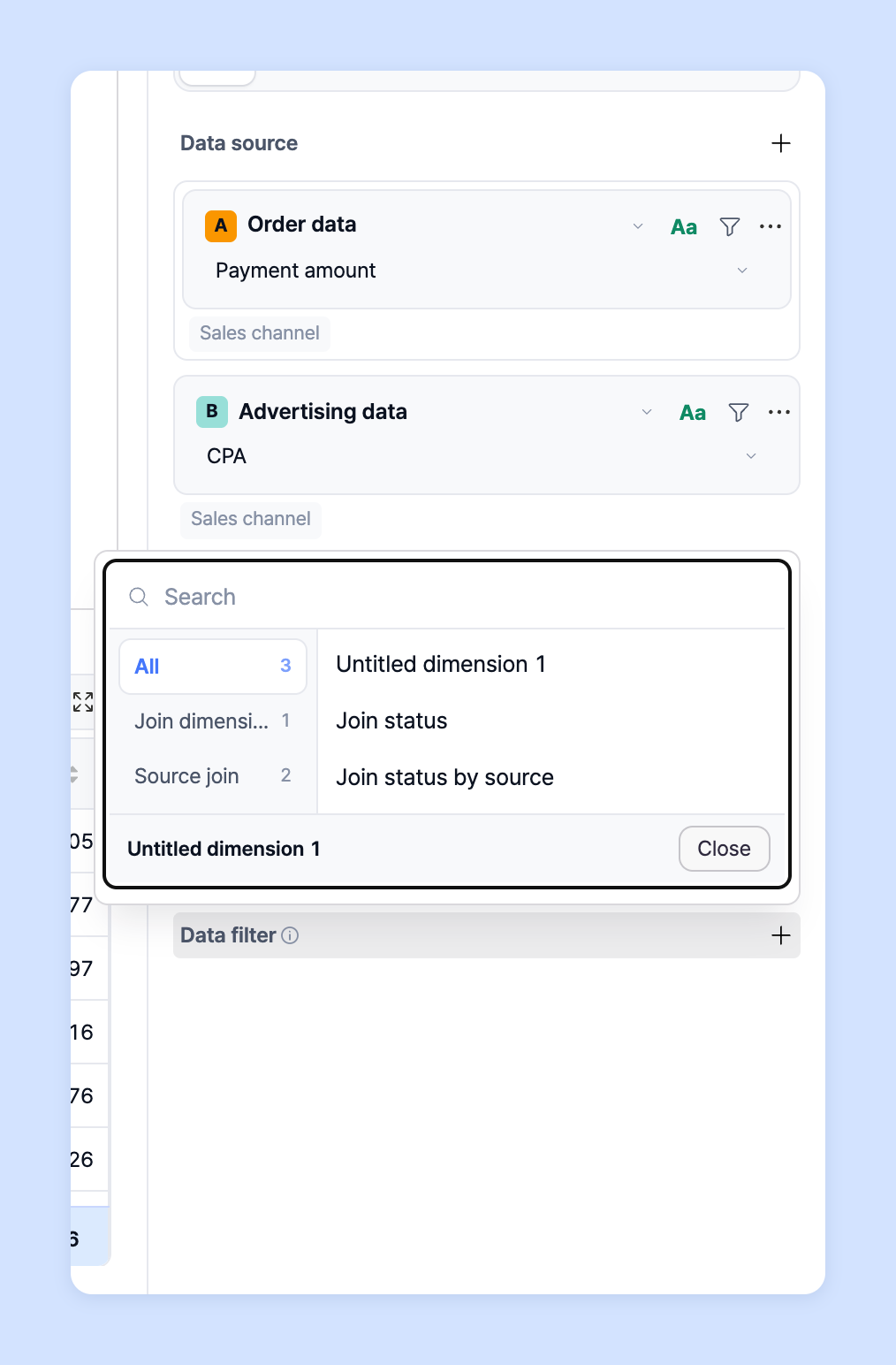
In Laplace, you visualize charts using the **Data** tab › **Breakdown** setting. With multiple data sources, a **Join dimension** combines each source's breakdown into one.
{% hint style="info" %}
You can think of a breakdown as a Group by. Group by is a clause in SQL, the database query language. It groups rows by the values of specific columns and summarizes the data per group with aggregate functions.
With multiple data sources in particular, you choose which breakdown to view the selected sources by, so you must select the breakdown to join in every selected data source before the chart can be visualized.
{% endhint %}
* If order data's "Sales channel name" and ad data's "Store name" classify the same data, they are combined into an **Untitled dimension**. You can rename it by entering a **Joined dimension name**. The chart then combines and visualizes identical names from each source's sales channel name and store name. If the breakdown values differ even slightly, they are not treated as the same data.
* Example) If order data has the sales channel names Smartstore and Laplace\_Cafe24, and ad data has the store names Laplace\_Smartstore and Laplace\_Cafe24: Laplace\_Cafe24 is merged into one and visualized, but Smartstore and Laplace\_Smartstore are visualized as separate data.
## Filters
{% hint style="info" %}
Filters let you set which values are included in or excluded from the chart. **Data filter** on the **Data** tab filters by raw values before data is loaded, and **View filter** above the table below the chart filters the loaded, aggregated results once more.
{% endhint %}
For example, if you run 6 sales channels and want to visualize only 5, choose the item to filter in **Data filter**, choose **Equals** or **Does not equal**, then choose the value; the chart is updated accordingly.
* The **Data filter** at the bottom of the **Data** tab applies to join-dimension items and is applied to all sources together. Use **Join status** to keep only rows joined across sources, or to see only **Not joined** rows.
* To add a condition for just one source, use the filter button on that source's card.
{% hint style="info" %}
This is useful when analyzing values with many entries, such as products or options. It's especially handy for excluding discontinued or test products and creatives.
{% endhint %}
## Ask your dedicated manager
Having trouble using custom dashboards?
Contact us through the inquiry page or by email below. Your manager will be happy to help.
> 💬 [Contact us on our website](https://www.analytics.laplacetec.com/contact)
**Email:** [**product@laplacetec.com**](mailto:product@laplacetec.com)