> For the complete documentation index, see [llms.txt](https://www.analytics-docs.laplacetec.com/guide/llms.txt). Markdown versions of documentation pages are available by appending `.md` to page URLs; this page is available as [Markdown](https://www.analytics-docs.laplacetec.com/guide/en/customdashboard/custom/datasettings/standardchart/single.md).

# Single data source

## Single data source <a href="#singlesource" id="singlesource"></a>

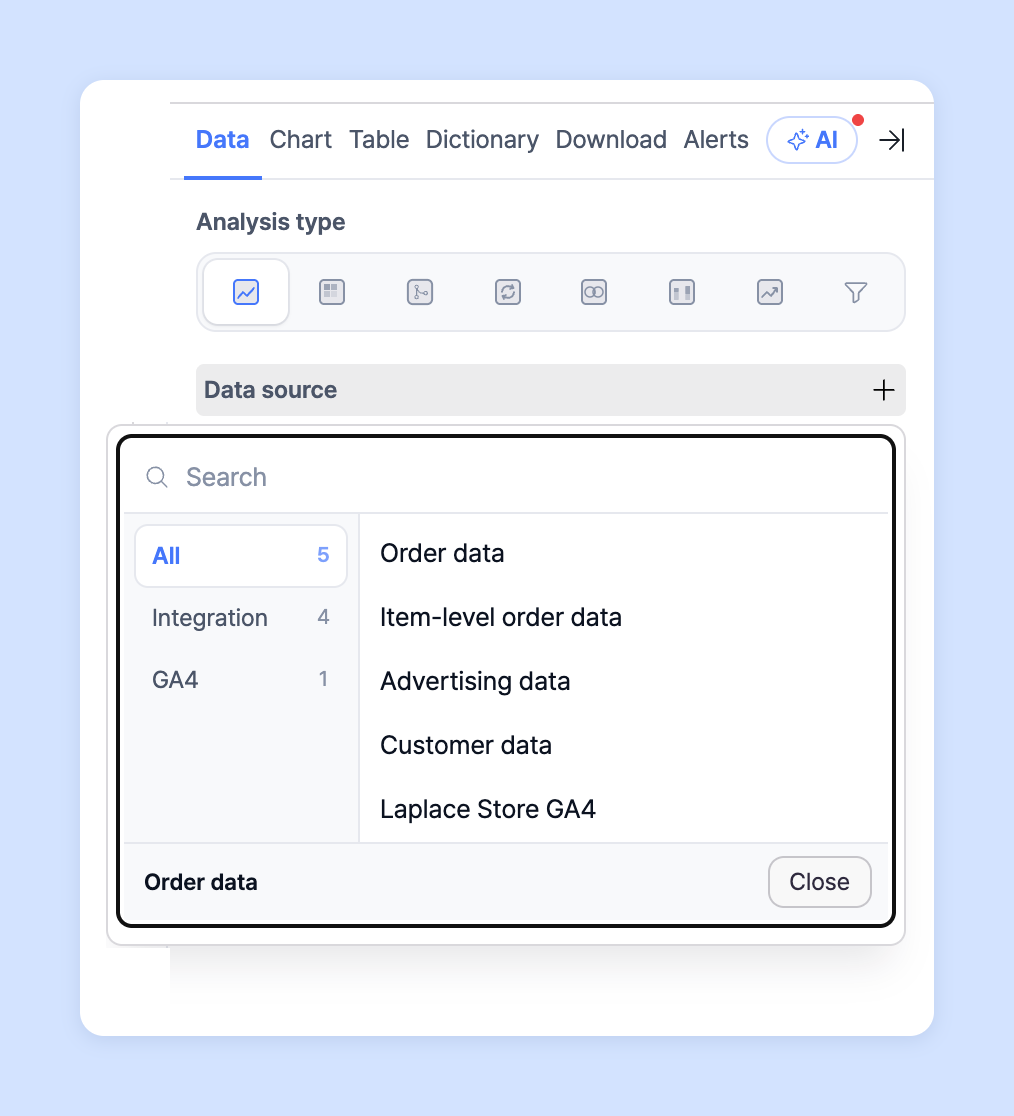
On the **Data** tab › **Data source** of the settings panel on the right side of the chart editor, choose the data source to visualize from the data connected to Laplace (**orders, ads, base products, GA4**). Once you choose a data source, you can pick **Measures** inside the source card.

<figure><img src="https://616205588-files.gitbook.io/~/files/v0/b/gitbook-x-prod.appspot.com/o/spaces%2Fqr1veGyUqCNwQBBmk3yt%2Fuploads%2Fgit-blob-4e2bb6b6511279f7a468dad3fc829a320c52228c%2Fcustomdashboard__custom__datasettings__standardchart__single__01.png?alt=media" alt="Choosing a data source on the Data tab" width="472"><figcaption></figcaption></figure>

* **Order data**: Using store data connected to Laplace (Cafe24, Smartstore, Coupang, Imweb, etc.), visualize sales metrics by store, sales channel, product, and option.
* **Ad data**: Using ad channel data connected to Laplace (Google, Kakao Moment, Naver GFA, Facebook, etc.), visualize performance such as CTR, ROAS, and CAC by ad channel, campaign, and creative.
* **Base product data**: Using base product data connected to Laplace (option ↔ base product matching data, ad ↔ product matching data), visualize financial performance such as base product brand, cost per product, margin, and contribution margin.

{% hint style="info" %}
Base product data is available after you register **Base product**, complete **Option ↔ base product matching**, and complete **Ad ↔ product matching** in **Data management**. To see these metrics, refer to the following guide.

👉 [Learn more in the Data management guide →](/guide/en/datamanage/matching.md)
{% endhint %}

* **GA4 API**: Using GA4 event data connected to Laplace, visualize performance such as acquisition, engagement, activity, visit-to-purchase conversion, and search keywords.
* **Measures available by data type**

<table><thead><tr><th width="174">Data</th><th width="574">Measures</th></tr></thead><tbody><tr><td>Order data</td><td>Brand, Sales channel, Own store/external marketplace, Age group, Gender, Member/non-member orders, Product ID, Product name, Product, Option code, Option info, Latest product name, Latest option info, Payment method, Payment service, Service type, Regular/subscription delivery, Device type, Day of week, Week number. Courier code, Courier</td></tr><tr><td>Ad data</td><td>Impressions, Reach, Clicks, Ad spend, Conversions, Conversion revenue, Conversion ROAS, CPA, CPC, CPM, CTR, Impression CVR, Click CVR</td></tr><tr><td>Base product data</td><td>Revenue, Revenue (excl. refunds/cancellations), Revenue (excl. VAT), Product purchase amount, Product purchase amount (excl. refunds/cancellations), Coupon, Coupon (excl. refunds/cancellations), Discount, Discount (excl. refunds/cancellations), Shipping fee, Shipping fee (excl. refunds/cancellations), Points used, Points used (excl. refunds/cancellations), Deposit used, Deposit used (excl. refunds/cancellations), Actual sales, Actual sales (excl. refunds/cancellations), Revenue (payment date+0), Actual sales (payment date+0), Claim amount, Actual claim amount, Claim amount (payment date+0), Actual claim amount (payment date+0), Cancellation amount, Return amount, Refund amount, Actual cancellation amount, Actual return amount, Actual refund amount, Canceled quantity, Returned quantity, Refunded quantity, Cancellation count, Return count, Claim count, Cancellation rate, Return rate, Claim rate, Payment count, Payment count (excl. refunds/cancellations), AOV, AOV (excl. refunds/cancellations), Quantity sold, Quantity sold (excl. refunds/cancellations), ARPPU, ARPPU (excl. refunds/cancellations), Paying users, Paying users (excl. refunds/cancellations), Basket size, ABS, Basket size (excl. refunds/cancellations), Conversion revenue, Conversion revenue (excl. VAT), Base-product basket size (excl. refunds/cancellations), Base-product quantity sold (excl. refunds/cancellations), COGS (excl. refunds/cancellations), ABS (excl. refunds/cancellations), COGS rate, Gross margin, COGS (excl. VAT), Contribution margin rate, Contribution margin, Fee, Base-product quantity sold, Gross margin ratio, ROAS, Conversion ROAS, Base-product basket size, Ad spend per revenue, COGS, Ad spend, ACoS, BEP ROAS, ROAS (payment date+0), Actual ROAS, Actual ROAS (payment date+0), POAS, Net sales, Refund / cancellation amount, Seller-paid shipping</td></tr><tr><td>Event data</td><td>Active users, 1-day active users, 7-day active users, 28-day active users, Add to carts, Ad unit exposure, Ads clicks, Ads cost, Ads cost per click, Cost per conversion, Ads impressions, Average purchase revenue, ARPPU, Average purchase revenue per user, ARPU, Average session duration, Bounce rate, Cart-to-view rate, Checkouts, Conversions, Crash-affected users, Crash-free users rate, DAU / MAU, DAU / WAU, WAU/MAU, Ecommerce purchases, Engaged sessions, Engagement rate, Event count, Event count per user, Events per session, Event value, First-time purchaser conversion, First-time purchasers, First-time purchasers per new user, Gross item revenue, Gross purchase revenue, Item discount amount, Item list click events, Item list click-through rate, Item list view events, Item promotion click-through rate, Item refund amount, Item revenue, Items added to cart, Items checked out, Items clicked in list, Items clicked in promotion, Items purchased, Items viewed, Items viewed in list, Items viewed in promotion, Item view events, New users, Organic Google Search average position, Organic Google Search clicks, Organic Google Search click-through rate, Organic Google Search impressions, Promotion clicks, Promotion views, Publisher ad clicks, Publisher ad impressions, Purchaser conversion, Purchase revenue, Purchase-to-view rate, Refund amount, ROAS, Views, Views per session, Views per user, Scrolled users, Session conversion rate, Sessions, Sessions per user, Shipping amount, Tax amount, Total ad revenue, Total purchasers, Total revenue, Total users, Transactions, Transactions per purchaser, User conversion rate, User engagement, Purchase conversions, Session purchase conversion rate, User purchase conversion rate</td></tr></tbody></table>

{% hint style="info" %}
For the GA4 API, you can select custom metrics managed in your GA4 account. However, if you add or edit a custom metric in your GA4 account, it becomes available after the next day's data sourcing is complete (around 9 AM KST).
{% endhint %}

## Custom measures <a href="#custom-value" id="custom-value"></a>

You can create custom measures with expressions based on the measures you set in your data source. Custom measures are automatically added to the table and also to the measure list on the **Chart** tab, so you can visualize them in the chart. Create custom measures on the **Data** tab › **Custom formula**.

1. In **Custom formula**, click **New formula**.
2. First enter the **Formula name** (measure name) that will appear in the table and list.
3. Enter measures and functions in **Expression**.
4. Choose a **Number format** (**Number** · **Currency** · **Share** · **Text**) and click **Save**.

   ![Custom formula editor](https://616205588-files.gitbook.io/~/files/v0/b/gitbook-x-prod.appspot.com/o/spaces%2Fqr1veGyUqCNwQBBmk3yt%2Fuploads%2Fgit-blob-6b9f7a042ba797bf850f9e1228f679daae3203e8%2Fcustomdashboard__custom__datasettings__standardchart__single__02.png?alt=media)

{% hint style="info" %}
You can build complex expressions using addition, subtraction, division, multiplication, parentheses, and numbers. Functions such as IF and CONCAT are also available.

👉 [Learn more about custom formula syntax →](/guide/en/customdashboard/custom/custom_formula.md)
{% endhint %}

## Breakdown <a href="#dimension" id="dimension"></a>

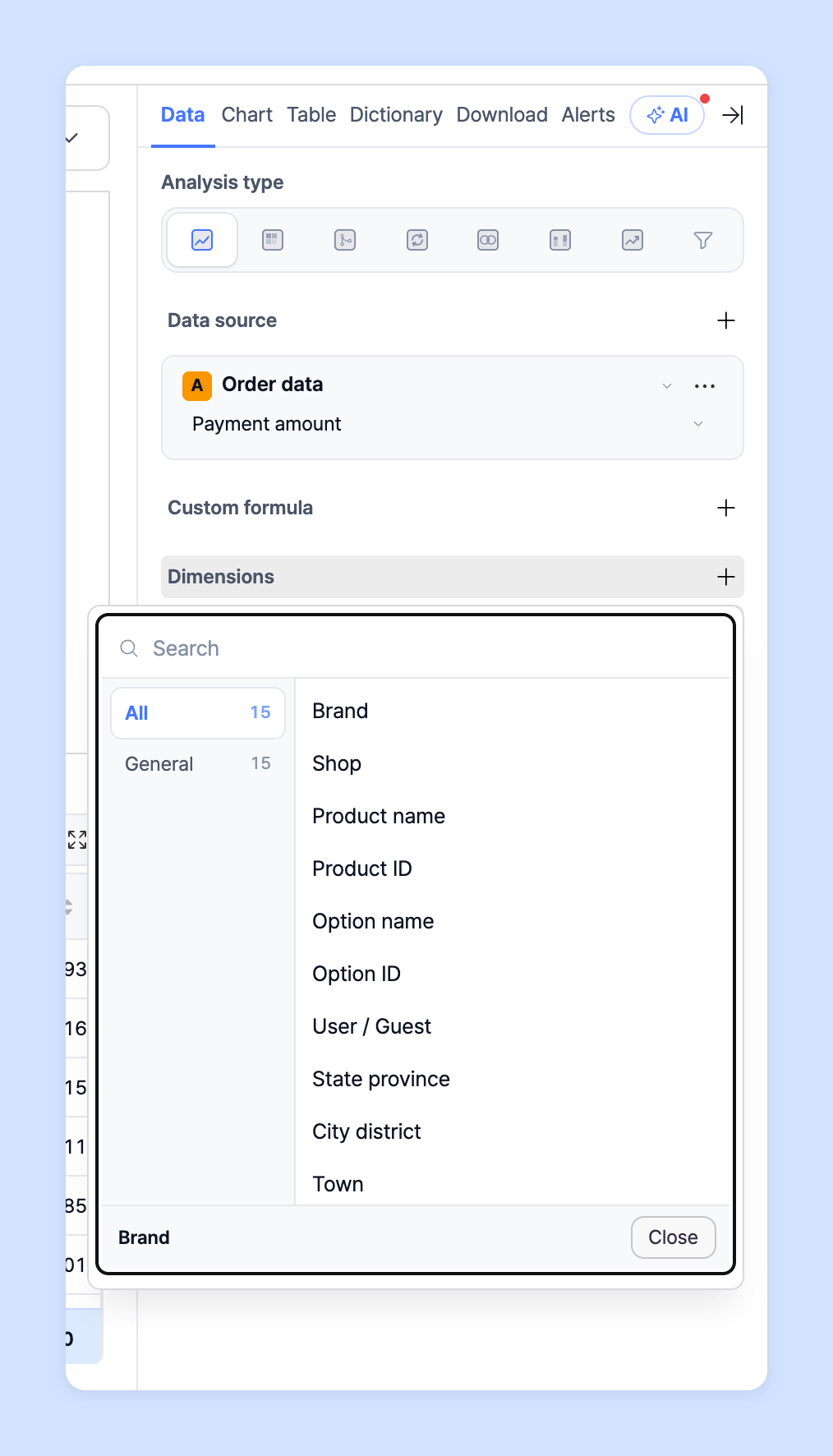
In Laplace, you visualize charts using the **Data** tab › **Breakdown** setting.

<figure><img src="https://616205588-files.gitbook.io/~/files/v0/b/gitbook-x-prod.appspot.com/o/spaces%2Fqr1veGyUqCNwQBBmk3yt%2Fuploads%2Fgit-blob-3fa0458e521bfdf08f27fce5824687b2d334a8c5%2Fcustomdashboard__custom__onbording__17.png?alt=media" alt="Breakdown on the Data tab" width="298"><figcaption></figcaption></figure>

{% hint style="info" %}
You can think of a breakdown as a Group by. Group by is a clause in SQL, the database query language. It groups rows by the values of specific columns and summarizes the data per group with aggregate functions.

For example, suppose there is a table called "Orders". It might have columns such as order number, customer ID, order date, and order amount. If you apply Group by to customer ID, orders are grouped by customer ID so you can see each customer's total order amount.
{% endhint %}

**Example)**

* If you use **Product name** as the breakdown, the chart's unit is shown as **Product name**; if you select **Sales channel** and **Product name**, the chart is visualized as "Sales channel-Product name".

  ![Breakdown example - Product name](https://616205588-files.gitbook.io/~/files/v0/b/gitbook-x-prod.appspot.com/o/spaces%2Fqr1veGyUqCNwQBBmk3yt%2Fuploads%2Fgit-blob-d38530c471bf1dbed90c98ab6f1aa888d8565102%2Fcustomdashboard__custom__datasettings__standardchart__single__04.png?alt=media)
* If you use **Brand** as the breakdown, the chart's unit is shown as **Brand**; if you select **Brand** and **Sales channel** as breakdowns, the chart is visualized as "Brand-Sales channel".

  ![Breakdown example - Brand](https://616205588-files.gitbook.io/~/files/v0/b/gitbook-x-prod.appspot.com/o/spaces%2Fqr1veGyUqCNwQBBmk3yt%2Fuploads%2Fgit-blob-1e83375c7a6e5303ba66c241575beba126de7bed%2Fcustomdashboard__custom__onbording__19.png?alt=media)

## Filters <a href="#filter" id="filter"></a>

{% hint style="info" %}
Filters let you set which values are included in or excluded from the chart. **Data filter** on the **Data** tab filters by raw values before data is loaded, and **View filter** above the table below the chart filters the loaded, aggregated results once more.
{% endhint %}

### Data filter

![Data filter on the Data tab](https://616205588-files.gitbook.io/~/files/v0/b/gitbook-x-prod.appspot.com/o/spaces%2Fqr1veGyUqCNwQBBmk3yt%2Fuploads%2Fgit-blob-0a8db9f677536ec324f8128a4cfd99782ab68165%2Fcustomdashboard__custom__onbording__21.png?alt=media)

For example, if you run 6 sales channels and want to visualize only 5, choose the item to filter in **Data filter**, choose **Equals** or **Does not equal**, then choose the value; the chart is updated accordingly.

* Text items can be filtered with **Equals** · **Does not equal** · **Contains** · **Does not contain** · **Starts with** · **Ends with** · **Is empty** · **Is not empty**.
* When filtering by a measure, you can set numeric conditions with **At least (≥)** · **At most (≤)** · **Greater than (>)** · **Less than (<)** · **Equals (=)** · **Scope**.

{% hint style="info" %}
This is useful when analyzing values with many entries, such as products or options. It's especially handy for excluding discontinued or test products and creatives.
{% endhint %}

### View filter

<figure><img src="https://616205588-files.gitbook.io/~/files/v0/b/gitbook-x-prod.appspot.com/o/spaces%2Fqr1veGyUqCNwQBBmk3yt%2Fuploads%2Fgit-blob-e7e4ae8bce9955cf688725b88ca819c0a8a9f716%2Fcustomdashboard__custom__onbording__22.png?alt=media" alt="View filter above the table" width="635"><figcaption></figcaption></figure>

To filter by values calculated after aggregation, such as ABC grade, cumulative %, or rank, click **View filter** above the table below the chart. Choose a column in **Search properties…**, then enter a condition and value. Add groups of conditions with **+ Group**.

👉 [Learn more about view filters in the onboarding guide →](/guide/en/customdashboard/custom/onbording.md#view-filter)

## Ask your dedicated manager <a href="#contact" id="contact"></a>

Having trouble using custom dashboards?

Contact us through the inquiry page or by email below. Your manager will be happy to help.

> 💬 [Contact us on our website](https://www.analytics.laplacetec.com/contact)

**Email:** [**product@laplacetec.com**](mailto:product@laplacetec.com)