> For the complete documentation index, see [llms.txt](https://www.analytics-docs.laplacetec.com/guide/llms.txt). Markdown versions of documentation pages are available by appending `.md` to page URLs; this page is available as [Markdown](https://www.analytics-docs.laplacetec.com/guide/en/customdashboard/custom/download.md).
# Download chart and table data to Excel
{% hint style="info" %}
You can download custom dashboard chart and table data as an Excel (XLSX) file (data export). Download a single chart from the **Download** tab in the chart editor, or download every chart on the dashboard into one file with **Download all**. For table settings, see the [**Table guide**](/guide/en/customdashboard/custom/chart/table.md).
{% endhint %}
## How to use
1. In the settings panel on the right side of the chart editor, click the **Download** tab, then choose the download scope in **Download settings**.

{% hint style="info" %}
* **Table data**: Downloads only the segments selected in the current chart. Not available for table charts.
* **All data**: Downloads every queried segment plus the total row.
Both scopes use the same period and measures, and neither includes columns hidden in the table settings.
{% endhint %}
2. Choose a **Table type** (List, Snapshot, Pivot). If there are multiple breakdowns, you can also choose a **Table view** (Standard, Treemap, Merged).

3. Snapshot tables download the entire period by default. To keep only the dates you need, select them (multiple selections allowed).
4. Click the **Download file** button to save an Excel (XLSX) file.

{% hint style="info" %}
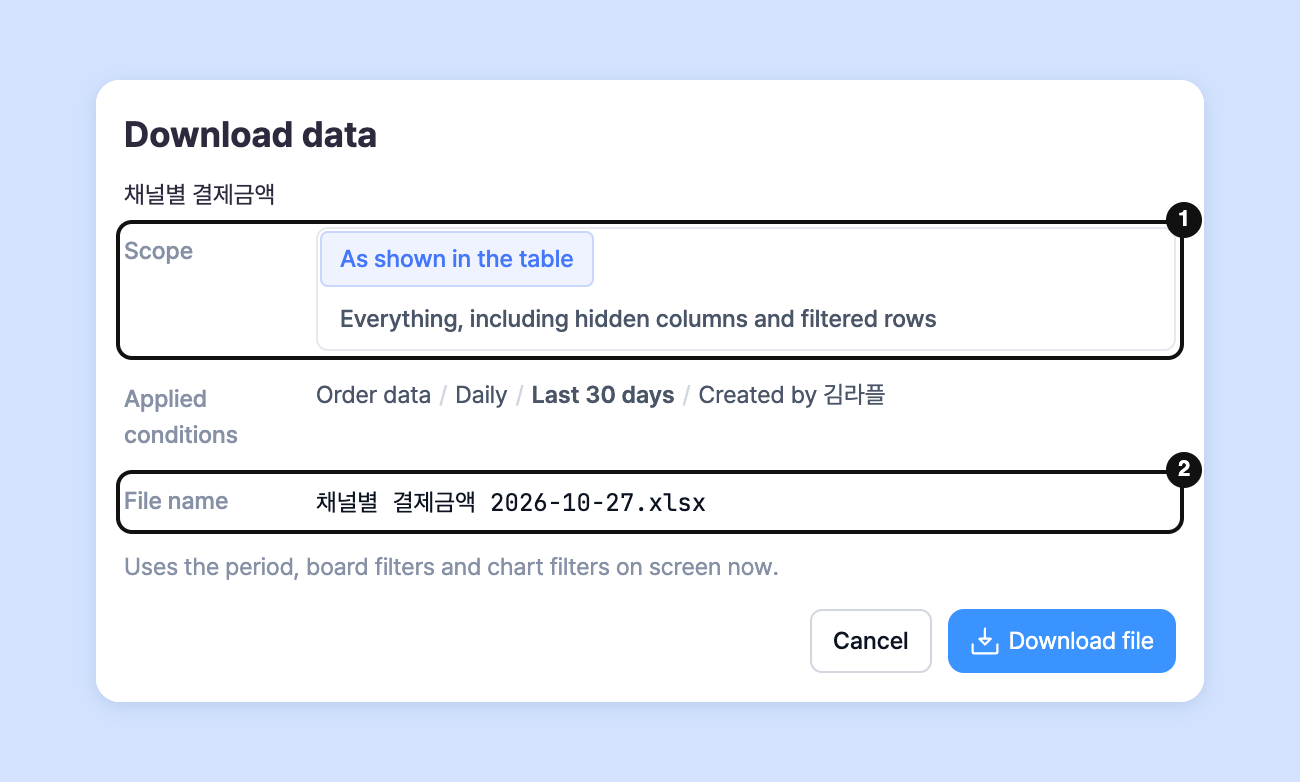
You can also download straight from the dashboard without opening the editor. In the chart card's ⋯ **More chart actions**, click **Download data**, then set the **Scope** (**As shown in the table** or **Everything, including hidden columns and filtered rows**) and the **File name**. The file uses the current screen's period, common filters, and chart filters as they are.
 {% endhint %}
## Download the whole dashboard
You can download the charts on a dashboard into one file, with **one sheet per chart**.
1. Click ⋯ **More dashboard settings** in the dashboard header, then click **Download all**.

2. In the **Download the whole dashboard** window, check **Charts** and **Applied conditions**. Text and images are not included.

3. Set the **File name** and click **Download**; the sheets are created and saved as one file.
{% hint style="info" %}
* Charts that don't take the dashboard's common period and filters are exported with the period and filters saved in the chart.
* To download just one chart, click **Download separately** in the list.
* Some analyses can't be downloaded from the card and are marked **Download in the editor**. For these charts, use the **Download** tab in the chart editor.
{% endhint %}
## Ask your dedicated manager
Having trouble using custom dashboards?
Contact us through the inquiry page or by email below. Your manager will be happy to help.
> 💬 [Contact us on our website](https://www.analytics.laplacetec.com/contact)
**Email:** [**product@laplacetec.com**](mailto:product@laplacetec.com)
{% endhint %}
## Download the whole dashboard
You can download the charts on a dashboard into one file, with **one sheet per chart**.
1. Click ⋯ **More dashboard settings** in the dashboard header, then click **Download all**.

2. In the **Download the whole dashboard** window, check **Charts** and **Applied conditions**. Text and images are not included.

3. Set the **File name** and click **Download**; the sheets are created and saved as one file.
{% hint style="info" %}
* Charts that don't take the dashboard's common period and filters are exported with the period and filters saved in the chart.
* To download just one chart, click **Download separately** in the list.
* Some analyses can't be downloaded from the card and are marked **Download in the editor**. For these charts, use the **Download** tab in the chart editor.
{% endhint %}
## Ask your dedicated manager
Having trouble using custom dashboards?
Contact us through the inquiry page or by email below. Your manager will be happy to help.
> 💬 [Contact us on our website](https://www.analytics.laplacetec.com/contact)
**Email:** [**product@laplacetec.com**](mailto:product@laplacetec.com)