> For the complete documentation index, see [llms.txt](https://www.analytics-docs.laplacetec.com/guide/llms.txt). Markdown versions of documentation pages are available by appending `.md` to page URLs; this page is available as [Markdown](https://www.analytics-docs.laplacetec.com/guide/en/customdashboard/custom/memo.md).
# Chart memos
{% hint style="info" %}
This feature records **what happened on a specific date**, such as promotions, events, or ad campaigns, directly on the chart.\
Memos are saved to the **whole project**, not to a single chart. Once you add one, it appears on every line chart, column chart (including stacked), multi chart, and table that shows the same date.\
Viewing memos requires view permission for custom dashboards; adding, editing, and deleting requires edit permission.
{% endhint %}
## View memos
1. In the **Add memo** row above the chart, a number appears on dates that have memos. The number is how many memos were left that day.

2. Hover over the number to preview the author, time written, and memo text. The preview shows up to 2 memos; if there are more, click the number to see the full list.

## Add a memo
1. Hover over the date on the chart where you want to leave a memo, and a **+** button appears in the **Add memo** row. Click it.

{% hint style="info" %}
If the date already has memos, click the number and then click **Add memo**.
{% endhint %}
2. Check the date and time, enter the memo text, and click **Save**. When entering on screen, you can type up to 300 characters.

## Edit or delete a memo
1. Click the number on a date that has memos. Each memo has a **pencil (Edit memo)** icon and a **trash (Delete memo)** icon on the right.

2. Click the pencil icon to edit the text. After editing, click **Save**.

3. Click the trash icon to delete the memo.
{% hint style="warning" %}
Deleting a memo **happens immediately with no confirmation step and cannot be undone.**\
Memos written by other team members are deleted too, so double-check before deleting.
{% endhint %}
## Add text, images, and sections
Besides charts, you can add descriptive text, images, and headers that divide the dashboard into sections. While a chart memo records a specific date, text is a description for the whole dashboard.
1. Click **+ Add content** in the dashboard header. From the **Add content** menu, choose **Text**, **Image**, or **Section header**.

### Text
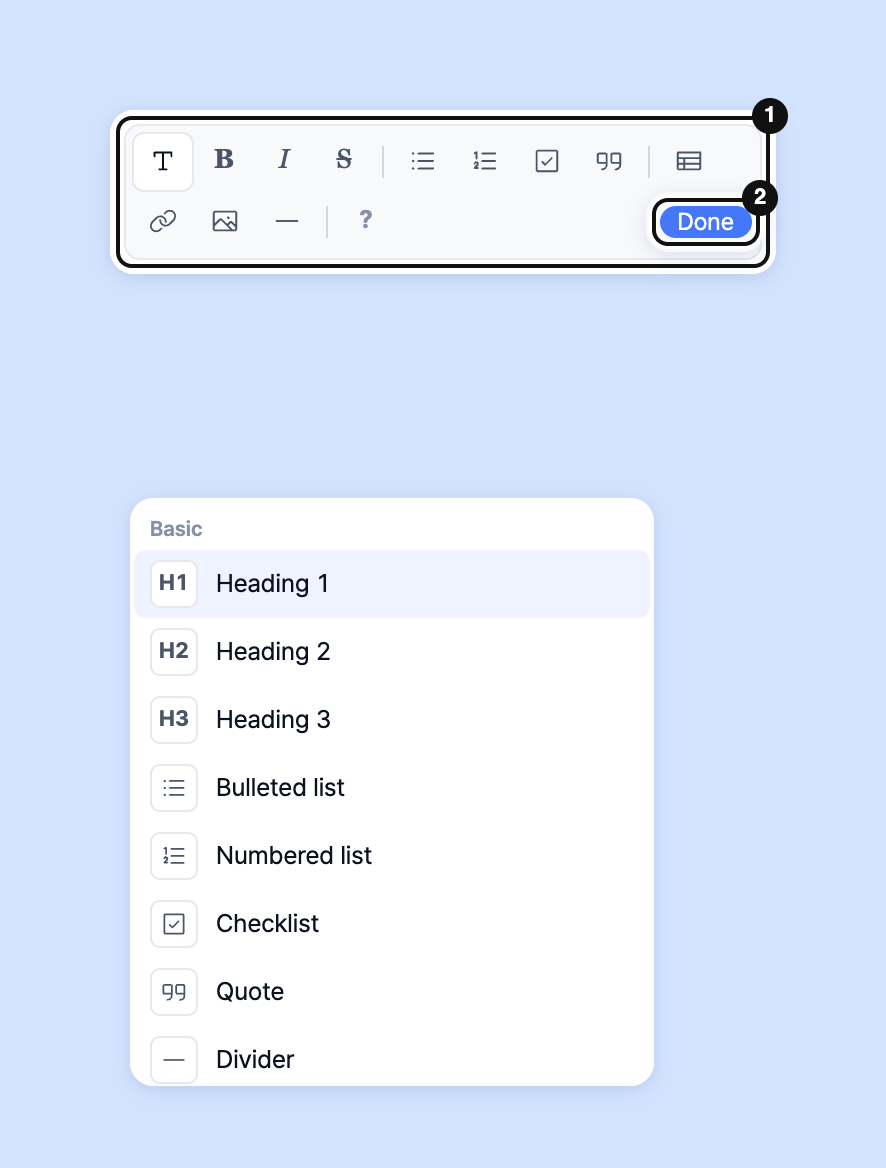
1. Choose **Text** to add a text card to the dashboard. Click "Click here to start writing" and enter your content.
2. Use the formatting toolbar to add headings, bold, lists, checkboxes, tables, links, images, and dividers. Type `/` at the start of a line to open a list of things to insert.
3. When you're done, click **Done** (or press Esc). Click the text again to edit it.
### Image
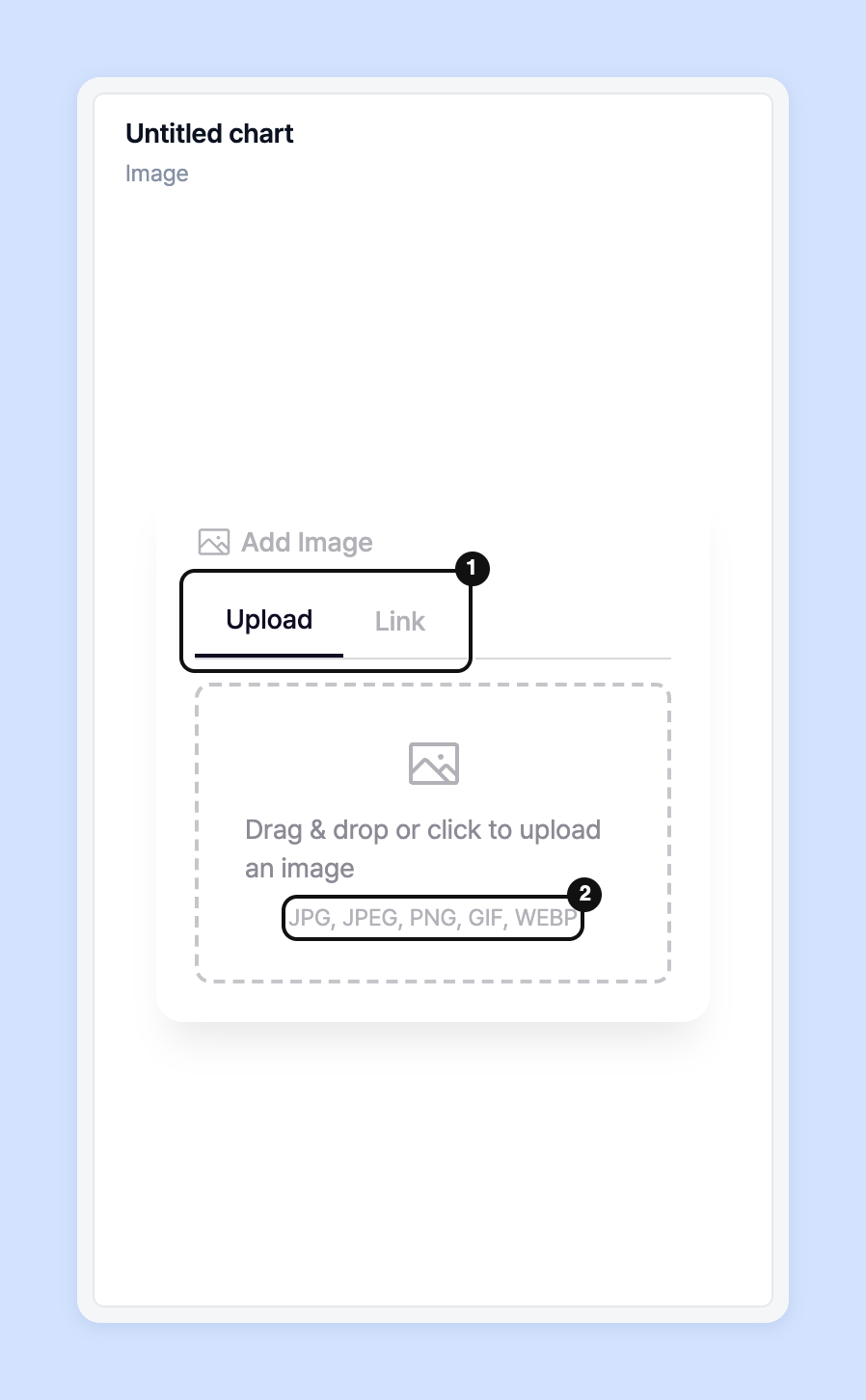
1. Choose **Image** to add an image card. Click **Add Image**.
2. On the **Upload** tab, drag and drop a file or click to upload it. You can upload JPG, JPEG, PNG, GIF, and WEBP files. If you have an image URL, paste it on the **Link** tab and click **Submit Image URL**.
{% hint style="warning" %}
Images from external links may not be visible to other users if the link expires or its permissions change. To make sure they display reliably, upload the file directly.
{% endhint %}
### Section
1. Choose **Section header** to add a **New section** header at the bottom of the dashboard. Click the header name to rename it.
2. Drag the charts you want to group below the header.

3. Click **Collapse section** to collapse the widgets below it, and **Expand section** to expand them again.
{% hint style="info" %}
* **Delete section header** deletes only the header. The widgets below it stay in place.
* [Downloading the whole dashboard](/guide/en/customdashboard/custom/download.md#all) does not include text or images.
{% endhint %}
## Manage memos with AI
You can also ask an AI connected to Laplace via MCP (Claude, ChatGPT, etc.) to view, add, edit, and delete memos. For example questions, see [Ask questions like these after connecting](/guide/en/mcp/use.md).
## Ask your dedicated manager
Having trouble using custom dashboards?
Contact us through the inquiry page or by email below. Your manager will be happy to help.
> 💬 [Contact us on our website](https://www.analytics.laplacetec.com/contact)
**Email:** [**product@laplacetec.com**](mailto:product@laplacetec.com)