> For the complete documentation index, see [llms.txt](https://www.analytics-docs.laplacetec.com/guide/llms.txt). Markdown versions of documentation pages are available by appending `.md` to page URLs; this page is available as [Markdown](https://www.analytics-docs.laplacetec.com/guide/en/customdashboard/custom/onbording.md).
# Onboarding guide
{% hint style="info" %}
With data sources, breakdowns, measures, and filters, you can build exactly the charts you want. Start visualizing your data right away with 13 chart types and ready-made chart templates and dashboard templates.
{% endhint %}
## How to use custom dashboards
{% embed url="" %}
Download the video
{% file src="/files/ZOHtTX56gKgw9lX78PV5" %}
1. Click **Custom dashboard** in the left rail. The first screen that opens is **Home**.

2. Create a dashboard from the navigation panel.

* **New dashboard:** Click **New dashboard** under **Dashboard groups** to immediately create an **Untitled dashboard**.
* **Create a dashboard group:** Click **+** next to the **Dashboard groups** header, enter a group name, and click **Create**.
* **Create a dashboard in this group:** Click **+** next to a group name to create a dashboard inside that group.
* **Start from a template:** In **Templates** on **Home**, choose a template and click **Add to dashboard**. A dashboard is created from a template prepared by Laplace.
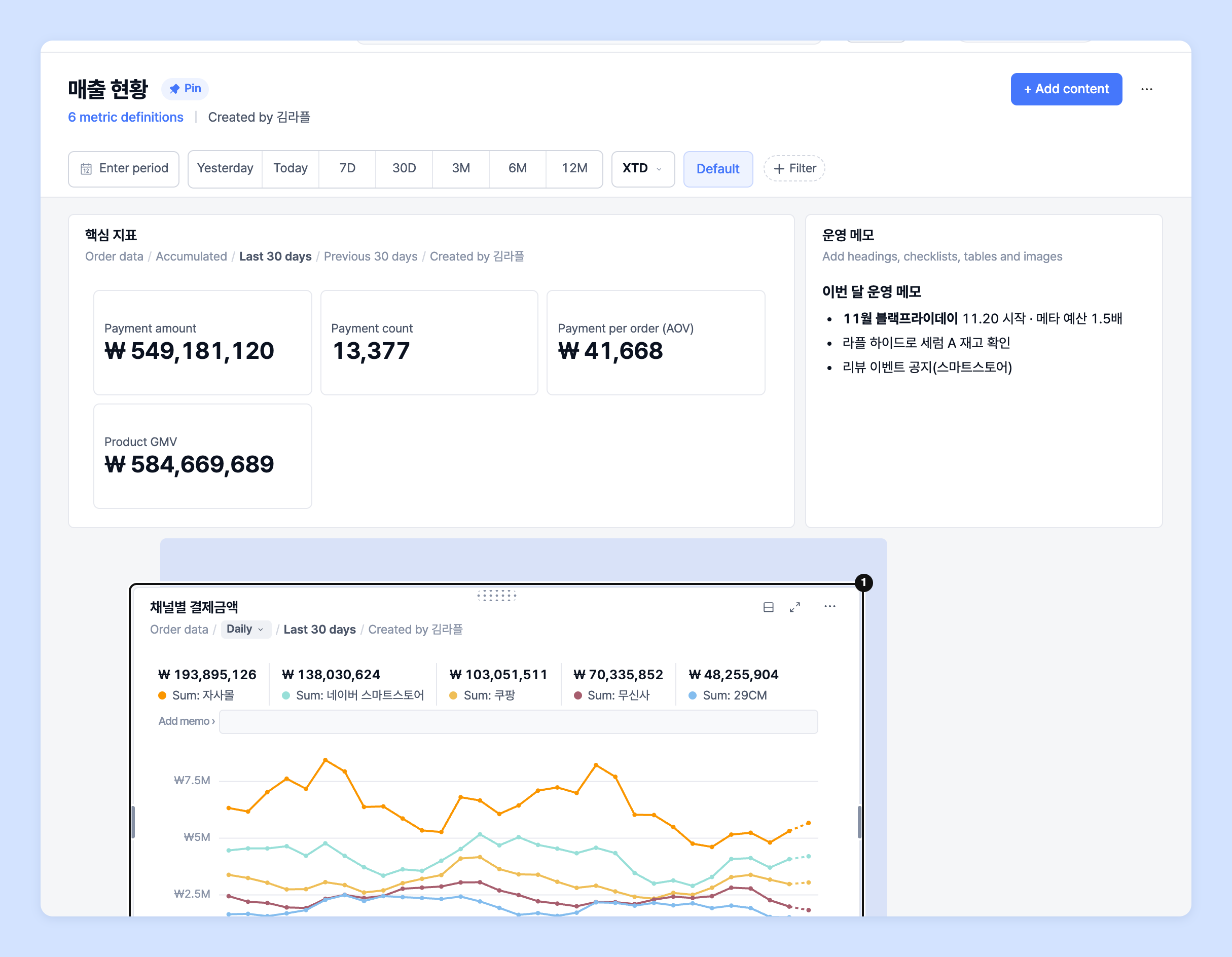
3. Click **+ Add content** at the top right of the dashboard to add a chart.

* **New chart:** Opens a blank chart editor right away. Build the chart yourself, starting with the data source.
* **Chart template:** Opens the **Add chart** window. Choose a starting point on the left, adjust the name, measures, and split on the right, then click **Add to dashboard**. To fine-tune further, click **Set up in detail** to go to the editor.
* **Text** · **Image** · **Section header:** Add descriptive text, images, and section titles between charts. See [Text · images · sections](#text-image-section) below.

{% hint style="info" %}
An empty dashboard shows the same menu along with an **Add your first chart** prompt. You can start right there.
{% endhint %}
4. Configure the chart in the settings panel on the right side of the chart editor, then click **Save**.

{% hint style="info" %}
The settings panel is divided into tabs.
* **Data:** Set the analytics mode, data source, measures, breakdown, data filter, and custom formula.
* **Chart:** Set the chart type (Line · Bar · Combo · Column · Card · Bump · Pie · Map · Quadrant · Pareto · Calendar · Table · Waterfall), visualization, and headline.
* **Table:** Set the table view and the columns to show in the table below the chart.
* **Dictionary:** Look up the meaning of the selected measures and breakdowns.
* **Download:** Download chart and table data as an Excel (XLSX) file.
* **Alerts:** Check the alerts that watch this chart.
* **AI:** Open and close the AI insights panel.
You can collapse the settings panel to see the chart wider.
{% endhint %}
{% hint style="warning" %}
If you leave without saving after changing settings, the **Unsaved changes** window appears. Click **Keep editing** to go back and save, or click **Discard and leave** to discard the changes.
{% endhint %}
5. On the dashboard, you can adjust each chart's position and size and manage cards.
{% hint style="info" %}
* **Resize and reposition:** Drag and drop cards to move them, and use the handle at a card's corner to resize it.
{% endhint %}

{% hint style="info" %}
From the card menu you can:
* **Rename:** Change the chart's name.
* **Duplicate:** Duplicate the selected chart.
* **Move chart:** Move the chart to another dashboard, or turn on **Keep it here too (duplicate)** to copy it there instead.
* **Edit chart:** Open the chart editor.
* **Download data:** Download an Excel file straight from the card.
* **Delete:** Delete the chart. You can undo it within 5 seconds. See [Undo a card deletion](#undo-delete) below.
{% endhint %}
{% hint style="warning" %}
**Project dashboards** are shared by all project members. If another member changes a dashboard's or chart's settings, the change applies for every member. To prevent accidental changes, lock the dashboard via **⋯** (**More dashboard settings**) › **Locked** at the top right of the dashboard.
{% endhint %}
## Home and home settings
**Home** in the navigation panel shows the dashboards pinned to the project. If no dashboard is pinned, **Templates** is shown.
1. Open the dashboard you want to use as home and click **⋯** › **Pin** (home screen) at the top right.
2. If you've pinned several dashboards, switch between them by clicking the dashboard names at the top of **Home**. Click **Templates** to see the template list.
3. Click **Home settings** at the top right of **Home** to open the **Home settings** window.
* **Template home (auto-built):** Shows analysis templates built from your connected data on Home.
* **Use a created dashboard as home:** Pins the selected dashboards to Home. You can choose several; the top dashboard opens first.
{% hint style="warning" %}
**Home settings** and **Pin** are visible only to members with dashboard sharing permission. Home settings apply equally to all project members.
{% endhint %}
## Discover
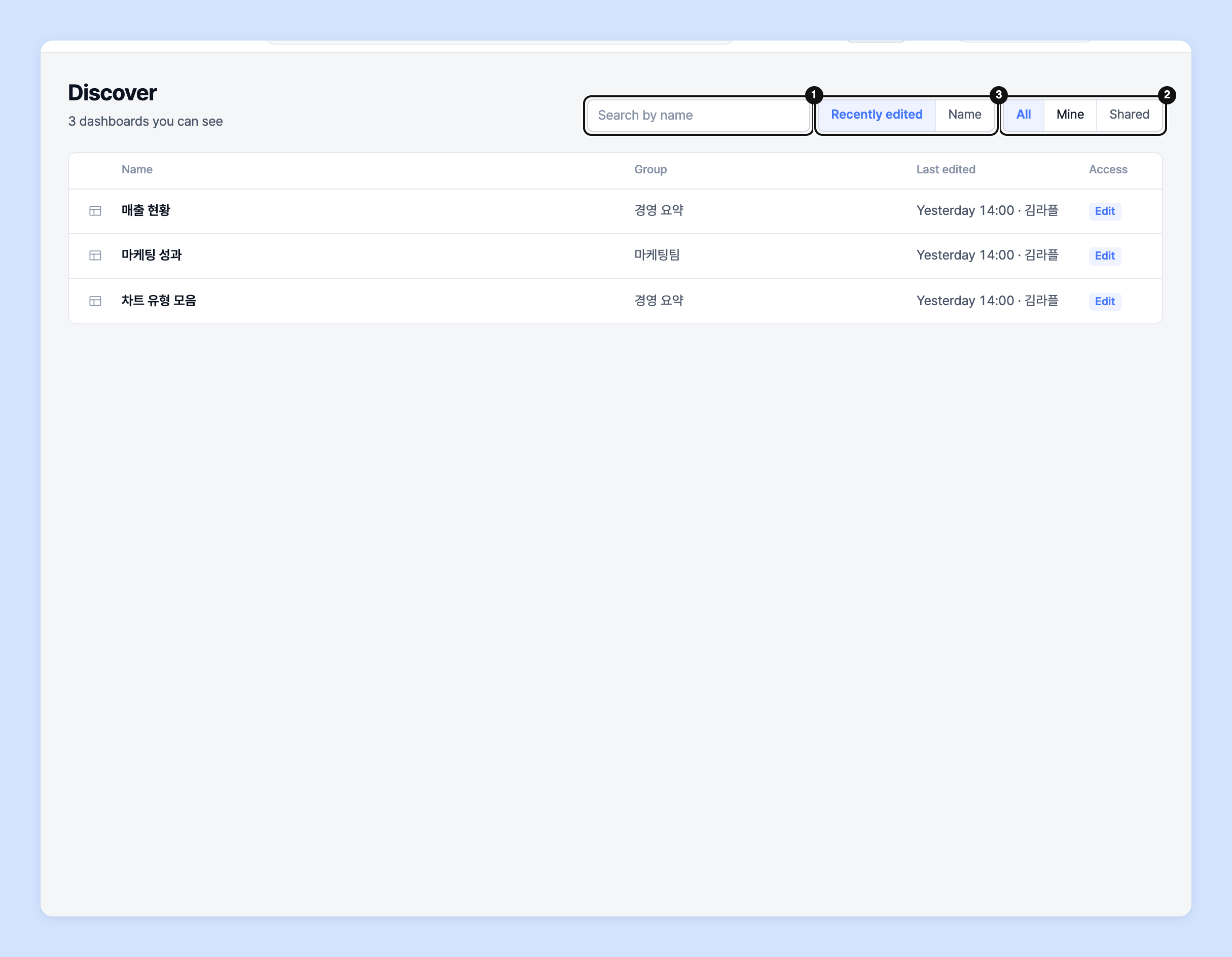
Click **Discover** in the navigation panel to see all the dashboards you can access in one table.
* Enter a dashboard name in **Search by name** to find it.
* In **View**, choose **All** · **Mine** · **Shared** to narrow the scope.
* In **Sort**, switch the order between **Recently updated** · **Name**.
* The table shows the name, group, creator, last updated, and permission (**Edit** / **View**).
{% hint style="info" %}
You can also search by name with **Find a dashboard** at the top of the navigation panel.
{% endhint %}
## Dashboard groups
Dashboards are gathered by group under **Dashboard groups** in the navigation panel. Dashboards you created appear in **My dashboards**, and dashboards shared by other members appear in **Shared with me**.

* Click a group name to open the list of dashboards in that group. Use **New dashboard** on the list screen to create a dashboard in that group.
* Hover over a dashboard and open its menu to **Rename** · **Duplicate** · **Move to another group** · **Delete**.
* Use **Share** to share a dashboard with other members, and **Move to my dashboards** to stop sharing it.
* Use **Expand all** / **Collapse all** on the **Dashboard groups** header to expand or collapse all groups at once.
{% hint style="warning" %}
Deleting a dashboard group also deletes all dashboards and charts in it, and this cannot be undone.
{% endhint %}
## Text · images · sections
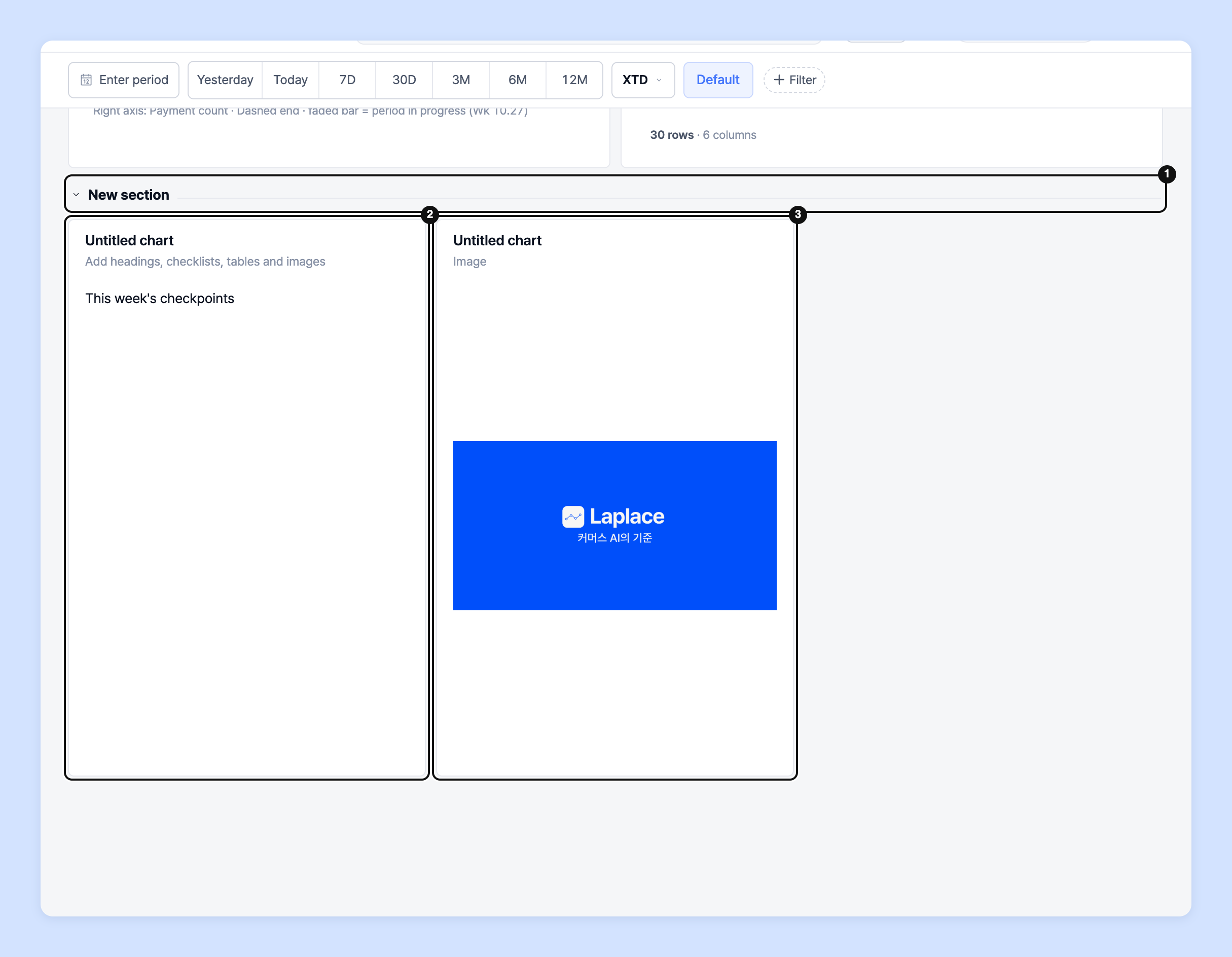
Besides charts, you can add the following from **+ Add content**.
* **Text:** Write descriptive text on the dashboard.
* **Image:** Upload an image file (JPG, JPEG, PNG, GIF, WEBP) on the **Upload** tab, or enter an image link on the **Link** tab.
* **Section header:** Adds a section title at the bottom of the dashboard. Drag cards below the header to group them into one section, and use **Collapse section** to collapse it. Even if you **Delete section header**, the cards below remain.
{% hint style="warning" %}
Images from external links may not be visible to other users if the link expires or its permissions change. To make sure they display reliably, upload the file directly.
{% endhint %}
## Undo a card deletion
When you click **Delete** in the card menu, a **Chart deleted** notice appears for 5 seconds. Click **Undo** during that time to cancel the deletion.
{% hint style="warning" %}
After 5 seconds, or if you leave the dashboard, the chart is deleted immediately. After that, restore an earlier version from **Version history** below.
{% endhint %}
## Version history
A version is recorded automatically every time you save a dashboard or chart. You can restore an earlier version at any time.
1. Click **⋯** › **Version history** at the top right of the dashboard. In the chart editor, open it from the menu at the top right.
2. In the version list, use **View this version** to check the settings at that time.
3. Click **Restore to this version**, then click **Undo** in the **Restore to this version?** window.

{% hint style="info" %}
* The current state is also saved automatically before restoring, so you can always come back.
* Restoring a dashboard also restores the charts that were on it at that point.
* Only changes from the last 30 days are shown.
{% endhint %}
## Data sources
On the **Data** tab › **Data source** of the settings panel on the right side of the chart editor, choose the data source to visualize from the data connected to Laplace (**orders, ads, base products, GA4**).
* **Order data**: Using store data connected to Laplace (Cafe24, Smartstore, Coupang, Imweb, etc.), visualize sales metrics by store, sales channel, product, and option.
* **Ad data**: Using ad channel data connected to Laplace (Google, Kakao Moment, Naver GFA, Facebook, etc.), visualize performance such as CTR, ROAS, and CAC by ad channel, campaign, and creative.
* **Base product data**: Using base product data connected to Laplace (option ↔ base product matching data, ad ↔ product matching data), visualize financial performance such as base product brand, cost per product, margin, and contribution margin.
{% hint style="info" %}
Base product data is available after you register **Base product**, complete **Option ↔ base product matching**, and complete **Ad ↔ product matching** in **Data management**. To see these metrics, refer to the following guide.
👉 [Learn more in the Data management guide →](/guide/en/datamanage/matching.md)
{% endhint %}
* **GA4 API**: Using GA4 event data connected to Laplace, visualize performance such as acquisition, engagement, activity, visit-to-purchase conversion, and search keywords.
* **Cafe24 traffic data**: Visualize traffic-related data such as visits, revenue, purchases, and purchase conversion rate.
{% hint style="info" %}
Cafe24 traffic data requires custom development. The cost depends on the data to be imported, but it is typically a one-time fee of around KRW 3,000,000. For integration inquiries, please contact the Laplace team.
{% endhint %}
### Multiple data sources
Choose one more source in **Data source**, and the sources stack in order as A, B. Combining data sources lets you view the measures you want in one chart. For example, you can view ad spend from ad data and revenue from base product order data in one chart, or build your own calculation with a custom formula to create a measure.
👉 [Learn more about multiple data sources →](/guide/en/customdashboard/custom/datasettings/standardchart/multi.md)
### Custom formula
You can create your own measures from the measures selected in your data sources. It works like Notion's formula feature. Create one by clicking **New formula** on the **Data** tab › **Custom formula**.

{% hint style="info" %}
Custom formulas are typically used with Cafe24 Analytics and ad data. Here's why: ad data is reported from the ad platform's point of view, so over-counting is common. Basing your metrics on traffic data makes them more accurate.
Examples)\
ROAS: Cafe24 **Revenue** / ad data **Ad spend**\
CTR: Cafe24 **Visits** / ad data **Impressions**\
\
As in these examples, building measures from the accurate values of each channel gives you more accurate metrics.
👉 [Learn more about custom formula syntax →](/guide/en/customdashboard/custom/custom_formula.md)
{% endhint %}
### Measures by data source
Based on the data sources connected to Laplace, measures are provided in groups such as orders, ads, base product orders, and GA4, and you can use each source's measures in many ways to visualize charts.
{% hint style="info" %}
See the measures guide for descriptions of each data type's measures. In the chart editor, you can see the meaning of the selected measures right away on the **Dictionary** tab of the settings panel.
👉 [Learn more in the measures guide →](/guide/en/customdashboard/custom/about_values.md)
{% endhint %}
## Breakdown
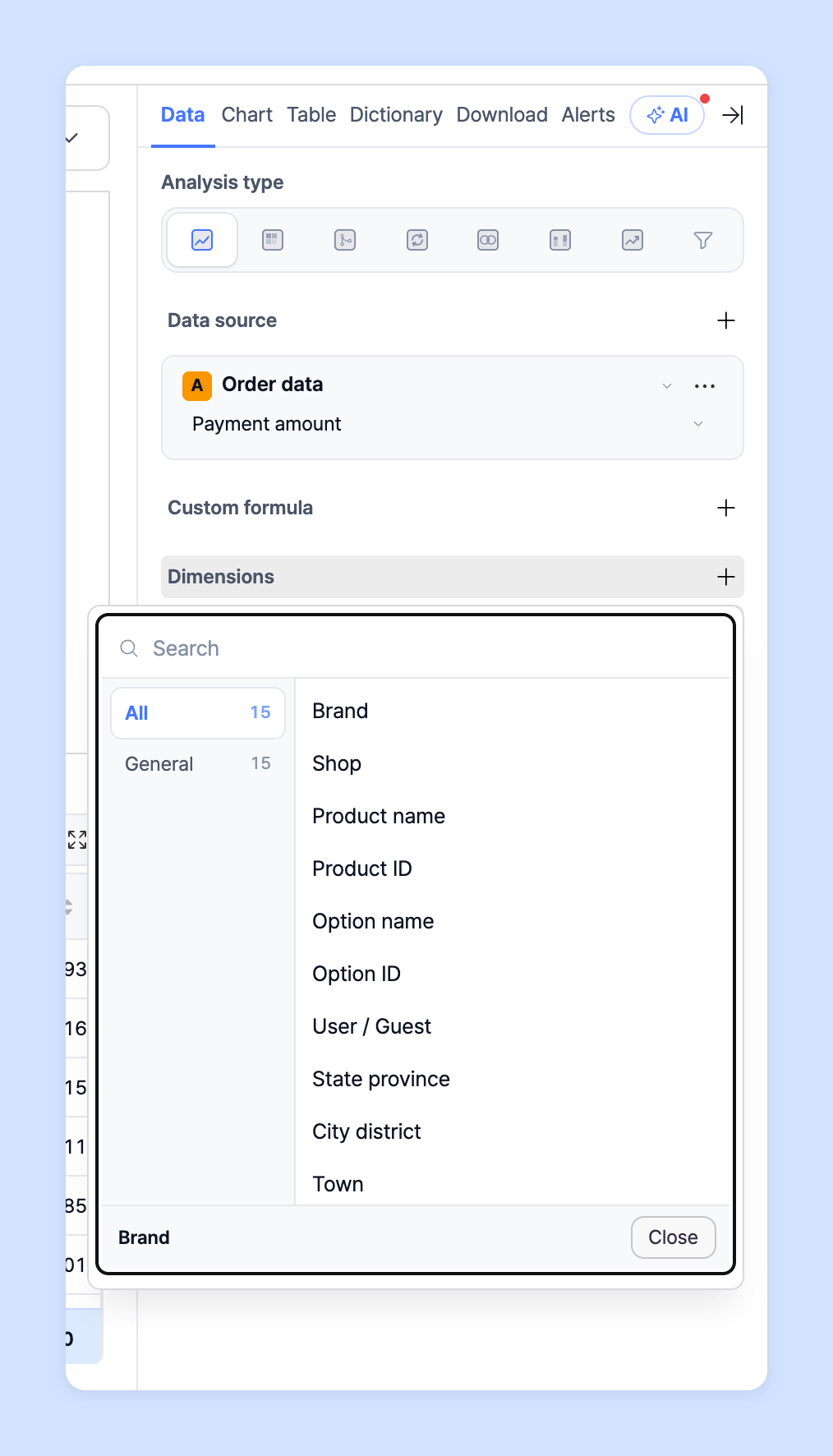
In Laplace, you visualize charts using the **Data** tab › **Breakdown** setting.
{% hint style="info" %}
You can think of a breakdown as a Group by. Group by is a clause in SQL, the database query language. It groups rows by the values of specific columns and summarizes the data per group with aggregate functions.
For example, suppose there is a table called "Orders". It might have columns such as order number, customer ID, order date, and order amount. If you apply Group by to customer ID, orders are grouped by customer ID so you can see each customer's total order amount.
{% endhint %}
**Example)**
* If you use **Product name** as the breakdown, the chart's unit is shown as **Product name**; if you select **Sales channel** and **Product name**, the chart is visualized as "Sales channel-Product name".

* If you use **Brand** as the breakdown, the chart's unit is shown as **Brand**; if you select **Brand** and **Sales channel** as breakdowns, the chart is visualized as "Brand-Sales channel".

#### Join dimension
When using multiple data sources, you can use a combined breakdown via the **Data** tab › **Join dimension**. For example, by combining Cafe24 traffic data with the UTM data from ad data, you can see the exact performance of each creative.

Example) By joining Cafe24's source with ad data's utm\_source, you can view "visitors, purchases, revenue" + "ad spend, impressions" by campaign and creative for fbig on one screen.
## Filters
{% hint style="info" %}
Filters let you set which values are included in or excluded from the chart. There are two kinds of filters.
* **Data filter** (**Data** tab): Filters by raw values before data is loaded.
* **View filter** (above the table below the chart): Filters the loaded, aggregated results once more.
{% endhint %}
### Data filter

For example, if you run 6 sales channels and want to visualize only 5, choose the item to filter in **Data filter**, choose **Equals** or **Does not equal**, then choose the value; the chart is updated accordingly. When filtering by a measure, you can set numeric conditions with **At least (≥)** · **At most (≤)** · **Greater than (>)** · **Less than (<)** · **Equals (=)** · **Scope**.
{% hint style="info" %}
This is useful when analyzing values with many entries, such as products or options. It's especially handy for excluding discontinued or test products and creatives.
{% endhint %}
### View filter
Click **View filter** above the table below the chart to apply conditions to aggregated results. You can also filter by values calculated after aggregation, such as ABC grade, cumulative %, or rank.
1. Click **View filter** above the table.
2. In **Search properties…**, choose the column to filter.
3. Enter a condition and value. Numeric columns can use **At least (≥)** · **At most (≤)** · **Greater than (>)** · **Less than (<)** · **Equals (=)** · **Scope**.
4. To add more conditions, click **Add a condition to this group**; to create a separate group of conditions, click **+ Group**.
{% hint style="info" %}
View filters are saved with the chart settings and apply equally to the chart, the table, and downloads.
{% endhint %}
## Chart settings
Laplace custom dashboards offer line charts, bar charts, multi charts, column charts, scorecards, bump charts, pie charts, map charts, quadrant charts, Pareto charts, calendar charts, tables, and waterfall charts. Choose the chart type on the **Chart** tab of the settings panel, where they appear under short names (**Line** · **Bar** · **Combo** · **Column** · **Card** · **Bump** · **Pie** · **Map** · **Quadrant** · **Pareto** · **Calendar** · **Table** · **Waterfall**). See the per-chart descriptions below for details.
For each chart you can set the following visualization, measures, and headline settings.
* **Visualization**: Choose **Comparison** or **Single**.

{% hint style="info" %}
* **Comparison:** Select multiple breakdowns and a single measure to compare that measure across breakdowns. Use it when you want to compare multiple channels or products.
* **Single:** Select a single breakdown and multiple measures to measure and compare several metrics for one breakdown at once. Use it when you want detailed metrics for one channel or product. A 2D time-series chart has only 2 Y axes, so you can visualize at most 2 units. For example, you can visualize % and $ together, but not %, $, and # all at once.
{% endhint %}
- **Measures:** Choose the values the chart is based on. Depending on Single or Comparison, you can select one measure or several.
- **Headline:** Summarizes the cumulative statistics of the measures shown in a time-series chart and displays them at the top of the chart.
{% hint style="info" %}
* **Headline basis:** Choose one of sum, average, minimum, maximum, or latest.
* **Headline calculation basis:** Choose either all or by breakdown.
* **Sort by:** Choose either descending or ascending.
{% endhint %}
- Chart characteristics
{% hint style="info" %}
* **Line chart:** Use it to see how a measure changes over time. Effective for analyzing time series with either Comparison or Single.
* **Horizontal bar chart:** Good for comparing cumulative statistics over the selected period. Suited to comparing the cumulative statistics of several breakdowns, such as creatives, campaigns, or accounts, within a period.
* **Multi chart (Combo):** Good for comparing changes in several measures. (Only one breakdown can be selected.) Suited to analyzing how two or more measures, such as margin/contribution margin or revenue/purchases, change over time.
* **Vertical bar chart (Column):** Shows how a metric changes over time. Comes as a standard chart or a stacked column chart; stacked columns are handy for seeing the share of several breakdowns.
* **Scorecard (Card):** Good for tracking and checking cumulative statistics for the selected period in card form. Lets you see several measures for the period at once, so it suits checking performance.
* **Bump chart:** Shows how the rank of specific breakdowns changes over time. Good for quickly understanding the performance of many products, creatives, and so on.
* **Pie chart:** One of the most common cumulative charts; quickly shows what percentage of a measure each breakdown accounts for.
* **Map chart:** Suited to seeing how a measure is distributed across the regional breakdown you select on a map (country, province/state, city/county/district, etc.).
* **Quadrant chart:** Select two measures, A and B, to find the best or worst breakdowns. It automatically measures distance across the four quadrants based on each measure's median or mean. When both A and B are good, look at the breakdowns farthest out in quadrant 1; when both are bad, look at the breakdowns farthest out in quadrant 3.
* **Pareto chart:** Set groups by top n% to quickly see whether the selected breakdowns make up the top n% of revenue.
* **Calendar chart:** Places values on a calendar grid; good for finding patterns that follow the rhythm of time, such as day of week or start of month.
* **Waterfall chart:** Shows how the result is left after adding and subtracting at each step from a starting value. When frequency is **Cumulative**, it is drawn with the value for the entire period.
* **Table:** No limit on the breakdowns and measures it can show. Provides all the data for the conditions set on the **Data** tab. You can set column positions and which columns to show or hide.
{% endhint %}
{% hint style="warning" %}
For tables, detailed settings (showing and hiding columns) are managed on the **Table** tab of the settings panel. See Table settings below for details.
{% endhint %}
## Table settings
On the **Table** tab › **Dimension data settings** of the settings panel, choose whether the breakdown data shown in the table follows the **Chart** tab settings or the **Data** tab settings.
Use **Column manager** to choose which columns to show in the table or hide. You can also change the column order.
1. Dimension data settings

{% hint style="info" %}
* **Chart data:** The table follows the breakdown data set on the **Chart** tab. If you deselect a breakdown in the chart, the table updates automatically.
* **All data:** The table shows all the data set on the **Data** tab, regardless of the chart settings.
{% endhint %}
2. Column manager

{% hint style="info" %}
* Click the eye icon to the right of a column to hide or show it.
* Drag and drop the ≡ icon on the left to change the order.
{% endhint %}
{% hint style="warning" %}
You can download an Excel (XLSX) file based on the settings on the **Table** tab. See Download below for details.
{% endhint %}
## Download

On the **Download** tab of the settings panel, you can download chart and table data as an Excel (XLSX) file. Click **⋯** › **Download all** at the top right of the dashboard to download the dashboard's charts into one file, one sheet per chart (excluding text and images). For download scope (table data / all data), table type, and snapshot date selection, see [**Download chart and table data to Excel**](/guide/en/customdashboard/custom/download.md).
## Ask your dedicated manager
Having trouble using custom dashboards?
Contact us through the inquiry page or by email below. Your manager will be happy to help.
> 💬 [Contact us on our website](https://www.analytics.laplacetec.com/contact)
**Email:** [**product@laplacetec.com**](mailto:product@laplacetec.com)