> For the complete documentation index, see [llms.txt](https://www.analytics-docs.laplacetec.com/guide/llms.txt). Markdown versions of documentation pages are available by appending `.md` to page URLs; this page is available as [Markdown](https://www.analytics-docs.laplacetec.com/guide/en/dashboard/dashboard/ads/campaign.md).
# Campaign analysis
{% hint style="info" %}
Compare performance across campaigns, and compare metrics within each channel, to see the performance of each connected ad channel at a glance.
{% endhint %}
## How to use the chart
1. Common settings

{% hint style="info" %}
* **Comparison period:** Available as **previous period, previous month, and previous year**.
* **Query period:** Choose the period of data to visualize.
{% endhint %}
2. Choose a breakdown

{% hint style="info" %}
Ad account: Visualizes data by connected ad account.
Store: Visualizes data by connected store.
{% endhint %}
{% hint style="danger" %}
The store breakdown can only be calculated after you match ad creatives to the products or stores they sell.\
For ad creative matching, see [**Ad ↔ product matching**](/guide/en/datamanage/matching/ad_product.md) for details.
{% endhint %}
2. Choose ad accounts

3. Choose campaigns

**How to use the charts**
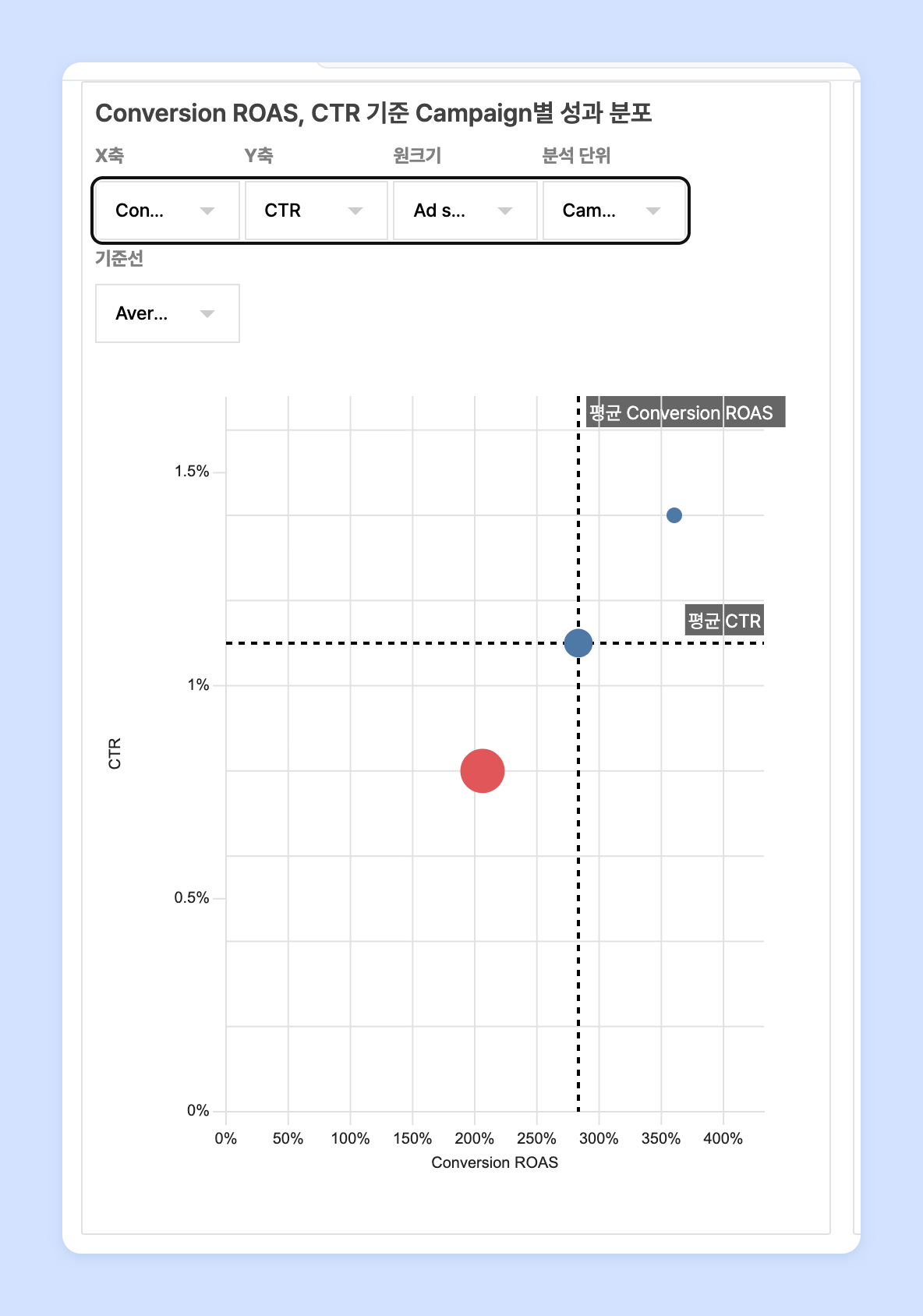
1. Quadrant chart
{% hint style="info" %}
* **`X-axis`:** Choose the measure for the x-axis.
* **`Y-axis`:** Choose the measure for the y-axis.
* **`Circle size`:** Choose the measure for the circle size.
* **`Breakdown`:** Analyze by campaign, ad group, or ad creative.
* **`Baseline`:** Draw a baseline using the mean or the median.
* **`Zoom`:** Scroll the mouse wheel on the chart to zoom in and out.
* **`Drag`:** Drag across circles on the chart to select multiple campaigns. The selected campaigns are reflected in the line chart and table
{% endhint %}
2. Line chart
{% hint style="info" %}
* **`X-axis`:** Choose the measure for the x-axis (impressions, clicks, conversions, CTR, CPC, CPM, CPA, conversion ROAS, ad spend, conversion revenue).
* **`Y-axis`:** Choose the measure for the y-axis (impressions, clicks, conversions, CTR, CPC, CPM, CPA, conversion ROAS, ad spend, conversion revenue).
* **`Color palette`:** Click the color palette to change the line chart colors.
{% endhint %}
## Ask your dedicated manager
Having trouble using the dashboard?
Contact us through the inquiry page below. Your manager will help you.
> 💬 [Contact us on our website](https://www.analytics.laplacetec.com/contact)
**Email:** [**product@laplacetec.com**](mailto:product@laplacetec.com)