> For the complete documentation index, see [llms.txt](https://www.analytics-docs.laplacetec.com/guide/llms.txt). Markdown versions of documentation pages are available by appending `.md` to page URLs; this page is available as [Markdown](https://www.analytics-docs.laplacetec.com/guide/en/datamanage/exchange.md).
# Exchange rates
{% hint style="info" %}
This screen sets **the exchange rates used to convert sales and ad spend in foreign currencies into Korean won (KRW)**. You can choose a default rate provider or set a fixed rate for each currency yourself.
{% endhint %}
## Open the screen
Click **Data management** in the left rail, then click **Fees · FX** › **Exchange rates** in the navigation panel.
The screen has two parts.
1. **Default rate provider**: A card for choosing where the exchange rates come from
2. **Currency table**: Where you set **Follow provider** or **Fixed ₩{{rate}}** (e.g., Fixed ₩1,350) for each currency

## Choosing the default rate provider
The default is **Arbitrage rate (the standard rate of the Korean foreign exchange market · updated daily)**. If you need a different basis, you can switch to **Google Sheets rate (Google Finance closing price · updated daily)**.
1. In the **Default rate provider** card, click the provider you want to use. The provider currently in use is marked **In use**.
2. Click **Change** in the confirmation window.

{% hint style="warning" %}
When you change the provider, foreign-currency amounts for **all dates without a fixed rate** are recalculated with the new provider at the next aggregation. This includes past data. Currencies with a fixed rate keep using the fixed value regardless of the provider.
{% endhint %}
## What is a fixed rate?
By default, amounts are converted at **the exchange rate on the date of the order** (the provider's rate for that day). But you may have an internal standard rate, or want to remove exchange rate fluctuations when comparing periods. In that case, set a **fixed rate** for the currency, and that currency is always converted at that value regardless of the date.
* Currencies with a fixed rate → shown as "Fixed ₩1,350" in **Applied now**, and always converted at that value
* Currencies without one → shown as **Follow provider**, and converted at the selected provider's rate for that day
## How are currencies determined?
**Currencies actually used in your orders** are added to the list automatically, one row each (**Source**: **Found in orders**). The target currency is always Korean won (KRW).
If you need a currency that isn't in your orders yet, add it yourself with **Add currency** in the toolbar (**Source**: **Added manually**).
1. Click **Add currency**.
2. Choose a **Currency** and enter the rate in the **Fixed rate (1 USD = ? KRW)** field. (e.g., `1350`)
3. Click **Add**.
## Setting a fixed rate
1. Click the **Fixed rate** cell at the right end of a currency row and enter the rate. Entering a number fixes the rate; leaving it empty follows the provider's rate.
2. After editing several currencies, click **Save n changes** in the save bar at the bottom of the screen to save them all at once. Before saving, you can undo with ⌘Z (Ctrl+Z on Windows).
The value must be **a number greater than 0**, with up to 10 integer digits · 10 decimal places. Values out of range are shown in a red cell and aren't saved.
{% hint style="danger" %}
**A fixed rate applies to every period, including the past.**\
It doesn't only change data from today onward: data for past dates already collected is also recalculated with this rate at the next data refresh. If you have a lot of past data, set it carefully.
{% endhint %}
## Returning to the provider's rate
Empty the currency's **Fixed rate** cell and save to remove the fixed rate; that currency goes back to **Follow provider**. You can also click the currency or **Details** to open the right panel, then use **Remove all fixed rates**. This change is likewise applied retroactively to past data.
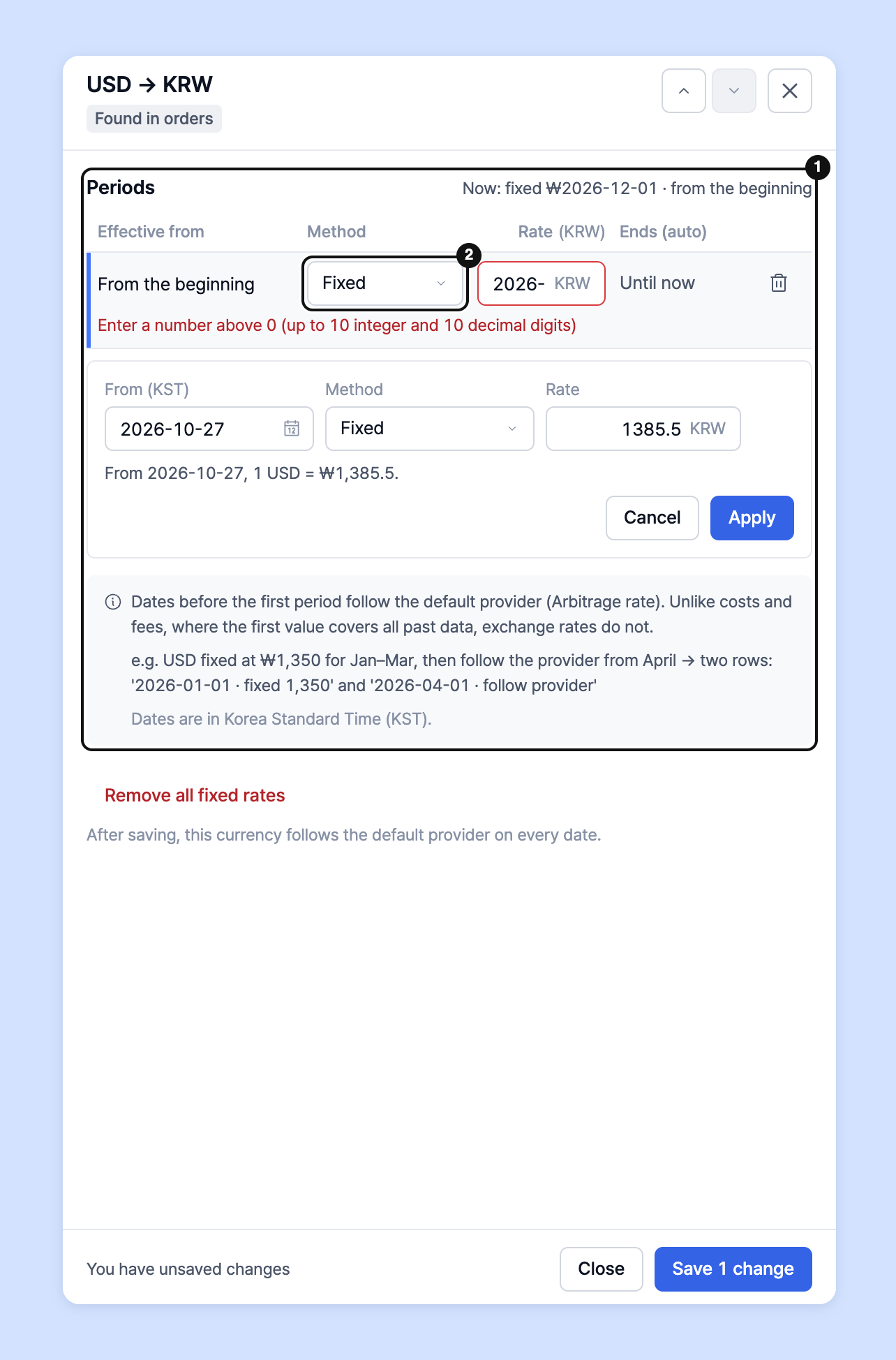
## Setting rates by period (Periods)
If you need different rates for different periods, you can split a currency's **Periods**. For example, you can fix USD at ₩1,350 for January, March and follow the provider's rate from April.
1. Click the currency or **Details** to open the right panel.
2. Add periods in **Periods**, choose **Fixed** or **Follow provider** as the **Method** for each, and enter the rate and start date.
3. Check the preview at the bottom of the panel (e.g., "From 2026-04-01, the default provider rate is used.") and click **Save n changes**.
{% hint style="info" %}
* A rate edited in the **Fixed rate** cell of the table applies **from today**. Set other dates in **Details**.
* Dates before the first period follow the default provider rate. For costs · fees, the first value applies to all past dates, but this isn't the case for exchange rates.
* You can't have two periods starting on the same date.
{% endhint %}
## When it's hard to find a currency
* Enter a currency code in the **Find currency (e.g. USD)** field to filter right away.
* Use **+ Add condition** to add conditions such as **Currencies with a fixed rate** · **Currencies following the provider** · **Edited only**. To clear all conditions, click **Clear conditions**.
## When are values reflected?
When you change a rate, it's recalculated and reflected in dashboards **at the next aggregation**. The numbers don't change immediately after saving.