> For the complete documentation index, see [llms.txt](https://www.analytics-docs.laplacetec.com/guide/llms.txt). Markdown versions of documentation pages are available by appending `.md` to page URLs; this page is available as [Markdown](https://www.analytics-docs.laplacetec.com/guide/en/datamanage/fee.md).
# Fees
{% hint style="info" %}
This screen sets the sales fee rate by period for each brand · store. The **Store fee (manual)** measure is only calculated when you enter values here; if they're missing, **contribution margin comes out higher than it really is**.
{% endhint %}
## Why do I need to set this?
Contribution margin is calculated as follows.
```
Contribution margin = Payment amount - Cost - Ad spend - Fees - Seller-paid shipping
```
If you don't register fees, the `Fees` part of the formula above is calculated as 0. As a result, **contribution margin and contribution margin rate look better than they really are**, and P\&L analysis · ROI · COAS that use those values are inflated too.
Channels where the store provides fee amounts directly, such as open marketplaces, are already aggregated as **Store fee (automatic)**. This screen is for filling in stores that don't send those values.
## Open the screen
Click **Data management** in the left rail, then click **Fees · FX** › **Fee** in the navigation panel.
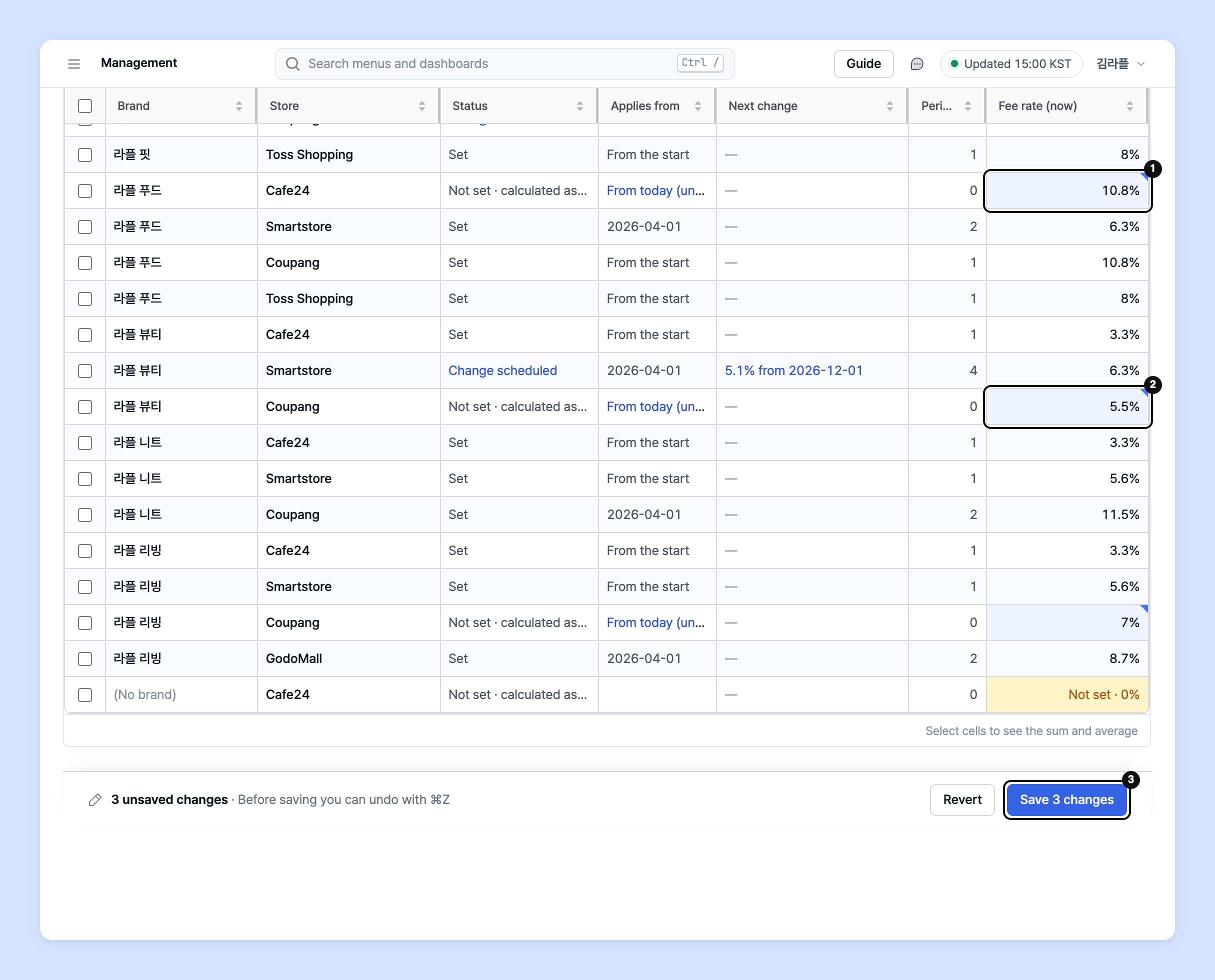
The list shows one row per **brand × store** combination, based on order data.
| Column | Description |
| -------------- | --------------------------------------------------------------- |
| Brand | Brand registered on the base product |
| Store | Store where the order came in |
| Status | **Not set · calculated as 0%** · **Set** · **Change scheduled** |
| Applies from | Date the current fee rate started applying |
| Next change | A change starting after today (if any) |
| Periods | Number of fee rate periods defined |
| Fee rate (now) | The fee rate currently in effect. Edit it directly in this cell |

{% hint style="warning" %}
If the list shows **No stores to set fees for yet**, no store is connected yet or the first aggregation hasn't finished. Click **Go to data connection** to [connect your sales channels first](/guide/en/startguide/connect.md).
{% endhint %}
## Registering fee rates
1. Click the **Fee rate (now)** cell at the right end of the list and enter the fee rate (%). A rate edited in the table applies **from today**.
2. To enter the same rate in several rows, drag the cell corner down to fill, or paste values copied from Excel.
3. Edited cells are shown in blue. When you're done, click **Save n changes** in the save bar at the bottom of the screen to save them all at once. Before saving, you can undo with ⌘Z (Ctrl+Z on Windows).
{% hint style="info" %}
* The first rate you enter **also applies to all past orders**.
* The fee rate must be **a number of 0 or more**.
* Pasting and filling are available on desktop. On mobile, click a store and edit by period.
{% endhint %}
### Entering the same rate from the same date for several stores
1. Check the boxes on the left to select stores.
2. Click **Apply one rate from a date** in the bulk action bar above the table.
3. In the **Apply the same rate to n** window, enter **Starting (KST)** and **Fee rate (%)**, then click **Apply to n**.

{% hint style="info" %}
For each selected store, existing periods stay as they are, and only dates from the chosen date onward switch to the new rate. For stores that had no rate, this rate becomes the first period and also applies to all earlier orders.
{% endhint %}
## When the fee rate changes (splitting periods)
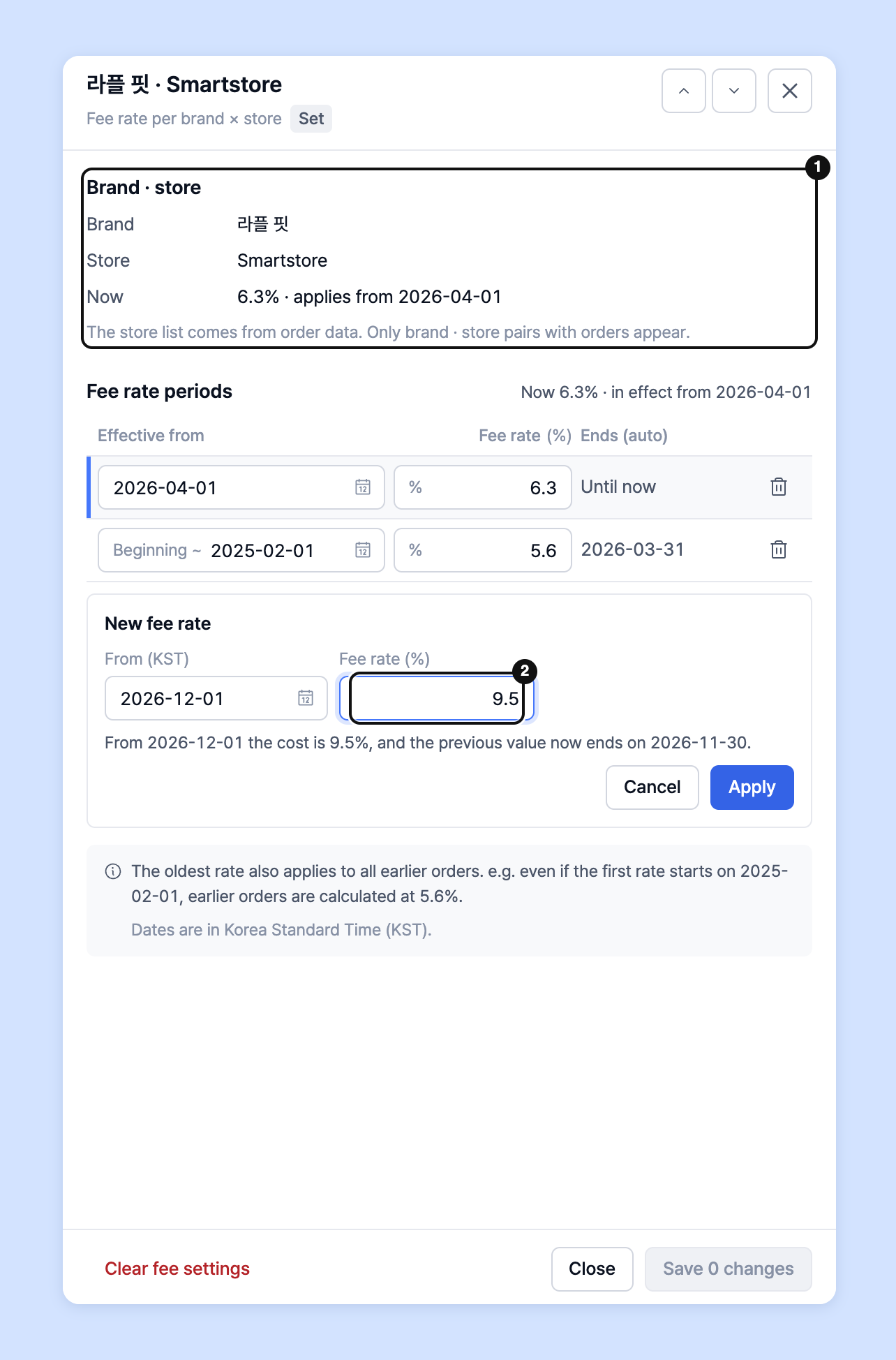
Fee rates are **a history by period, not a value that gets overwritten**. To change the rate from a date other than today, add a period in **Details**.
1. Click **Details** next to the store name. The **Fee rate per brand × store** panel opens on the right.
2. Click **Add change** in **Fee rate periods**.
3. Enter **Starting (KST)** and **Fee rate (%)** in **New fee rate**. If you enter a past date, past data is also recalculated at the next aggregation.
4. Click **Save n changes** at the bottom of the panel.
* Each order uses **the fee rate of the period that contains the order's payment date**.
* **The oldest rate also applies to all orders before it.** Whatever start date you choose, past orders won't be left with a fee of 0.
* **The most recent period has no end.** Until you add the next rate, orders that come in afterward keep being calculated at this rate.
* Editing an existing period also changes past fees already calculated for that period.
{% hint style="info" %}
If a value doesn't meet the rules below, it isn't saved and a message is shown in place.
* The fee rate must be **a number of 0 or more**.
* Dates must be in **2026-01-31** format.
* Within the same store, **two periods can't start on the same date.**
* You can't delete the last remaining period. To remove fee settings entirely, use **Clear fee settings** below.
{% endhint %}
## Deleting fee information
* **To clear one store**: Click **Clear fee settings** at the bottom of the **Details** panel.
* **To clear several at once**: Select them with the checkboxes in the list, click **Clear fee settings** in the bulk action bar, then click **Clear n** in the confirmation window.
{% hint style="warning" %}
Deleted fee information **can't be restored.** After deletion, that store's fee is calculated as 0% again.
{% endhint %}
## When it's hard to find a store
If you have many stores, use the following.
* Enter a name in the **Find brand · store** field at the top to filter right away.
* Use **+ Add condition** to add brand · store conditions or status conditions such as **Fee not set** · **Change scheduled** · **Edited only**.
* To clear all conditions, click **Clear conditions**.
* Clicking **Fill in fees** in **Data management** › **Setup status** opens this screen with the **Fee not set** condition turned on.
## Where do the values appear?
| Measure | Description |
| ---------------------------------------------- | ---------------------------------------------------------------------------------------------------------------------------------------------- |
| Store fee (manual) | Calculates each store's fee based on the fee rates set on this screen. It's calculated on actual sales, and amounts under 1 won are truncated. |
| Fee | The sum of all fees, including store fees and PG fees. |
| Contribution margin · Contribution margin rate | Calculated by deducting the `Fee` above. |
{% hint style="info" %}
**PG fee (manual)** is set separately per PG · payment method, and is available only to Enterprise customers.
{% endhint %}
For exact definitions of the measures, see the [Measures guide](/guide/en/customdashboard/custom/about_values/order.md) and [Understanding formulas](/guide/en/dashboard/formula.md).