> For the complete documentation index, see [llms.txt](https://www.analytics-docs.laplacetec.com/guide/llms.txt). Markdown versions of documentation pages are available by appending `.md` to page URLs; this page is available as [Markdown](https://www.analytics-docs.laplacetec.com/guide/en/datamanage/matching.md).
# Data matching
{% hint style="info" %}
This is required to calculate margin and contribution margin. Connected channels don't provide cost information for the products you sell or data about the product detail pages your ad creatives land on, so you need to register and match this data directly in Laplace to calculate margin and contribution margin.
{% endhint %}
* Once matching is complete, you can solve the following.
## Metrics that follow cost changes
* With cost information management, margin and contribution margin are automatically calculated and reflected according to when costs change.
## Accurate metrics for the same product
* Solves the problem of the same product being measured as different products because of different product names (special characters, length, etc.)
* Solves the problem of the same product being measured as different products because it's sold in different stores
## Set the analysis units you want
* Register base product categories to measure product performance by category
* Assign an owner to each product to measure each owner's performance
* Register overseas/domestic and country to measure performance by country
## Product-level ad metrics
* Automatically extracts product numbers and product codes from ad URLs to allocate ad spend
* Automatically measures product-level cost metrics such as fees, ad spend, and ad spend per revenue
* Measures ad spend for bundle products or at the inventory level
## Data management menu structure
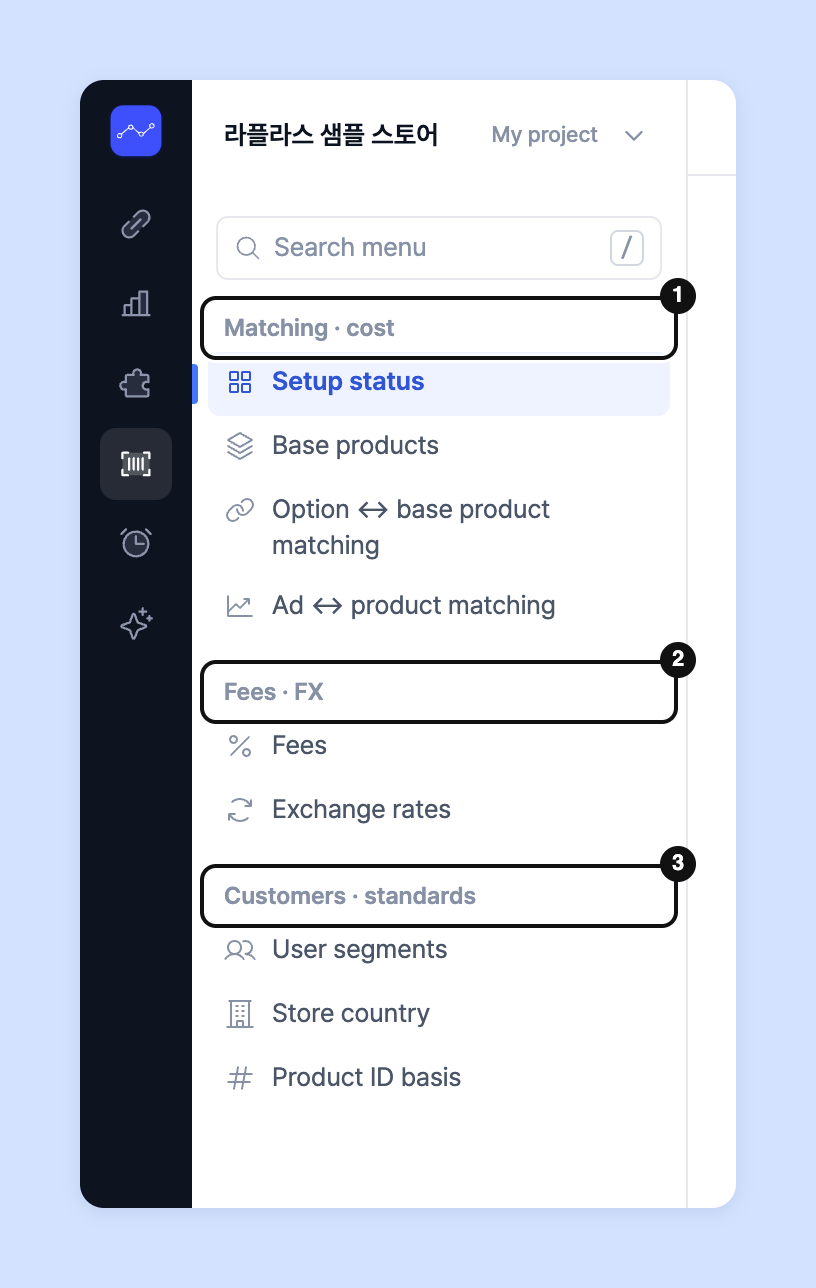
When you click **Data management** in the left rail, the navigation panel shows the menus below in three groups. You can also find a menu right away by typing its name in the **Search menu** field above the navigation panel.
| Group | Menu | What it does |
| --------------------- | --------------------------------------------------------------------------------- | ---------------------------------------------------------------------------- |
| Matching · cost | **Setup status** | See how much cost, matching and fees are reflected in your numbers. |
| Matching · cost | [**Base product**](/guide/en/datamanage/matching/sku.md) | Manage the products you actually ship and their costs. |
| Matching · cost | [**Option ↔ base product matching**](/guide/en/datamanage/matching/option_sku.md) | Link which base products, and how many, ship for each sales option. |
| Matching · cost | [**Ad ↔ product matching**](/guide/en/datamanage/matching/ad_product.md) | Link ad creatives to stores · sales products. |
| Fees · FX | [**Fee**](/guide/en/datamanage/fee.md) | Set the sales fee rate by period for each brand · store. |
| Fees · FX | [**Exchange rates**](/guide/en/datamanage/exchange.md) | Set the exchange rates used to convert foreign-currency amounts into KRW. |
| Customers · standards | [**User segment**](/guide/en/datamanage/segment.md) | Create customer groups with conditions and reuse them. |
| Customers · standards | [**Store country**](/guide/en/datamanage/shop_country.md) | Set which country each store's shop is in. |
| Customers · standards | [**Product ID basis**](/guide/en/datamanage/product_identity.md) | Choose whether to identify Amazon products by ASIN or by store product code. |
## Viewing setup status
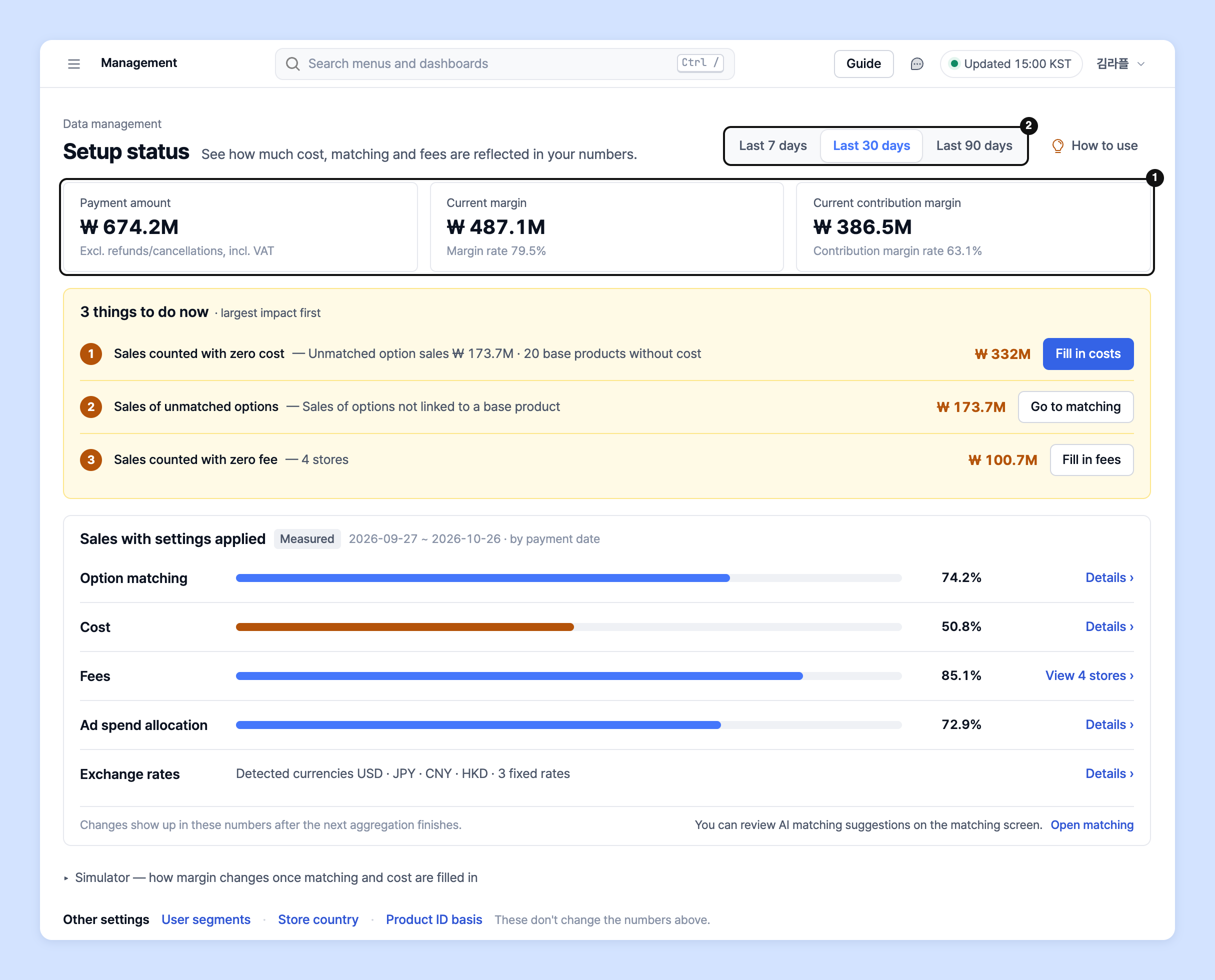
When you open **Data management**, **Setup status** appears as the first screen. It shows on one screen how much cost, matching and fees are reflected in your revenue numbers, and what to do first.
{% embed url="" %}
Download the video
{% file src="/files/cbY8OLZJINV1KE5HFTAv" %}
1. Click **Data management** in the left rail, then click **Matching · cost** › **Setup status** in the navigation panel.
2. Choose a period at the top right (**Last 7 days** · **Last 30 days** · **Last 90 days**). The three boxes at the top show **Payment amount** · **Current margin** · **Current contribution margin**.
3. In **n things to do now**, check your to-dos in order of impact. Click an item's button (**Fill in costs** · **Go to matching** · **Fill in fees** · **Go to ad matching**) to go straight to that screen.

4. In **Sales with settings applied**, check the applied ratio for each item. They're shown in the order **Option matching** · **Cost** · **Fee** · **Ad spend allocation** · **Exchange rates**; click **Details** to see amounts and stores not yet reflected.

5. Click **Simulator: how margin changes once matching and cost are filled in** at the bottom to expand the calculator. Enter assumed values for unknown cost rates · fee rates, and the **How your margin changes when setup is finished (assumed)** table shows **Now** and **After setup** values side by side.

{% hint style="info" %}
* Simulator results are **assumptions, not actual values**. Filling in costs usually lowers margin; right now it looks high because costs are calculated as 0.
* Your edits are reflected in these numbers **after the next aggregation finishes**.
* **Other settings** (**User segment** · **Store country** · **Product ID basis**) don't affect the numbers above.
{% endhint %}
### When there are no orders yet
Before you connect a store or before the first aggregation finishes, **No orders to calculate yet** is shown and the same screen is filled with **sample numbers**. Every number is marked **Sample**.
* Click **View sample** in **What you can analyze once this is set** to see example analyses you'll get once setup is done.
* Click **Data Connect** to go to the store connection screen.
## Using EasyAdmin?
* If you manage base products in EasyAdmin, simply connecting EasyAdmin imports base product and matching data, so you can use it with no extra work.
* However, you need to set up **Ad ↔ product matching** for detailed analysis.
## Using Sabangnet?
* Sabangnet also imports cost information and base product - sales product matching data just by connecting. As with EasyAdmin, no separate upload is needed.
## Which value is used if costs come in through several paths?
Costs can come in through the four paths below, and when values overlap for the same base product, **the value from the higher path is used.** No error is shown on screen: only the value changes: so if you use two paths together, check first which one is the final value.
1. Values entered directly on the [**Base product**](/guide/en/datamanage/matching/sku.md) screen (**Upload file** · manual entry)
2. Values entered through a [spreadsheet connection](/guide/en/startguide/connect/spreadsheet/cogs.md)
3. Values imported from EasyAdmin
4. Values imported from Sabangnet
Even for the same base product, **costs with different start dates are kept as separate history entries.** The order above applies when brand · base product number · base product name · start date are all the same.
{% hint style="info" %}
To solve the problems above, you need to do the following 3 additional tasks in **Data management** in Laplace.
1. Upload SKU (base product) data including cost information in [**Base product**](/guide/en/datamanage/matching/sku.md)
2. Allocate costs to options through [**Option ↔ base product matching**](/guide/en/datamanage/matching/option_sku.md)
3. Allocate ad spend by matching ad creatives to the product pages they land on through [**Ad ↔ product matching**](/guide/en/datamanage/matching/ad_product.md)
{% endhint %}