> For the complete documentation index, see [llms.txt](https://www.analytics-docs.laplacetec.com/guide/llms.txt). Markdown versions of documentation pages are available by appending `.md` to page URLs; this page is available as [Markdown](https://www.analytics-docs.laplacetec.com/guide/en/datamanage/matching/option_sku.md).

# Option ↔ base product matching

{% hint style="info" %}
A base product is an actual component of the fulfillment unit that makes up a sales option. For example, if an option sold on your commerce channels is "Black rice diet 1 + 1 set" and the fulfillment components of that option are black rice, sweet potato and chicken breast, then the base products are "Black rice", "Sweet potato" and "Chicken breast". Once you link the base products that make up each sales option, Laplace Analytics automatically analyzes unified options, unified products, cost, margin rate and more.
{% endhint %}

## Why do I need option ↔ base product matching? <a href="#reason" id="reason"></a>

When you match base products to the list of options sold in your stores, Laplace automatically calculates metrics for the following purposes.

1. Combine options sold in multiple stores by base product for analysis

   Once matching is complete, go to **Product / option / SKU analysis**, change **Data** to **Base product order data** and set **Break down by** to **Base product name** to analyze options from multiple stores together by base product.

   ![Product / option / SKU analysis table broken down by Base product name](https://616205588-files.gitbook.io/~/files/v0/b/gitbook-x-prod.appspot.com/o/spaces%2Fqr1veGyUqCNwQBBmk3yt%2Fuploads%2Fgit-blob-18b848d994f0717c4c15e5a7a0cce136c1c2232b%2Fdatamanage__matching__option_sku__01.png?alt=media)

{% hint style="info" %}
You can split these metrics further by store. Click **+ Breakdown** next to **Break down by** and add **Sales channel**.
{% endhint %}

![Base product analysis table broken down by store](https://616205588-files.gitbook.io/~/files/v0/b/gitbook-x-prod.appspot.com/o/spaces%2Fqr1veGyUqCNwQBBmk3yt%2Fuploads%2Fgit-blob-a0da89f0fd5c1600edb0d6c63a92247f1a96fa38%2Fdatamanage__matching__option_sku__02.png?alt=media)

2. Brand-level analysis

   In **Product / option / SKU analysis**, keep **Data** set to **Base product order data** and set **Break down by** to **Base product brand** to analyze by brand.

![Analysis table by base product brand](https://616205588-files.gitbook.io/~/files/v0/b/gitbook-x-prod.appspot.com/o/spaces%2Fqr1veGyUqCNwQBBmk3yt%2Fuploads%2Fgit-blob-bad38b05e74ec23eef18e00478a704e85542776e%2Fdatamanage__matching__option_sku__03.png?alt=media)

3. Margin rate calculation\
   Laplace calculates margin rate by combining the cost data you set up in **Data management** › **Base products** with the matching data on this page.

{% hint style="info" %}

* Beyond margin rate by base product, you get the most accurate margin rate by option.
* With **Option ↔ base product matching**, you can combine option data sold in multiple stores into one and easily analyze by base product and base product brand.
  {% endhint %}

**Example)** **P\&L analysis** › **Margin rate / CM rate**

![Chart and table on Margin rate / CM rate](https://616205588-files.gitbook.io/~/files/v0/b/gitbook-x-prod.appspot.com/o/spaces%2Fqr1veGyUqCNwQBBmk3yt%2Fuploads%2Fgit-blob-558846ad4ca01113ddda19adf81f0da44d4ad811%2Fdatamanage__matching__option_sku__04.png?alt=media)

1. In the table, see cost and margin rate by period.
2. In the chart, see the trend of payment amount, gross margin and contribution margin by period.

{% hint style="info" %}

* **To use the base product analysis charts, you need base product data and option ↔ base product matching.**
* To match, first register base products on the **Base products** screen.

  [**Go to the "Base products" guide**](/guide/en/datamanage/matching/sku.md)
  {% endhint %}

## How do products, options and base products differ? What is a base product? <a href="#about-sku" id="about-sku"></a>

The same product, **"Tasty Lunchbox Set"**, is often sold under different names: **"DELICIOUS Lunchbox SET"** on Coupang and **"Tasty Lunchbox Set"** on Smartstore. If you don't unify these names, they are treated as different products and their sales are calculated separately.

Option information makes sales data even harder to analyze. Below is sample data.

| Store      | Product name           | Option info                                 | Units sold | Payment amount |
| ---------- | ---------------------- | ------------------------------------------- | ---------- | -------------- |
| Coupang    | DELICIOUS Lunchbox SET | 20 gimbap, 10 spicy pork stir-fry           | 1          | 66000          |
| Smartstore | Tasty Lunchbox Set     | \[Special promotion] Spicy pork stir-fry=20 | 2          | 44000          |

{% hint style="info" %}
In a case like this, setting up "Gimbap" and "Spicy pork stir-fry" as base products and then matching makes it easy to analyze product and option data together.
{% endhint %}

<table><thead><tr><th width="106">Store</th><th>Product name</th><th>Option info</th><th width="90">Units sold</th><th width="91">Payment amount</th><th width="140">Base product composition</th><th>Total cost</th></tr></thead><tbody><tr><td>Coupang</td><td>DELICIOUS Lunchbox SET</td><td>20 gimbap, 10 spicy pork stir-fry</td><td>1</td><td>66000</td><td>Gimbap=20<br>Spicy pork stir-fry=10</td><td>20000</td></tr><tr><td>Smartstore</td><td>Tasty Lunchbox Set</td><td>[Special promotion] Spicy pork stir-fry=20</td><td>2</td><td>44000</td><td>Spicy pork stir-fry=20</td><td>20000</td></tr></tbody></table>

{% hint style="info" %}
If gimbap costs KRW 500 and spicy pork stir-fry costs KRW 1,000, the total cost is as shown above. When a base product composition has 2 or more items, the payment amount is allocated automatically based on total cost.

e.g. Payment amount for gimbap sold on Coupang = 66000 \* (20 \* 500) / 20000 = 33000
{% endhint %}

{% hint style="info" %}
**Sales product**: The product name sold in each store

**Sales product option**: The option name of the product sold in each store

**Base product**: The smallest fulfillment unit that makes up an option
{% endhint %}

* The image below illustrates how **sales product options** link to **base products**.

  ![](https://616205588-files.gitbook.io/~/files/v0/b/gitbook-x-prod.appspot.com/o/spaces%2Fqr1veGyUqCNwQBBmk3yt%2Fuploads%2Fgit-blob-2bbf4ab49e11e84cec5400cc5bff31f4da210be2%2Fc10b3dce9970.png?alt=media)

As the image shows, "Tasty Lunchbox Set" and "DELICIOUS Lunchbox SET" are actually the same product. But if you analyze only by sales product name in the product / option charts, they are measured as different products even though they are identical from a fulfillment standpoint.

## Screen layout <a href="#tabs" id="tabs"></a>

The **Option ↔ base product matching** screen has three tabs.

| Tab                  | What it does                                                                                                                 |
| -------------------- | ---------------------------------------------------------------------------------------------------------------------------- |
| **Workbench**        | Find options and link base products directly. Linking suggested base products and reviewing AI suggestions also happen here. |
| **Rules & priority** | Create rules that automatically link options meeting conditions, and set which match is used first.                          |
| **Source**           | View and manage matches by where they come from (manual · Google Sheets · rules · integrated solutions).                     |

**Matching rate by sales** is always shown at the top of the screen. For details, see [View matching rate by sales](#coverage) below.

## Manual matching guide <a href="#manual-matching" id="manual-matching"></a>

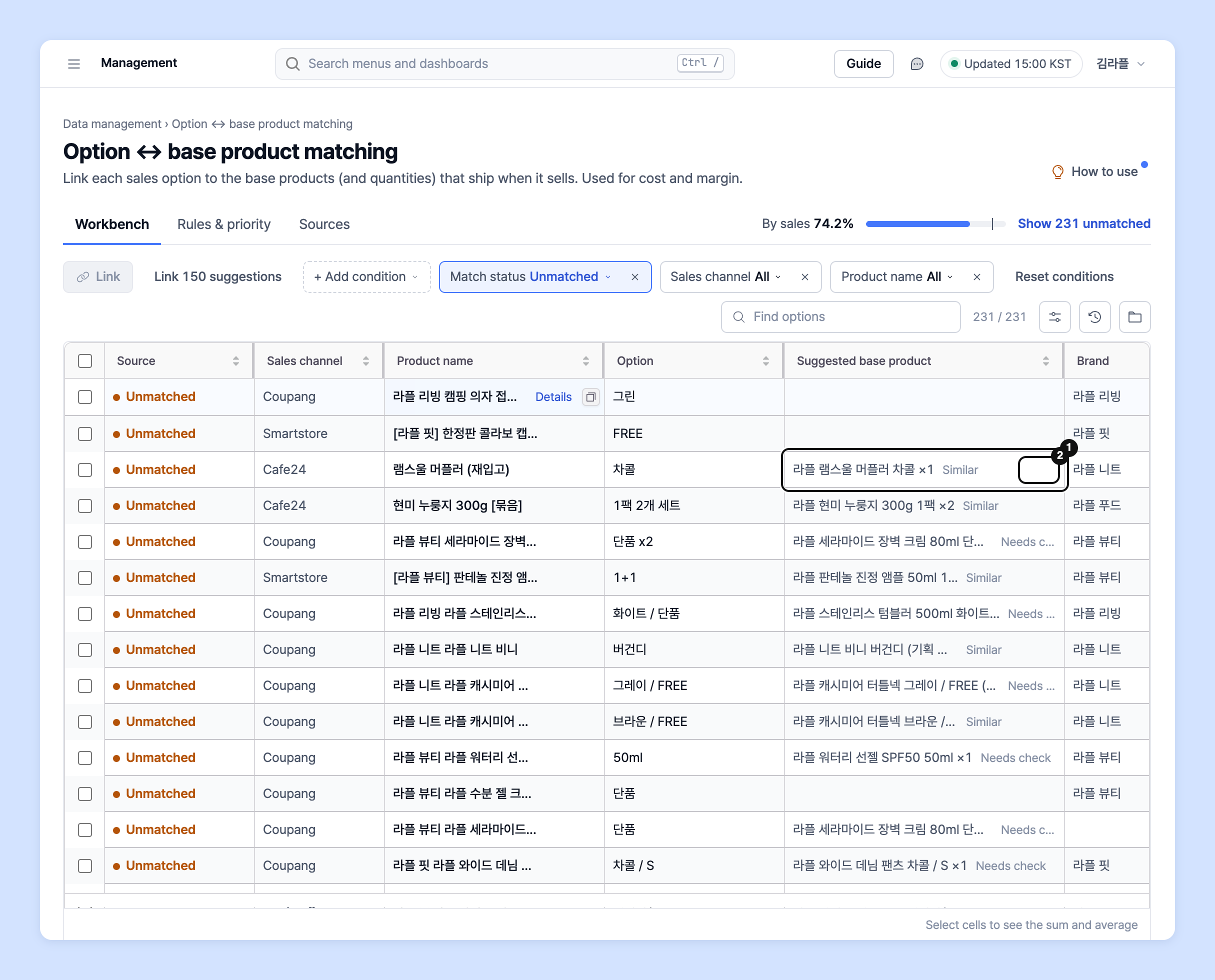
1. Click **Data management** in the left rail, then click **Matching · cost** › **Option ↔ base product matching** in the navigation panel. The **Workbench** tab opens.

   ![Option ↔ base product matching workbench](https://616205588-files.gitbook.io/~/files/v0/b/gitbook-x-prod.appspot.com/o/spaces%2Fqr1veGyUqCNwQBBmk3yt%2Fuploads%2Fgit-blob-b5967d8a09fb1cb76be4f15ed5d26326574d8ebc%2Fdatamanage__matching__option_sku__05.png?alt=media)

{% hint style="info" %}

* Haven't registered base products yet? Upload your base product data on the [**Base products**](/guide/en/datamanage/matching/sku.md) screen.
* For more about base products, see the [**Base products**](/guide/en/datamanage/matching/sku.md) guide.
  {% endhint %}

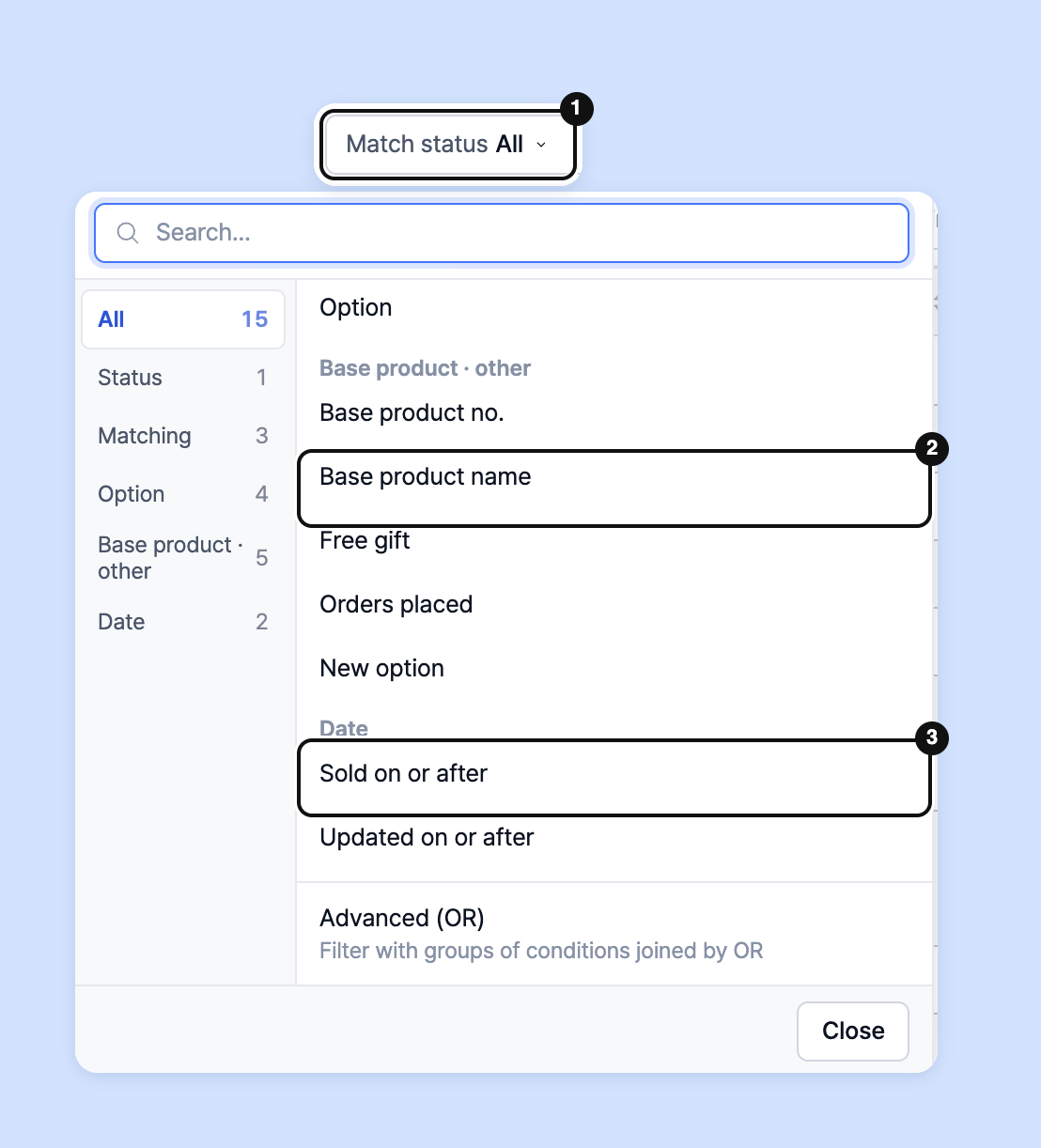
2. Find the options that need base products linked. Type in the **Find options** box, or add conditions with **+ Add condition**.

   <figure><img src="https://616205588-files.gitbook.io/~/files/v0/b/gitbook-x-prod.appspot.com/o/spaces%2Fqr1veGyUqCNwQBBmk3yt%2Fuploads%2Fgit-blob-f4be64d01528701467a441b7c06975efcaccd299%2Fdatamanage__matching__option_sku__06.png?alt=media" alt="Add condition menu" width="471"><figcaption></figcaption></figure>

{% hint style="info" %}
**Match status**: Choose from **Unmatched** · **Matched** · **AI suggestions**.

**Sold on or after**: Shows only options sold at least once after the chosen date.

**Match type**: Choose from **Manual** · **Auto (rule)** · **EasyAdmin** · **Sabangnet** · **Sheet**.

You can also add column conditions such as sales channel · brand · product name · option info · base product ID. To clear all conditions, click **Clear conditions**.
{% endhint %}

* To search with multiple conditions joined by "or", choose **Advanced (OR)** in **+ Add condition**. For details, see the [Advanced filter guide](#advanced-filter) below.

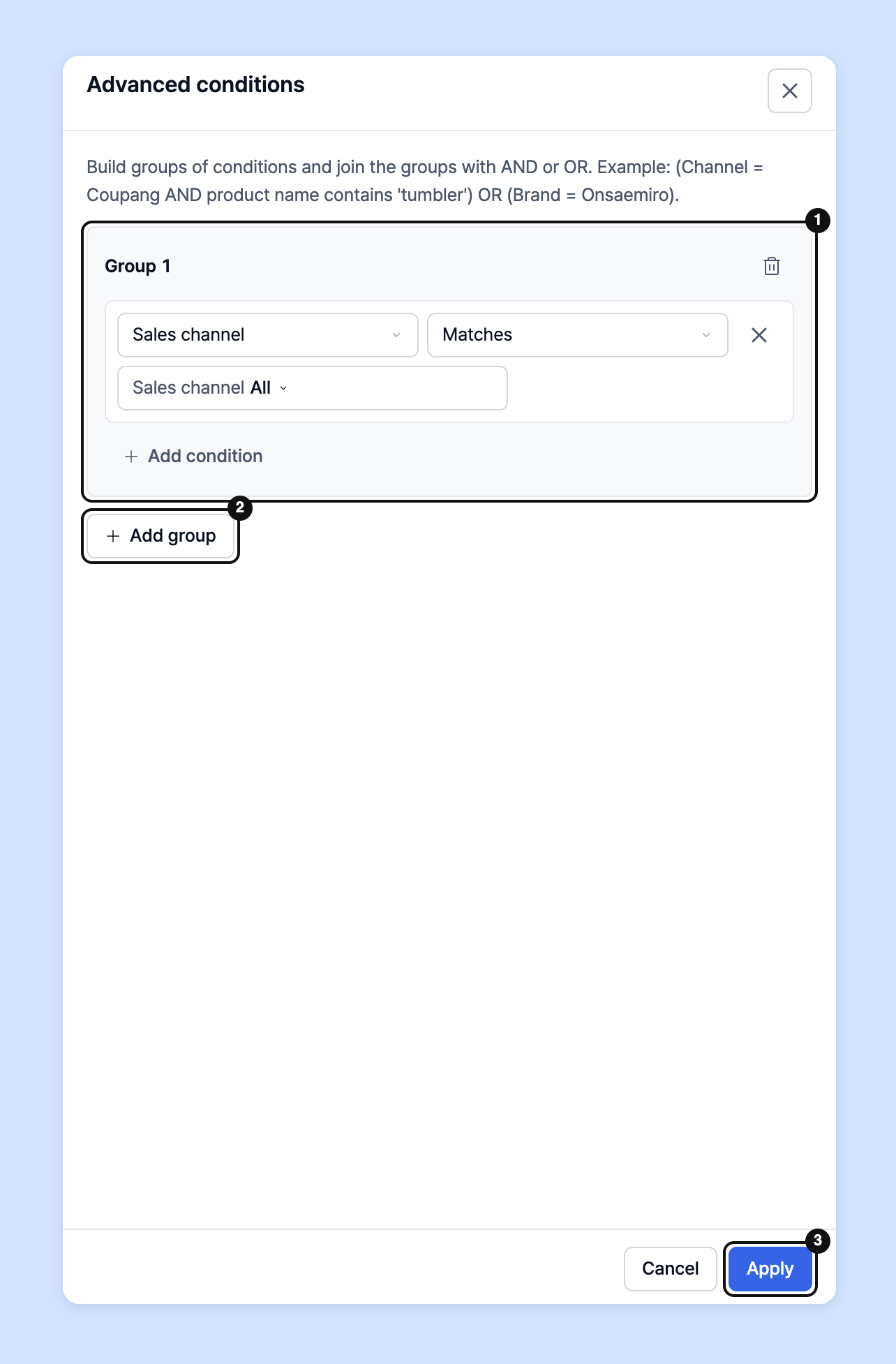
  <figure><img src="https://616205588-files.gitbook.io/~/files/v0/b/gitbook-x-prod.appspot.com/o/spaces%2Fqr1veGyUqCNwQBBmk3yt%2Fuploads%2Fgit-blob-caff78a2b385a7afcdd07e5217e6a55648324a85%2Fdatamanage__matching__option_sku__07.png?alt=media" alt="Advanced condition editor" width="342"><figcaption></figcaption></figure>

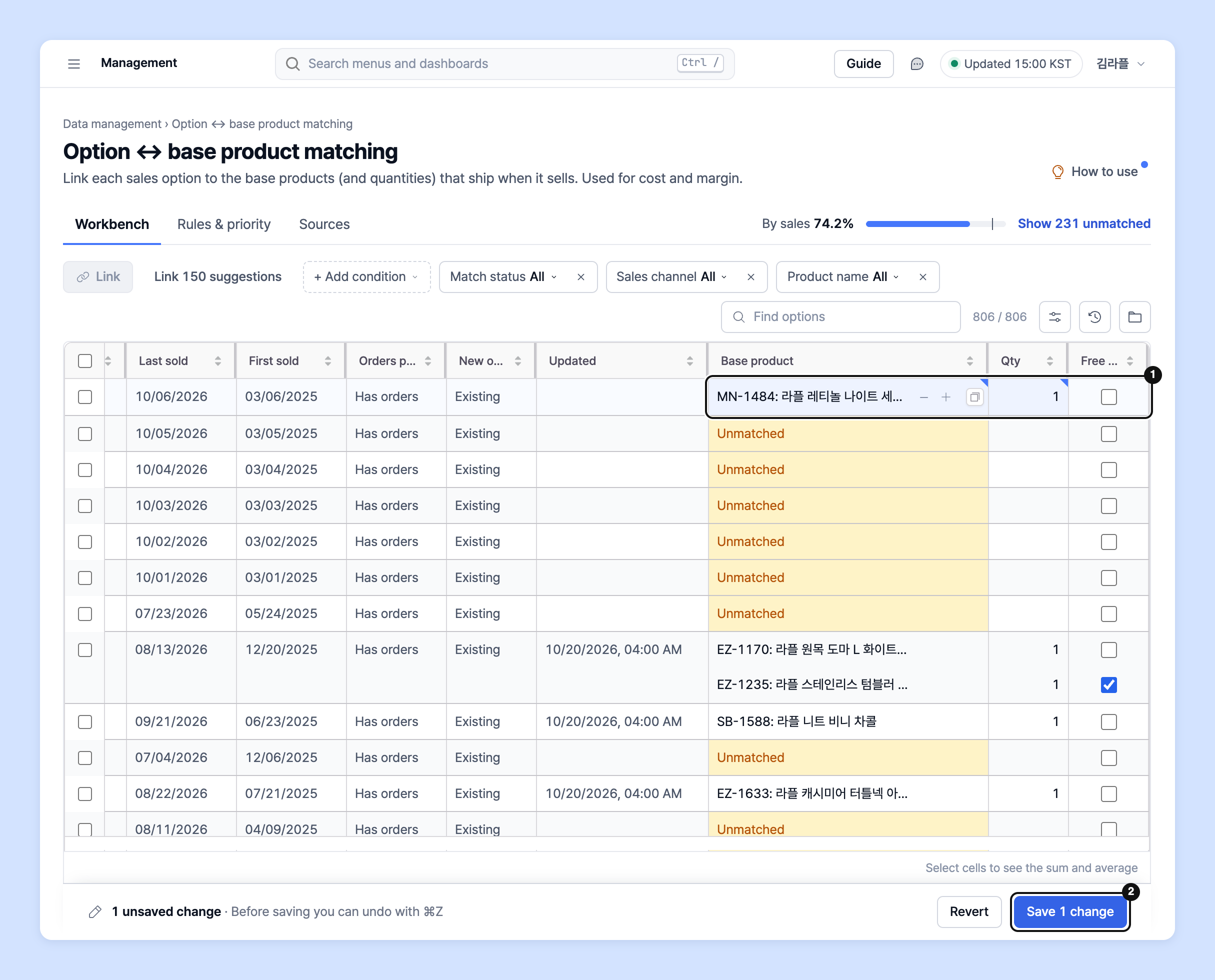
3. Link a single option directly in the table. Click the **Base product** cell to choose a base product, then fill in the **Quantity** · **Free gift** cells. If there are two or more base products, add a line with **Add base product** in the cell.

   <figure><img src="https://616205588-files.gitbook.io/~/files/v0/b/gitbook-x-prod.appspot.com/o/spaces%2Fqr1veGyUqCNwQBBmk3yt%2Fuploads%2Fgit-blob-6a03e27e04db821d63cf5053d4525f96df33187e%2Fdatamanage__matching__option_sku__08.png?alt=media" alt="Entering base product · quantity directly in the table" width="645"><figcaption></figcaption></figure>

{% hint style="info" %}

* You can paste values copied from Excel into the **Base product** · **Quantity** · **Free gift** cells, or drag a cell down to fill. Base products are looked up by ID (or "ID: name").
* Edited cells are collected and saved together with **Save n changes** in the save bar at the bottom. Before saving, you can undo with ⌘Z (Ctrl+Z on Windows).
* Click an option name to open the right panel, where you can edit **Base products to link** or see which match is applied under **Why this match?**.
  {% endhint %}

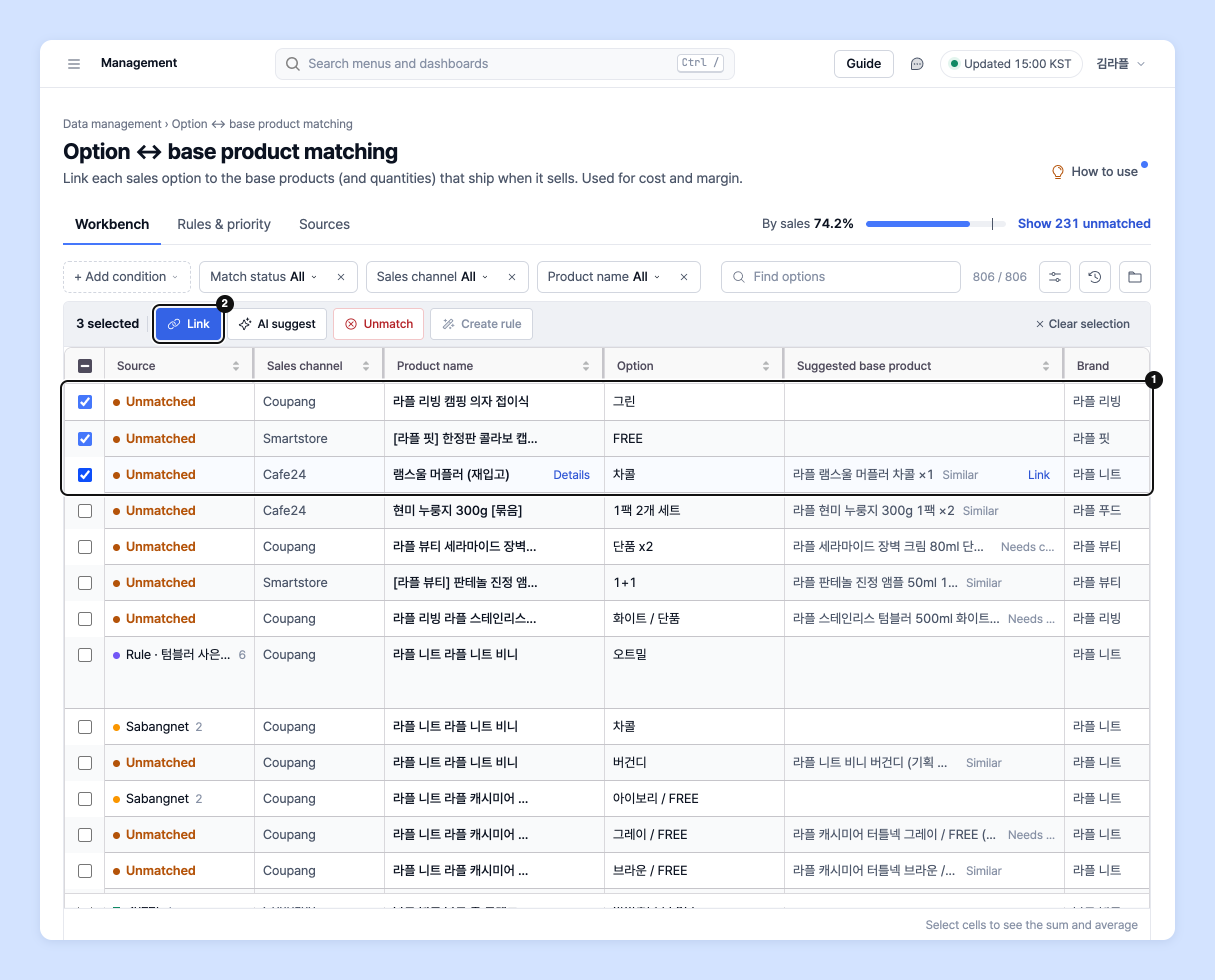
4. If several options should be linked with the same composition, check them in the left column. Click **Link** in the bulk action bar above the table to open the **Link base product to n options** panel on the right.

   <figure><img src="https://616205588-files.gitbook.io/~/files/v0/b/gitbook-x-prod.appspot.com/o/spaces%2Fqr1veGyUqCNwQBBmk3yt%2Fuploads%2Fgit-blob-1f8bce3862c94bfcfdeb724d29c91a958e329b78%2Fdatamanage__matching__option_sku__09.png?alt=media" alt="Selecting and linking multiple options" width="645"><figcaption></figcaption></figure>

{% hint style="info" %}
Group options that are registered with the same base products.\
e.g. Options A and B have the same base products and the same quantities = O\
e.g. Options A and B differ in even one base product or quantity = X
{% endhint %}

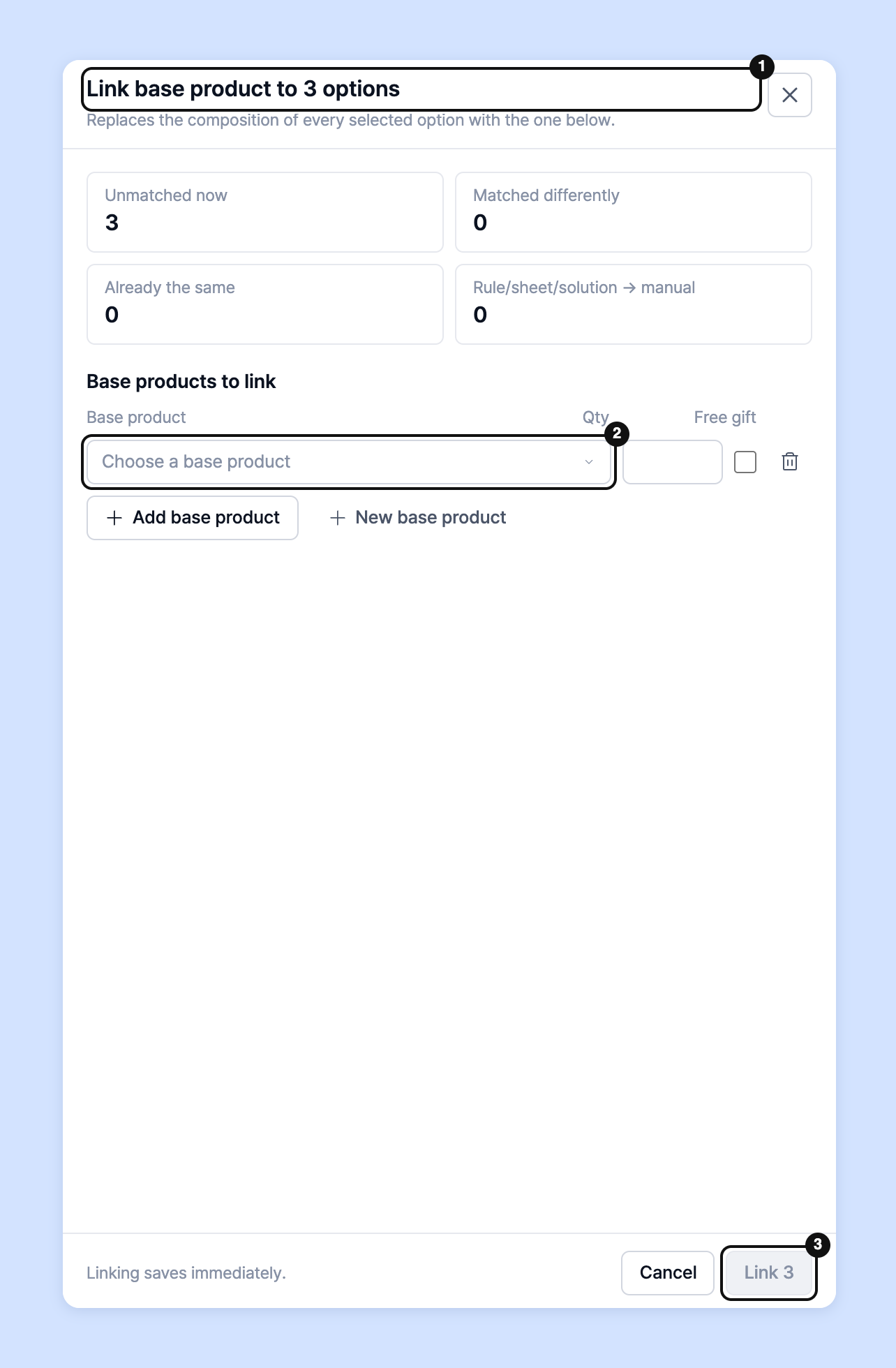
5. Choose base products with **Choose a base product**, enter quantities, then click **Link n**. Links made in this panel are **saved immediately**.

   <figure><img src="https://616205588-files.gitbook.io/~/files/v0/b/gitbook-x-prod.appspot.com/o/spaces%2Fqr1veGyUqCNwQBBmk3yt%2Fuploads%2Fgit-blob-18ebb3686ae832ccc6ce95e846ab829e51eda882%2Fdatamanage__matching__option_sku__10.png?alt=media" alt="Link base product to selected options panel" width="341"><figcaption></figcaption></figure>

{% hint style="info" %}

* If the base product doesn't exist yet, create it with **New base product** in the panel and link it right away.
* If you link an option matched by a rule · sheet · solution here, it becomes a **manual match** and the original source no longer applies.
  {% endhint %}

## Link suggested base products at once <a href="#suggest" id="suggest"></a>

The **Suggested base product** column in the **Workbench** compares option names with base product names and previews a fitting base product and quantity.

{% embed url="<https://2146870105-files.gitbook.io/~/files/v0/b/gitbook-x-prod.appspot.com/o/spaces%2Fqr1veGyUqCNwQBBmk3yt%2Fuploads%2Fgit-blob-fb9b312f5eb0fea727131af2da563f2d01ccd63c%2Fguide_06_en.mp4?alt=media>" %}

<details>

<summary>Download the video</summary>

{% file src="/files/KICMb4ODZndo58aqZB07" %}

</details>

1. In **+ Add condition**, choose **Unmatched** under **Match status** to keep only options that aren't linked yet.
2. Check the suggestion and its reason in the **Suggested base product** column. Reasons are shown as **Name match** · **Ignoring brackets** · **Similar** · AI confidence · **Needs attention** and so on. If the suggestion is right, click **Link** in that cell.

   <figure><img src="https://616205588-files.gitbook.io/~/files/v0/b/gitbook-x-prod.appspot.com/o/spaces%2Fqr1veGyUqCNwQBBmk3yt%2Fuploads%2Fgit-blob-068424ee6b5eb2f9f7876e30e0900f542b7b4ed7%2Fdatamanage__matching__option_sku__11.png?alt=media" alt="Suggested base product column" width="645"><figcaption></figcaption></figure>
3. When there are several confident suggestions, **Link n suggestions** appears in the toolbar. Click it, then click **Link** in the confirmation dialog.

   ![Confirmation dialog for linking suggestions at once](https://616205588-files.gitbook.io/~/files/v0/b/gitbook-x-prod.appspot.com/o/spaces%2Fqr1veGyUqCNwQBBmk3yt%2Fuploads%2Fgit-blob-98f58fd68278945379a7e56da14e2a52f267b2c8%2Fdatamanage__matching__option_sku__12.png?alt=media)
4. Linked suggestions are added as unsaved changes. Click **Save n changes** in the save bar to apply them.

{% hint style="info" %}
**Link n suggestions** links **only confident suggestions**. Review suggestions marked **Needs attention** and link them one by one.
{% endhint %}

### Get AI suggestions

Check unmatched options and click **AI suggestions** in the bulk action bar. AI reads the option names and suggests fitting base products. There is a limit on how many you can get at once.

1. When the analysis finishes, **n AI suggestions to review** appears. Click **Review**.
2. In **Review AI suggestions**, click **Approve** or **Reject** for each suggestion. You can approve high-confidence suggestions at once with **Approve all ≥ 85% confidence**.
3. Click **Apply n approved**. Applied suggestions become manual matches.

![Review AI suggestions](https://616205588-files.gitbook.io/~/files/v0/b/gitbook-x-prod.appspot.com/o/spaces%2Fqr1veGyUqCNwQBBmk3yt%2Fuploads%2Fgit-blob-6877f5ebe5ad63379d04a1c513d28c00d8532b2b%2Fdatamanage__matching__option_sku__13.png?alt=media)

{% hint style="warning" %}
AI suggestions are kept only for a short time. If they expire, run it again on the same options. You can't run it if you've used up this month's AI usage limit or the AI subscription is off.
{% endhint %}

## View matching rate by sales <a href="#coverage" id="coverage"></a>

The **By sales** bar at the top of the screen shows **the share of sales in the last 30 days that is matched to base products**. Because it counts by sales rather than by number of options, it rises faster when you link best-selling options first.

* The marker on the bar is the **90%** target. Hover over the bar to see how much unmatched sales you still need to link to reach the target.
* Click **Show n unmatched** to keep only options that aren't linked yet.

![Matching rate by sales bar](https://616205588-files.gitbook.io/~/files/v0/b/gitbook-x-prod.appspot.com/o/spaces%2Fqr1veGyUqCNwQBBmk3yt%2Fuploads%2Fgit-blob-f23d5c29a68e8e342ea80a74544cd89512776a04%2Fdatamanage__matching__option_sku__14.png?alt=media)

## Bulk matching (file upload) guide <a href="#bulk-matching" id="bulk-matching"></a>

1. Click **Upload / download files** in the **Workbench** toolbar, then click **Upload file**. The **Upload matching file** dialog opens.

   ![Upload / download files menu](https://616205588-files.gitbook.io/~/files/v0/b/gitbook-x-prod.appspot.com/o/spaces%2Fqr1veGyUqCNwQBBmk3yt%2Fuploads%2Fgit-blob-74ae1dd0917952964d48f801a21d6f14a3d1eff9%2Fdatamanage__matching__option_sku__15.png?alt=media)
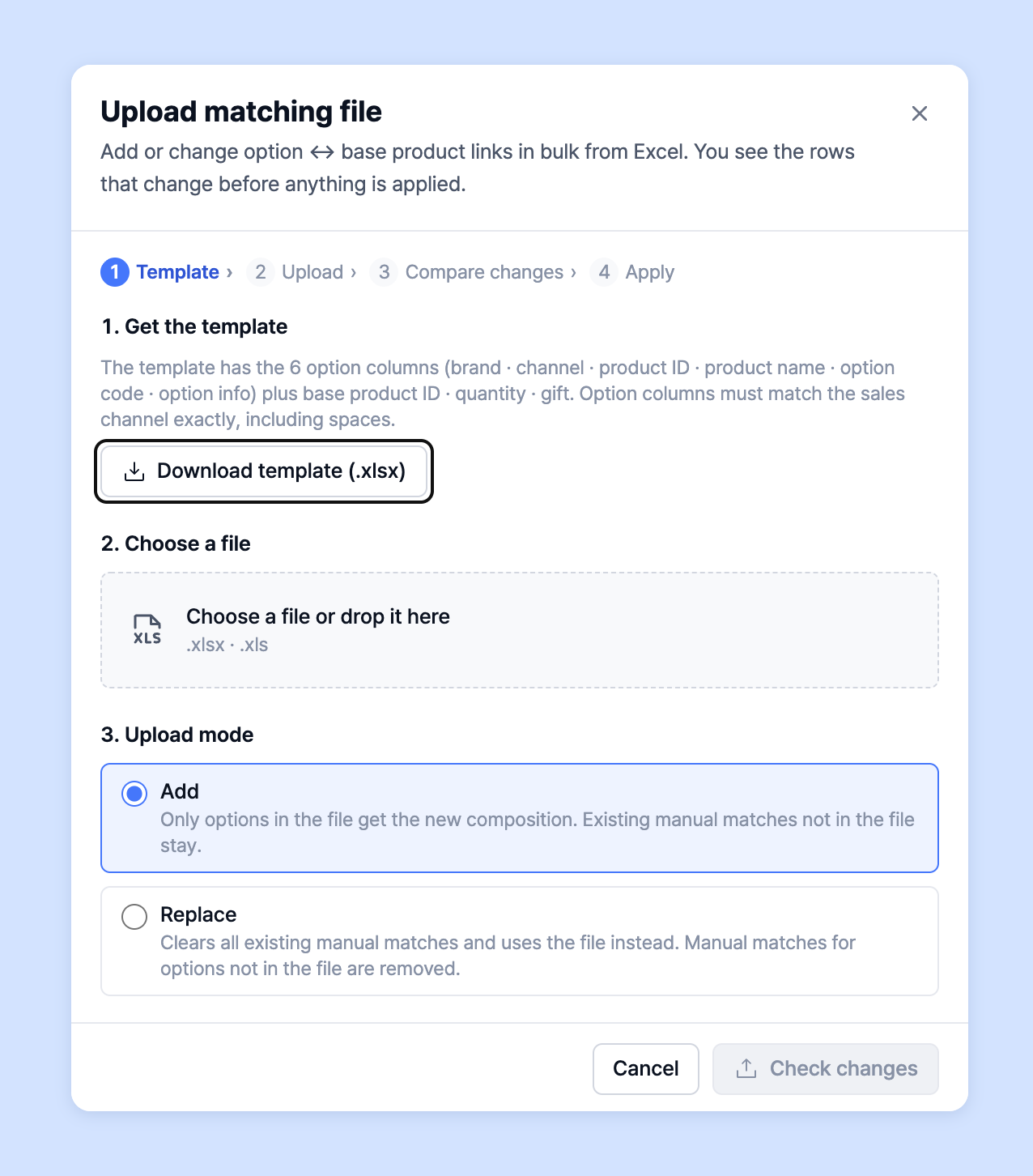
2. In the **Get the template** step, click **Download template (.xlsx)**.

   <figure><img src="https://616205588-files.gitbook.io/~/files/v0/b/gitbook-x-prod.appspot.com/o/spaces%2Fqr1veGyUqCNwQBBmk3yt%2Fuploads%2Fgit-blob-5dc71d8437ba2806ba3c9e75311912789ac066c7%2Fdatamanage__matching__option_sku__16.png?alt=media" alt="Get the template in the Upload matching file dialog" width="457"><figcaption></figcaption></figure>
3. Fill in each column of the sheet.

   ![](https://616205588-files.gitbook.io/~/files/v0/b/gitbook-x-prod.appspot.com/o/spaces%2Fqr1veGyUqCNwQBBmk3yt%2Fuploads%2Fgit-blob-87dd0c81d445a9cc8e0fd82e32a15206dbfda5e7%2F3239090f161d.png?alt=media)

{% hint style="info" %}
Brand, sales channel, product ID, product name, option code and option info (the 6 cells used to find an option) must match the sold product information exactly, including spaces. We recommend copying and pasting the data you get from **Upload / download files** › **Download with current conditions** in the **Workbench**.

Base product ID · base product name must match the product information registered in **Base products**.

For the free gift flag, enter "Y" (case-insensitive) only if the item is a free gift.

If the uploaded data differs from Laplace's data even slightly (character count, spaces, special characters, spelling), it won't match.

e.g. Laplace Food ≠ LaplaceFood

Laplace(Lunchbox) ≠ Laplace\_Lunchbox
{% endhint %}

{% hint style="info" %}
Enter data only in the first sheet (first tab) of the Excel file. (The system reads only the first sheet.)
{% endhint %}

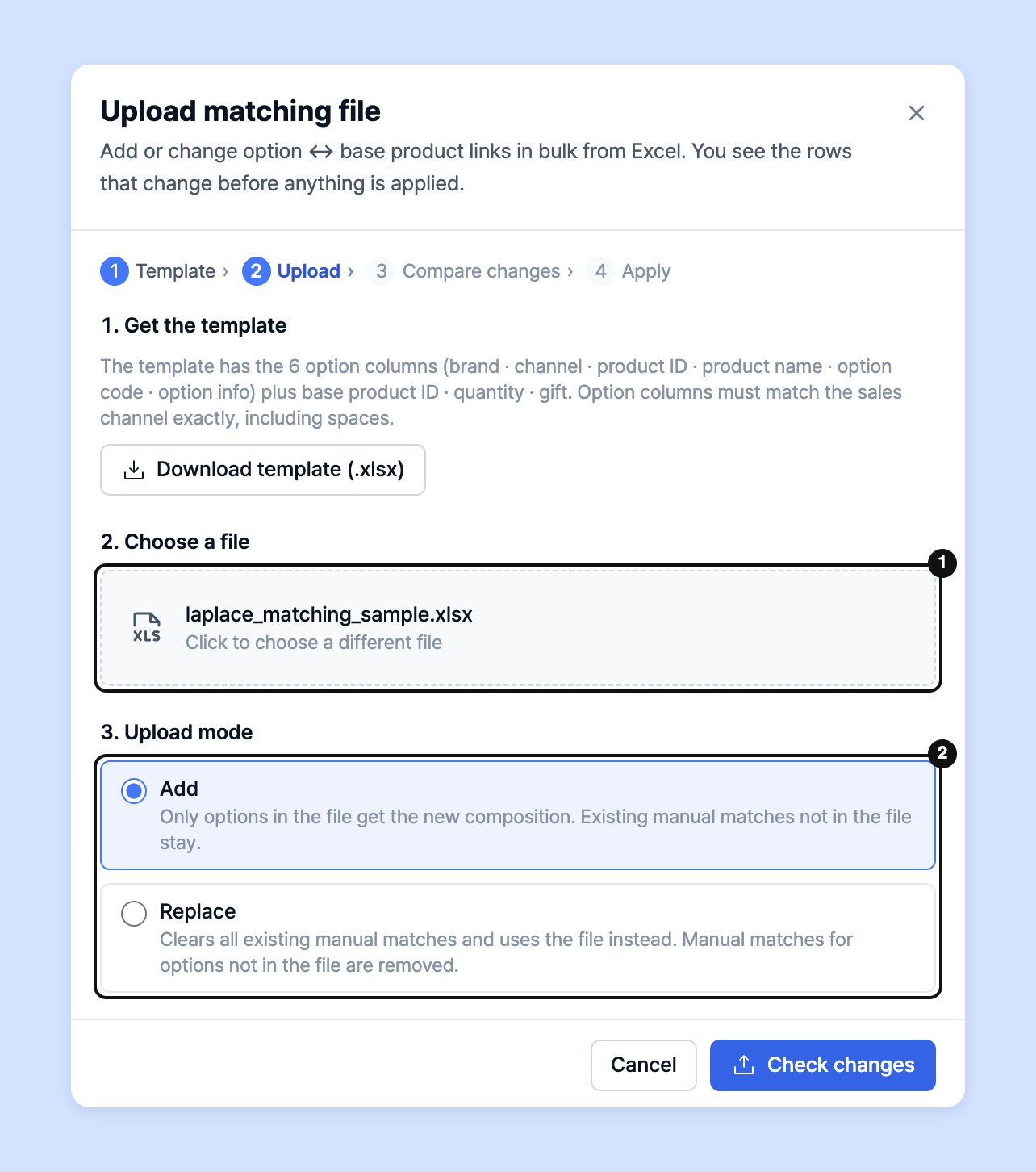
4. Drag the completed file onto **Choose a file**, or click to pick it. (.xlsx · .xls) Then choose the **Upload mode**.

   * **Add**: Replaces only the options in the file with the new composition. Existing manual matches not in the file stay as they are.
   * **Replace**: Deletes all existing manual matches and replaces them with the file's contents. Manual matches for options not in the file are deleted.

   <figure><img src="https://616205588-files.gitbook.io/~/files/v0/b/gitbook-x-prod.appspot.com/o/spaces%2Fqr1veGyUqCNwQBBmk3yt%2Fuploads%2Fgit-blob-c3d87192937242db46cda89c1175780950653656%2Fdatamanage__matching__option_sku__17.png?alt=media" alt="Choose a file and upload mode" width="460"><figcaption></figcaption></figure>
5. Click **Check changes** to see the status of each row before applying.

* **New link**: A newly added match.
* **Changed**: A row whose existing link changes to a different composition.
* **Option not found**: A row where one of brand · sales channel · product ID · product name · option code · option info differs from the actual order data.
* **Check base product**: A row whose base product ID isn't registered, or whose name differs from the registered name.

  ![Check changes result](https://616205588-files.gitbook.io/~/files/v0/b/gitbook-x-prod.appspot.com/o/spaces%2Fqr1veGyUqCNwQBBmk3yt%2Fuploads%2Fgit-blob-9f5e14d1857e7b75fcc0cebf78f8635e654b9bd2%2Fdatamanage__matching__option_sku__18.png?alt=media)

{% hint style="info" %}

* Rows with a different base product name can be fixed at once with **Use registered names for all**.
* Unregistered base products can be registered and linked right away with **Register all with cost 0**. Enter costs later in **Base products**. Until you enter a cost, the margin shows as 100%.
* Download rows that can't be linked with **Download n rows that can't be linked**, fix them, and upload again.
  {% endhint %}

6. After checking, click **Apply n rows** to update the matching data. If some rows can't be linked, click **Apply without n rows** to apply only the rest.

{% hint style="info" %}
**Want the rules for each field in the file?** What to enter in each field and what to watch out for are described in [Base product option matching columns](/guide/en/startguide/connect/columns/cogs_relation.md).
{% endhint %}

## Auto-matching guide <a href="#auto-matching" id="auto-matching"></a>

{% hint style="info" %}
**What is auto-matching?**

Set rules such as a specific product name or option name, and product options that meet the rule are automatically linked to the base products you chose. Once a rule is set, new products that meet it are matched automatically and visualized in metrics, with no manual matching needed.
{% endhint %}

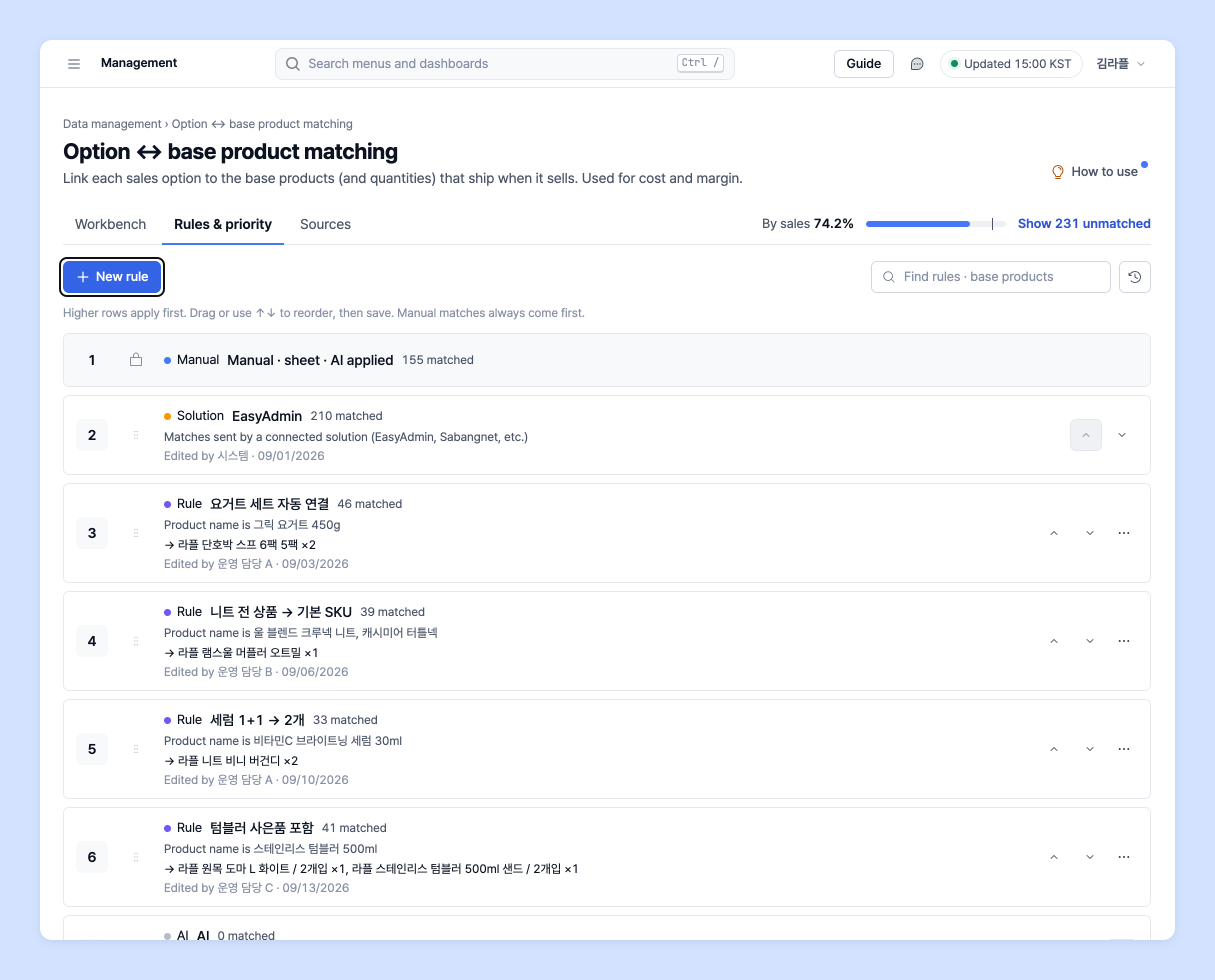
1. Go to the **Rules & priority** tab at the top and click **New rule**.

   <figure><img src="https://616205588-files.gitbook.io/~/files/v0/b/gitbook-x-prod.appspot.com/o/spaces%2Fqr1veGyUqCNwQBBmk3yt%2Fuploads%2Fgit-blob-d3354639ad32e5d0207c50ce60f4142694fcae0b%2Fdatamanage__matching__option_sku__19.png?alt=media" alt="New rule in the Rules &#x26; priority tab" width="645"><figcaption></figcaption></figure>

{% hint style="info" %}
If you've set conditions in the **Workbench**, click **Create an auto-matching rule from these conditions** to start a rule with those conditions already filled in.
{% endhint %}

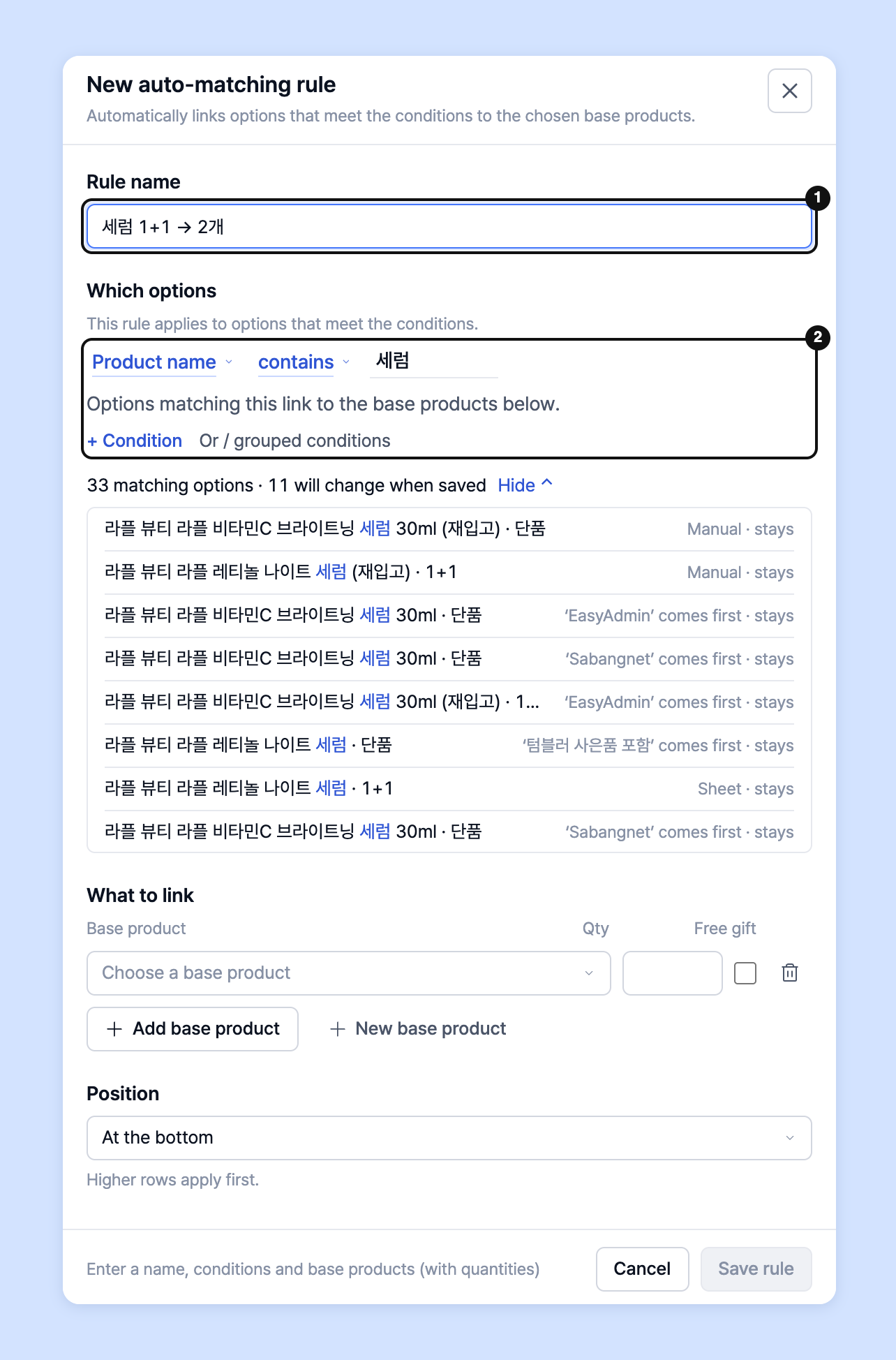
2. The **New auto-matching rule** panel opens on the right. Enter a **Rule name**, then build conditions as sentences in **Which options**. Click **+ Condition** to add lines one at a time, such as "Product name contains tumbler".

   <figure><img src="https://616205588-files.gitbook.io/~/files/v0/b/gitbook-x-prod.appspot.com/o/spaces%2Fqr1veGyUqCNwQBBmk3yt%2Fuploads%2Fgit-blob-851ac2fa6a565ba0c3d163453ec91d2839c8ef3b%2Fdatamanage__matching__option_sku__20.png?alt=media" alt="Building sentence-style conditions" width="343"><figcaption></figcaption></figure>

* Conditions can use brand, sales channel, product ID, product name, option code and option info. Click the column name in a sentence to **Change column**, or click the operator to **Change operator**.

{% hint style="info" %}
💡 **Condition operators**

* **contains / does not contain**: Matches whether the selected column contains (or doesn't contain) the text you entered.
* **starts with / ends with**: Matches whether the selected column starts (or ends) with the text you entered.
* **is one of / is not**: Matches whether the selected column's value is (or isn't) one of the values you chose.
* **is empty / has a value**: Matches whether the selected column is empty (or has a value).
* Multiple lines of conditions are all joined with **AND**.
  {% endhint %}

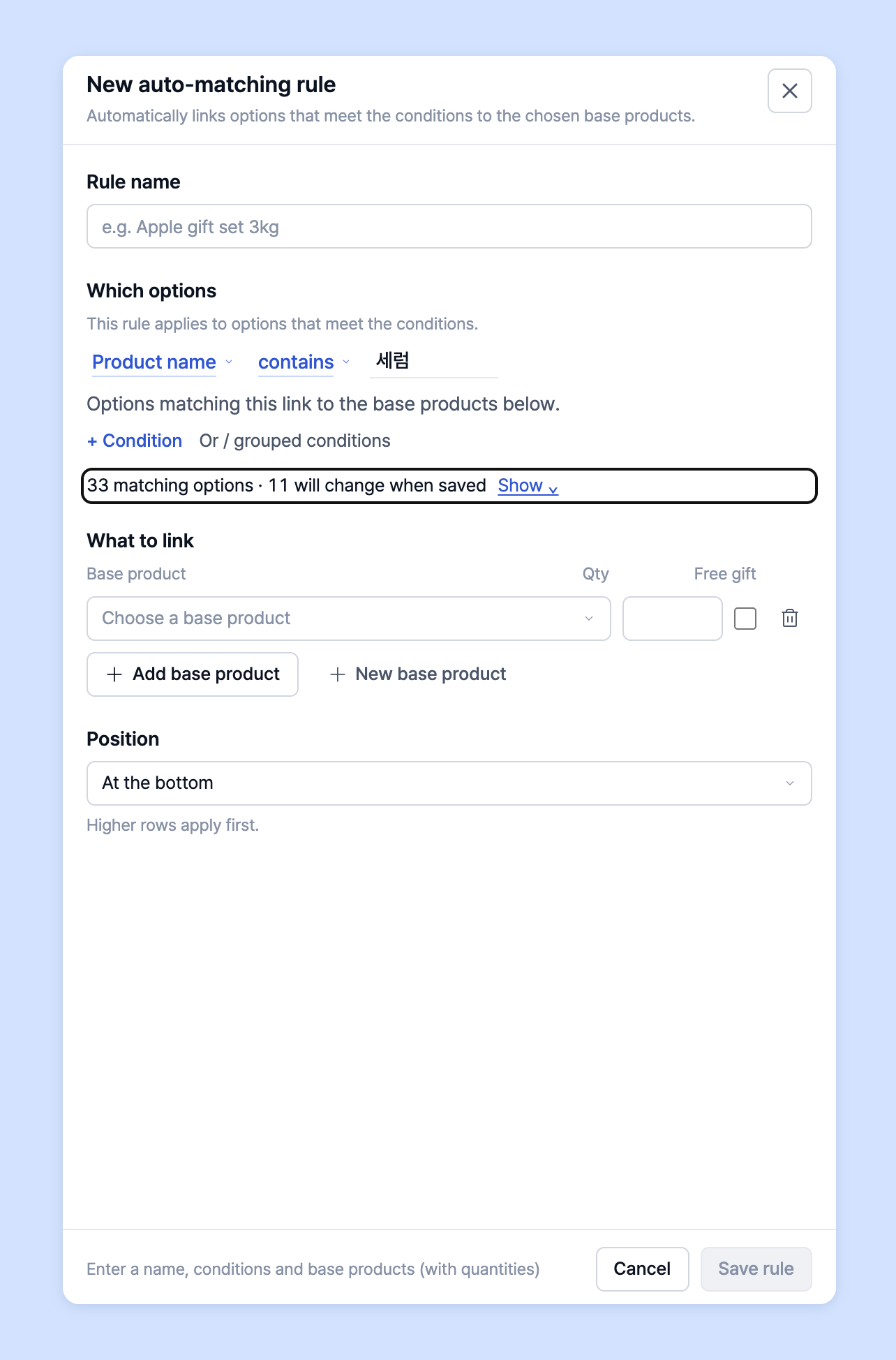
3. In the preview below, check **n matching options** and **n will change when saved**. Click **Show ⌄** to expand the list of matching options.

   <figure><img src="https://616205588-files.gitbook.io/~/files/v0/b/gitbook-x-prod.appspot.com/o/spaces%2Fqr1veGyUqCNwQBBmk3yt%2Fuploads%2Fgit-blob-85046065fbd84653172f65b7c99524bf294f3293%2Fdatamanage__matching__option_sku__21.png?alt=media" alt="Rule preview" width="343"><figcaption></figcaption></figure>

{% hint style="info" %}
The preview list shows, for each option, how it will change when you save, such as "Moved from 'another rule'" or **Manual · stays**. Manual · sheet matches apply before rules and stay as they are.
{% endhint %}

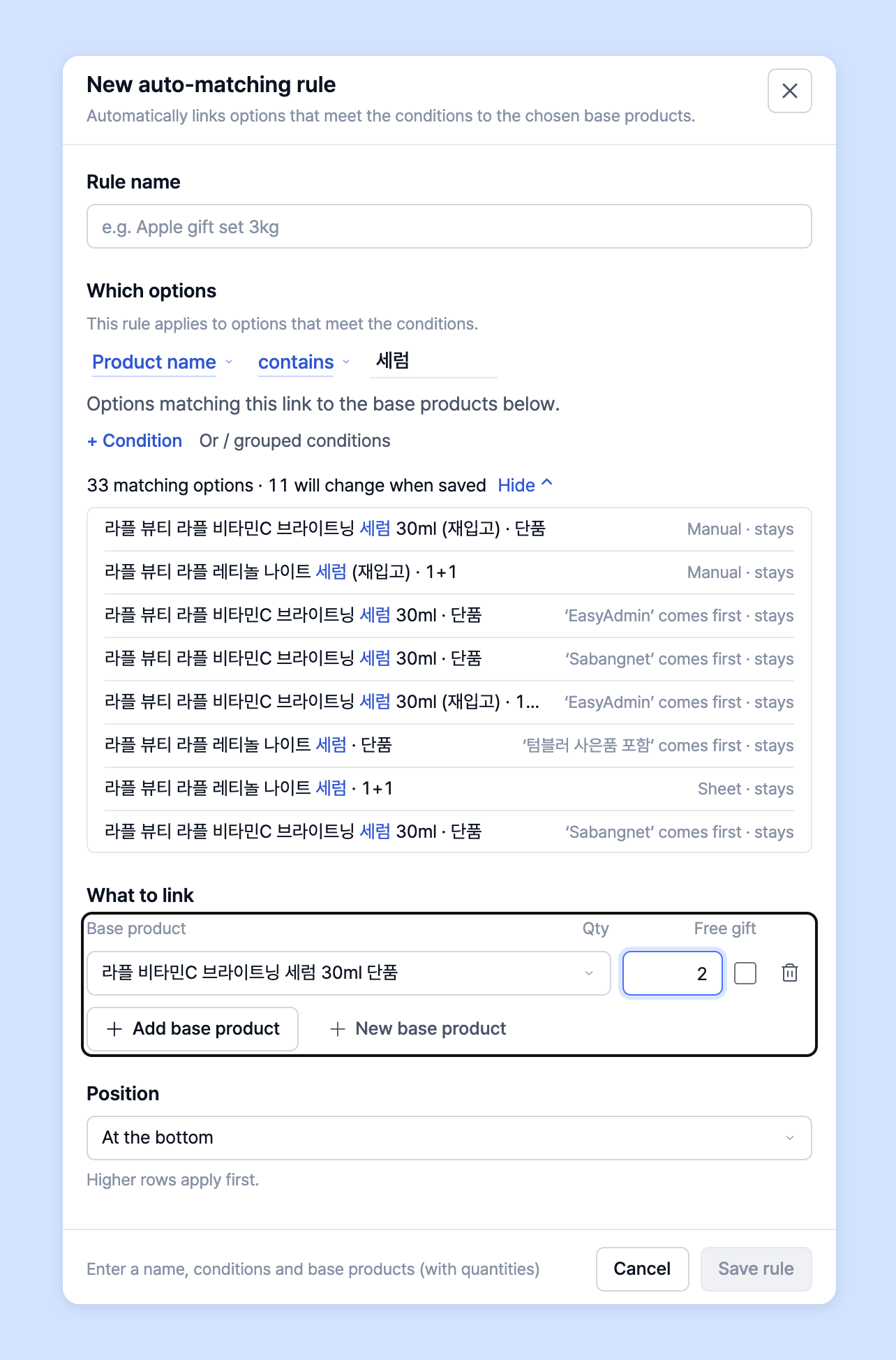
4. In **What to link**, choose the base products to link to options that meet the conditions, and enter quantities.

   <figure><img src="https://616205588-files.gitbook.io/~/files/v0/b/gitbook-x-prod.appspot.com/o/spaces%2Fqr1veGyUqCNwQBBmk3yt%2Fuploads%2Fgit-blob-b916a8632c9bbe3d677fb287a069a57d3f9aae50%2Fdatamanage__matching__option_sku__22.png?alt=media" alt="Base products and quantities to link" width="343"><figcaption></figcaption></figure>
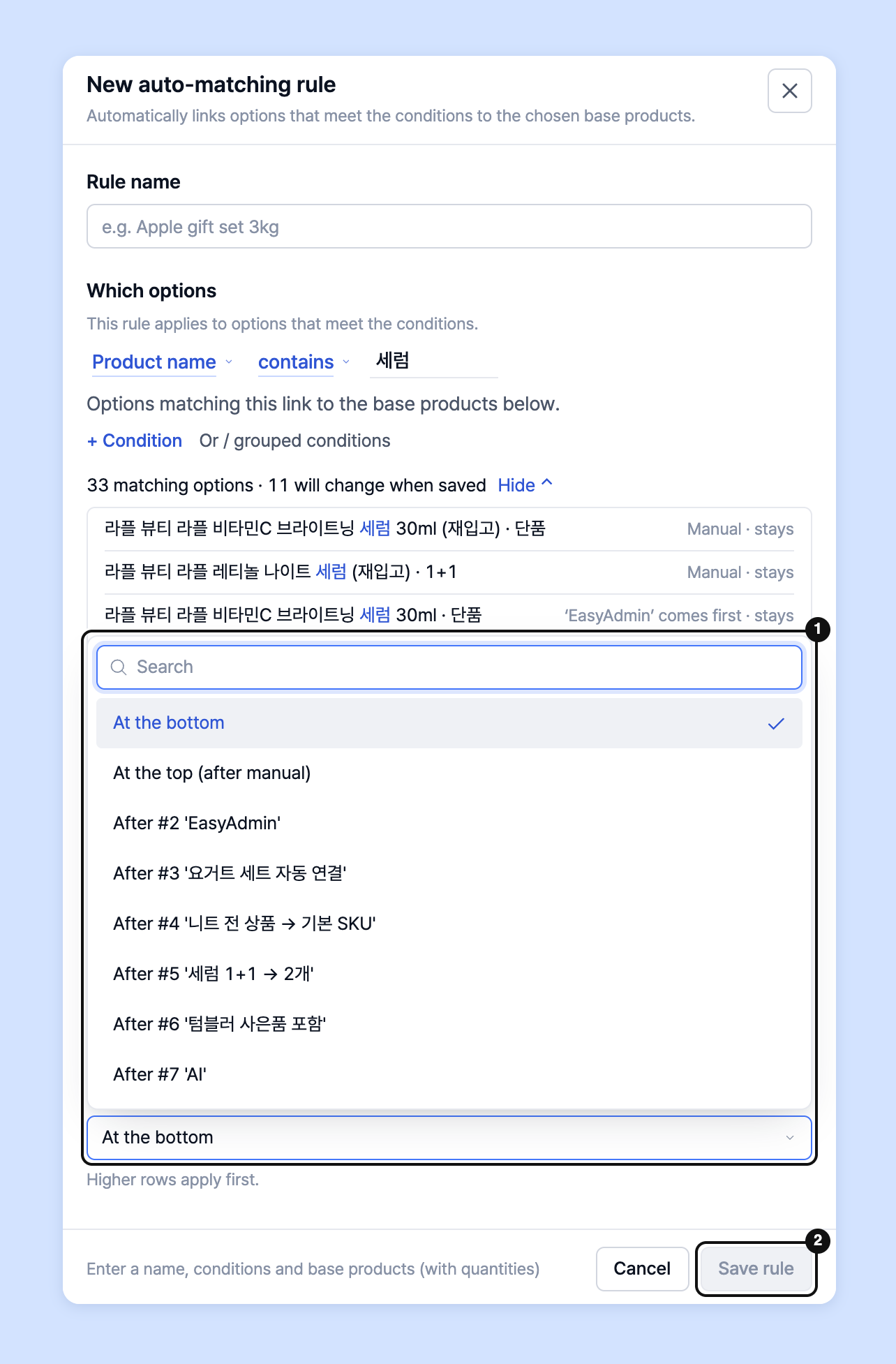
5. Set the priority in **Position** and click **Save rule**. Once saved, it applies from the next aggregation.

   <figure><img src="https://616205588-files.gitbook.io/~/files/v0/b/gitbook-x-prod.appspot.com/o/spaces%2Fqr1veGyUqCNwQBBmk3yt%2Fuploads%2Fgit-blob-b966f30cd21ac94f58c37d796d4d28641edbcd2b%2Fdatamanage__matching__option_sku__23.png?alt=media" alt="Position and Save rule" width="342"><figcaption></figcaption></figure>

{% hint style="info" %}
Click the menu next to a rule in the rule list to **Edit** · **Duplicate (right below)** · **Show options matched by this rule** · **Delete**.
{% endhint %}

## Advanced filter guide <a href="#advanced-filter" id="advanced-filter"></a>

{% hint style="info" %}
**What are advanced conditions?**

They're handy for product options with complex structures. For example, if a yellow ice cream sold on Coupang and a red ice cream sold on Smart Store differ only in product name and have the same composition, set up a rule with 2 condition groups to link base products for the products sold in each store at once.
{% endhint %}

In the rule panel's **Which options**, click **Or / grouped conditions** to switch to the group editor. In the **Workbench**, open the same editor with **+ Add condition** › **Advanced (OR)**.

<figure><img src="https://616205588-files.gitbook.io/~/files/v0/b/gitbook-x-prod.appspot.com/o/spaces%2Fqr1veGyUqCNwQBBmk3yt%2Fuploads%2Fgit-blob-d170ebdfd4f2ce8d2d9d7ad636dad0635ec450a0%2Fdatamanage__matching__option_sku__24.png?alt=media" alt="Group editor" width="343"><figcaption></figcaption></figure>

{% hint style="info" %}
Put a "product name contains 'SkinSkin'" condition in **Group 1** → **Add group** → change **Between groups** to **Any group matches (OR)** → put a "product name contains 'green tea powder'" condition in **Group 2**. All products whose name contains "SkinSkin" or "green tea powder" are then selected.
{% endhint %}

{% hint style="info" %}
**AND / OR explained**

* **AND**: Finds product options that meet both condition A and condition B
* **OR**: Finds all product options that meet condition A or condition B
  {% endhint %}

## Rule priority guide <a href="#priority" id="priority"></a>

{% hint style="info" %}
**What is rule priority?**

When you create several rules, some product options may fall under more than one. Priority decides which rule matches the product.

For example, say product A falls under both rule A and rule B. Without priority, it would be counted twice and composed of two sets of base products. Priority prevents this: if rule A has higher priority, product A is matched only by rule A and excluded from rule B.

In short, rule order keeps products from being matched more than once.
{% endhint %}

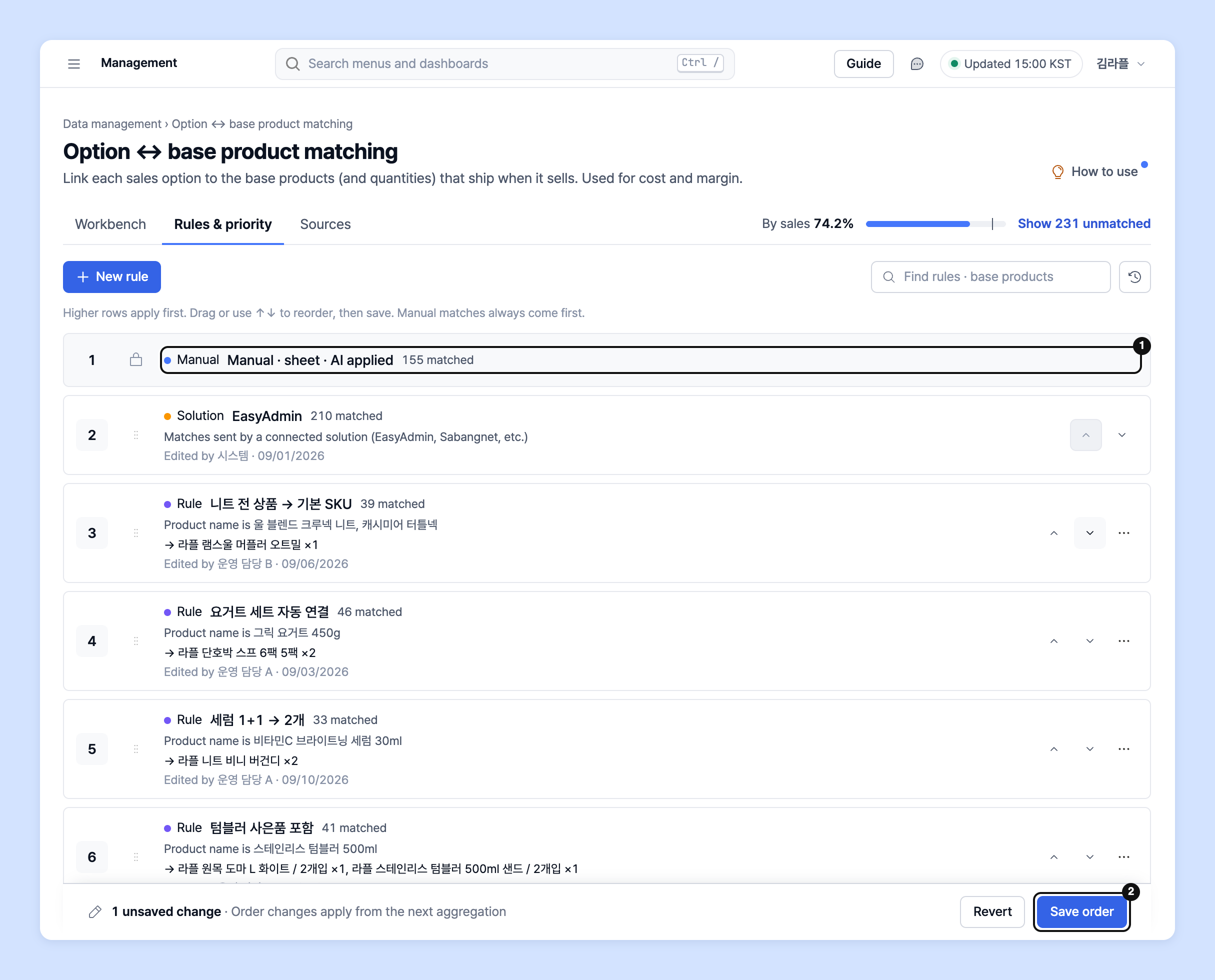
1. In the **Rules & priority** tab, rules higher in the list apply first. Drag and drop or use the ↑↓ buttons to reorder. On the keyboard, use Alt+↑/↓.
2. After reordering, click **Save order**. It applies from the next aggregation.

   <figure><img src="https://616205588-files.gitbook.io/~/files/v0/b/gitbook-x-prod.appspot.com/o/spaces%2Fqr1veGyUqCNwQBBmk3yt%2Fuploads%2Fgit-blob-a1137a08e05fc6bcbd63e7f3c339fc150cb477ab%2Fdatamanage__matching__option_sku__25.png?alt=media" alt="Rule priority list" width="645"><figcaption></figcaption></figure>

{% hint style="info" %}
**Manual · sheet · AI applied** at the top holds matches you entered directly, so it **always applies first and can't be reordered.** You can't reorder while the search box has text, so clear the search first.
{% endhint %}

## Manage matching sources <a href="#sources" id="sources"></a>

The **Source** tab shows at a glance where your matches come from.

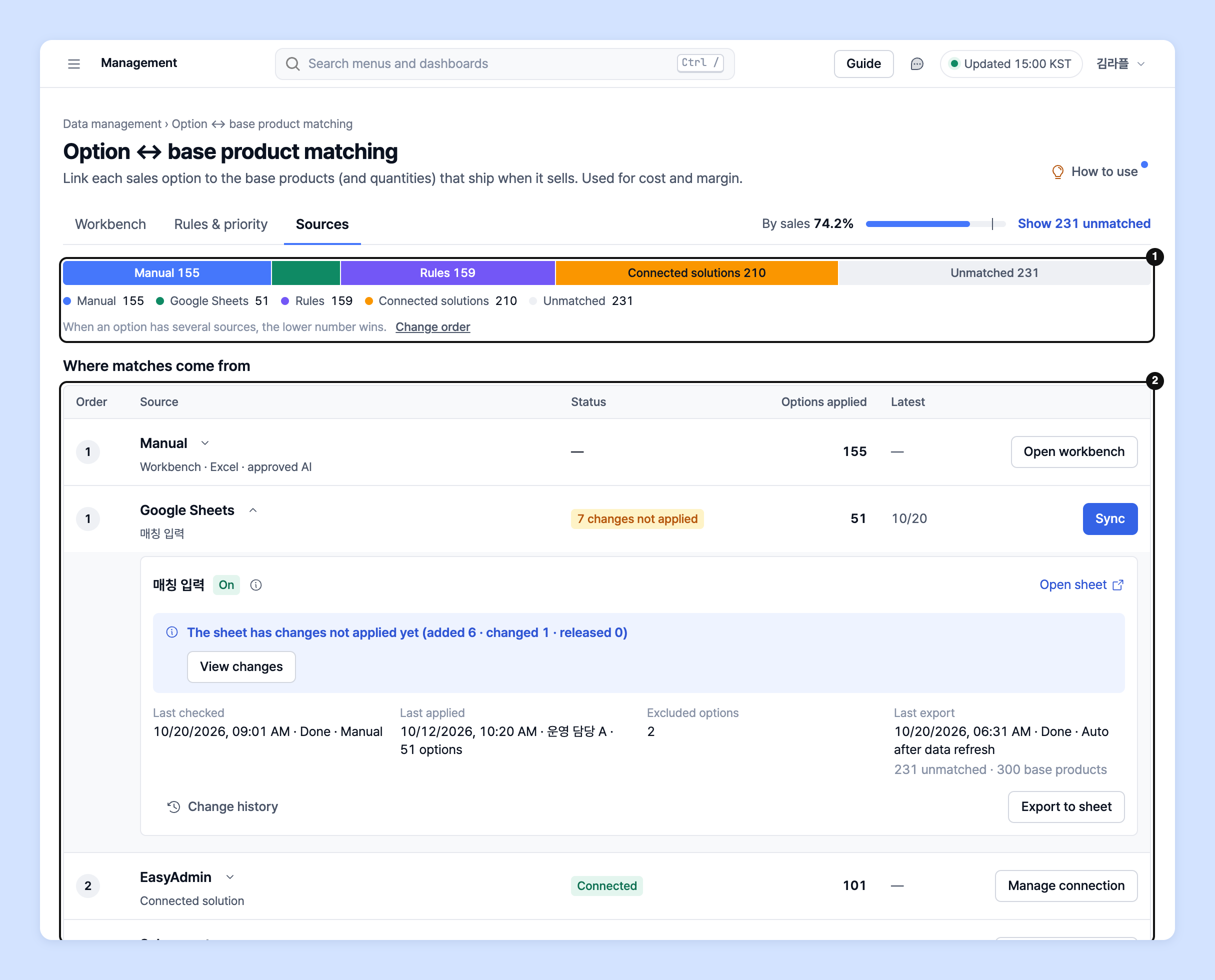
1. Click the **Source** tab at the top. The **Matches by source** bar shows the share of manual · Google Sheets · rules · integrated solutions · unmatched.
2. In the **Where matches come from** table, check **Order** · **Status** · **Options applied** for each source, and use the buttons in the **Actions** column (**Open workbench** · **View rule** · **Manage connection** and so on) to go to the related screen.

   <figure><img src="https://616205588-files.gitbook.io/~/files/v0/b/gitbook-x-prod.appspot.com/o/spaces%2Fqr1veGyUqCNwQBBmk3yt%2Fuploads%2Fgit-blob-4cada94e4a311e0568cc401ee92a71f06393a86c%2Fdatamanage__matching__option_sku__26.png?alt=media" alt="Source tab" width="645"><figcaption></figcaption></figure>

{% hint style="info" %}

* If an option has several sources, the one with the lower number wins. Manual matching is always No. 1, and Google Sheets shares the same position as manual (if both exist for the same option, manual wins).
* Your Laplace manager connects Google Sheets matching for you. Click **Copy connection request** to copy the message, then send it to the contact channels below.
* Matches from integrated solutions (EasyAdmin · Sabangnet, etc.) change only when you edit them in the solution.
  {% endhint %}

## Ask your dedicated manager <a href="#contact" id="contact"></a>

Have questions about base products?

Contact us through the page below or by email. Your manager will help you.

> 💬 [Contact us on our website](https://www.analytics.laplacetec.com/contact)

**Email:** [**product@laplacetec.com**](mailto:product@laplacetec.com)