> For the complete documentation index, see [llms.txt](https://www.analytics-docs.laplacetec.com/guide/llms.txt). Markdown versions of documentation pages are available by appending `.md` to page URLs; this page is available as [Markdown](https://www.analytics-docs.laplacetec.com/guide/en/datamanage/matching/sku.md).
# Base products
{% hint style="info" %}
A base product is the actual product in fulfillment units. For example, if a product sold in your store is "Black rice diet set", the base products that make it up are black rice 300g, sweet potato 200g and chicken breast 100g. Upload base product information (cost and cost effective date), and Laplace automatically calculates sales, sales rank, average order value and more for each base product.
{% endhint %}
## What is a base product?
A base product is **the product name in fulfillment units, including its cost**, also called a "**base product**" or "**SKU**". When you connect your stores to Laplace, product information and data are automatically cleansed and visualized, but cost-related data that stores don't provide, such as cost, margin and margin rate, is hard to see.
Also, when you connect several store platforms, the same product often appears as several products in charts. If **you don't specify the base products that make up a product, they are treated as different products** and the data may not be combined.
To handle the "**treated as different products**" situation above and to see "**cost, margin, margin rate and similar data**" by fulfillment unit, register base products and link them to sales product options.
Example)

1. Chart: "Black rice diet set" registered on Cafe24 and "Black rice diet SET" registered on Smartstore are drawn separately as different products.
2. Table: the same product is counted separately on two rows, one per name.
* The same product registered under a different name in each store shows up as two separate rows in the **Product / option / SKU analysis** table. This is because products are treated as different when the sales channel differs, or when the names differ even though the composition is the same.
To solve this, register base products. Follow the guide below to set up base product data and analyze products by base product.
{% embed url="" %}
Download the video
{% file src="/files/cbY8OLZJINV1KE5HFTAv" %}
## Base product registration guide
1. Click **Data management** in the left rail, then click **Matching · cost** › **Base products** in the navigation panel.

2. Click **Upload / download files** in the toolbar, then click **Upload file**. If you don't have any base products yet, you can also click **Upload file** in the middle of the screen.

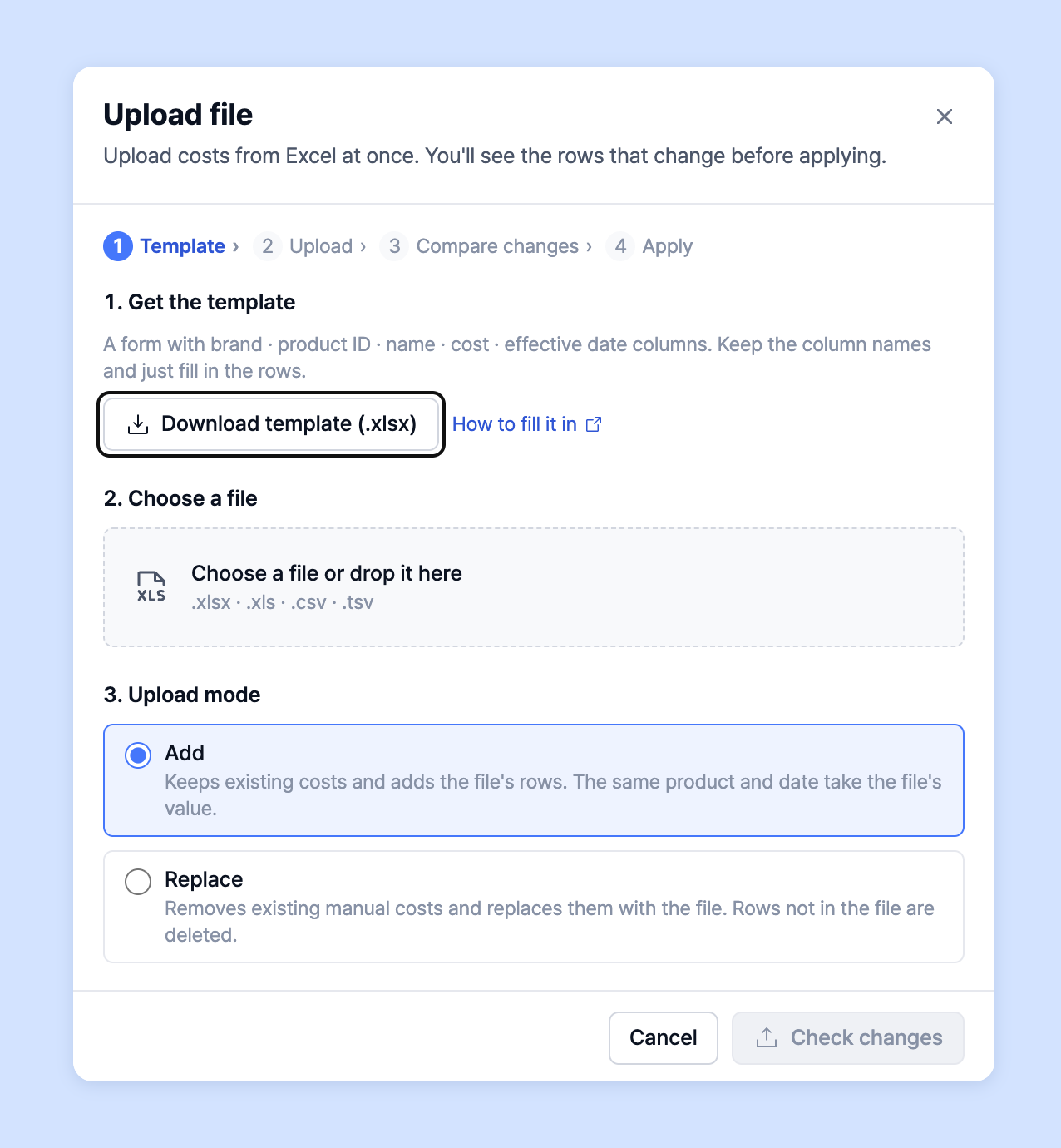
3. In the **Get the template** step of the **Upload file** dialog, click **Download template (.xlsx)**.
4. Fill in brand, product ID, product name, cost and effective date in the template without leaving any out. Don't rename the columns; just fill in the rows.
{% hint style="info" %}
* **Enter cost as an amount including VAT.**
* Enter dates in the `2026-01-31` format.
* Want to know what goes in the template? See **How to fill it in** in the dialog or the [**Base product FAQ**](#faq) below.
{% endhint %}
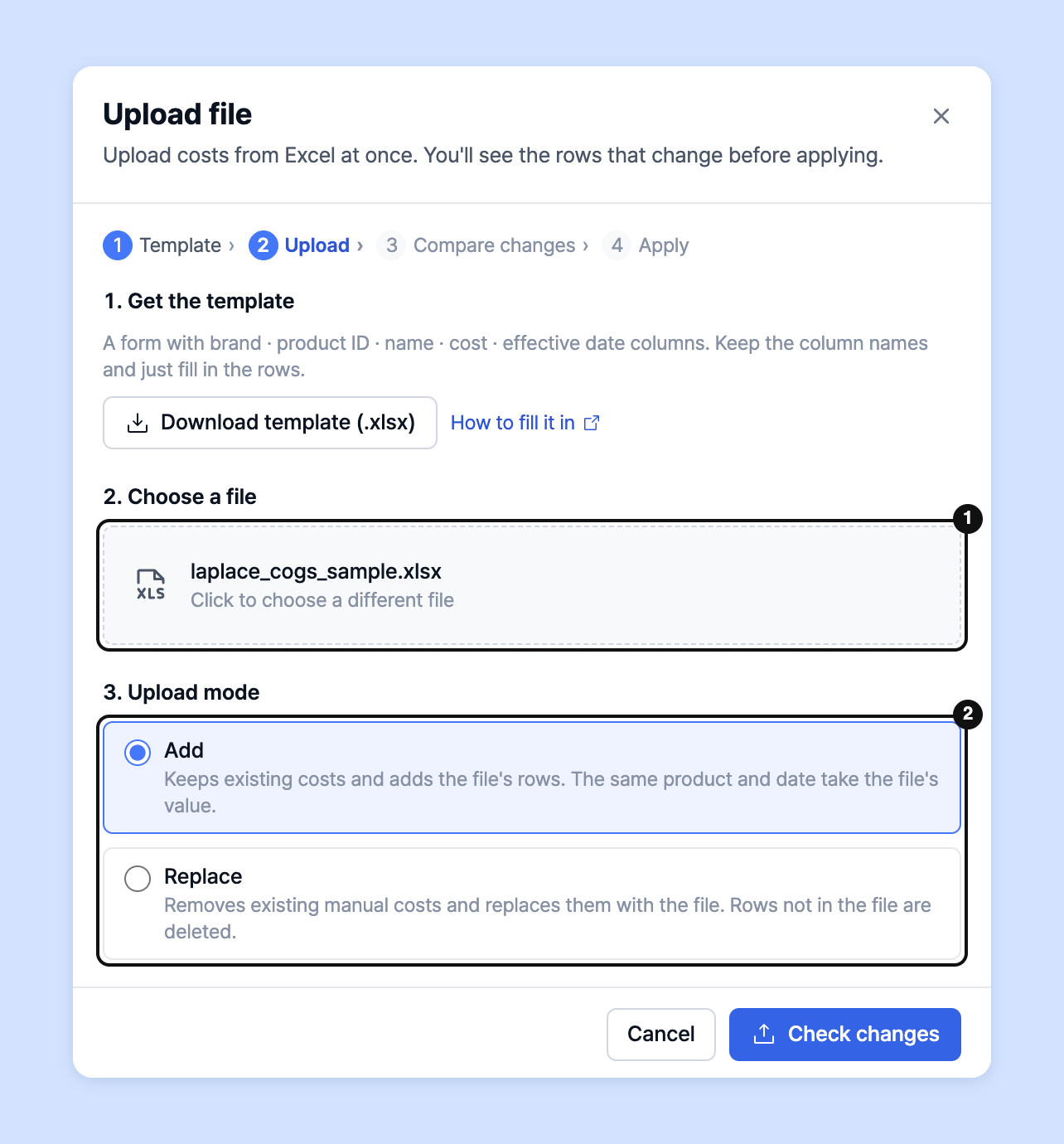
5. Drag your completed file onto **Choose a file**, or click to pick it. (.xlsx · .xls · .csv · .tsv) Then choose the **Upload mode**.
* **Add**: Keeps existing costs and adds the rows in the file. Rows for the same product and same date are replaced with the file's values.
* **Replace**: Deletes existing manual costs and replaces them with the file's contents. Rows not in the file are deleted.
6. Click **Check changes** to see the rows that will be added and deleted first. Review them, then click **Apply n rows** (e.g. "Apply 120 rows" for 120 rows).

{% hint style="info" %}
This usually finishes within a minute. Keep the dialog open and wait a moment. Uploaded costs appear in the table right away and are reflected in dashboards from the next aggregation.
{% endhint %}
### Add one at a time
1. Click **Add base product** in the toolbar.
2. Enter **Base product name** · **Product ID** · **Brand**, then **Cost (incl. VAT, KRW)** and **Effective from**. If you leave the cost blank, it's registered as KRW 0.
3. Click **Add**.
## Edit cost history
To preserve past cost history, cost · brand · product ID · product name aren't edited directly in the table but in the right panel.
1. Double-click the cost cell of the product to edit, or select the cell and press Enter. The right panel opens.
2. In **Cost history**, click **Add change**.
3. Under **New cost**, enter **Starting (KST)** and **Cost (KRW)**. A preview such as "Calculated at KRW 1,200 from 2026-04-01." appears below.
4. Click **Save n changes** in the save bar at the bottom of the screen.
{% hint style="info" %}
* **The oldest cost also applies to all data before it.** For example, even if the first cost starts on 2026-03-01, earlier orders are also calculated at that cost.
* If an integrated value and a manual value exist for the same date, the manual value is used. If the dates differ, the value with the later date is used from that date.
* If you enter a past date, past data is recalculated at the next aggregation.
* Dates are in Korea Standard Time (KST).
{% endhint %}
## Edit directly in the table
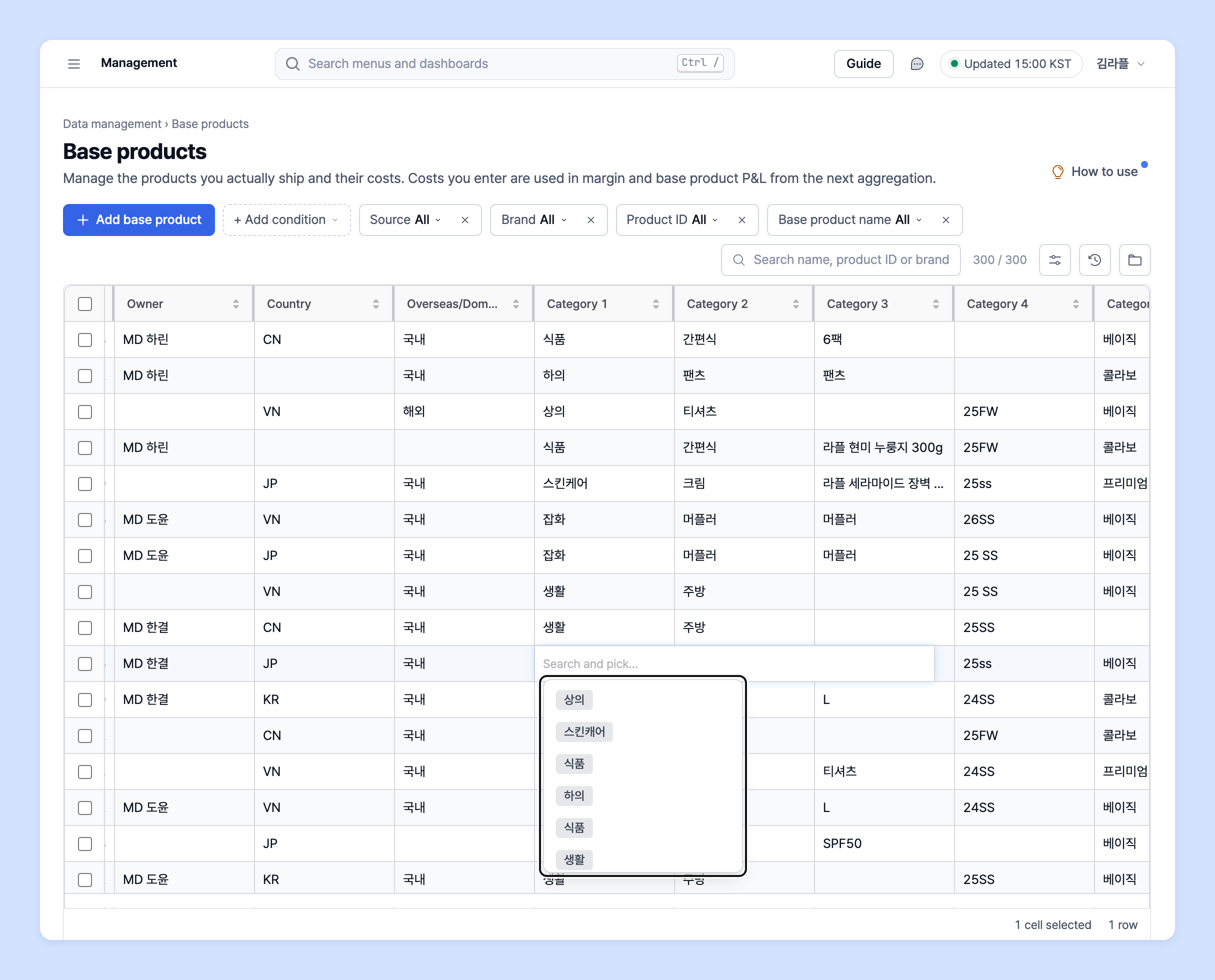
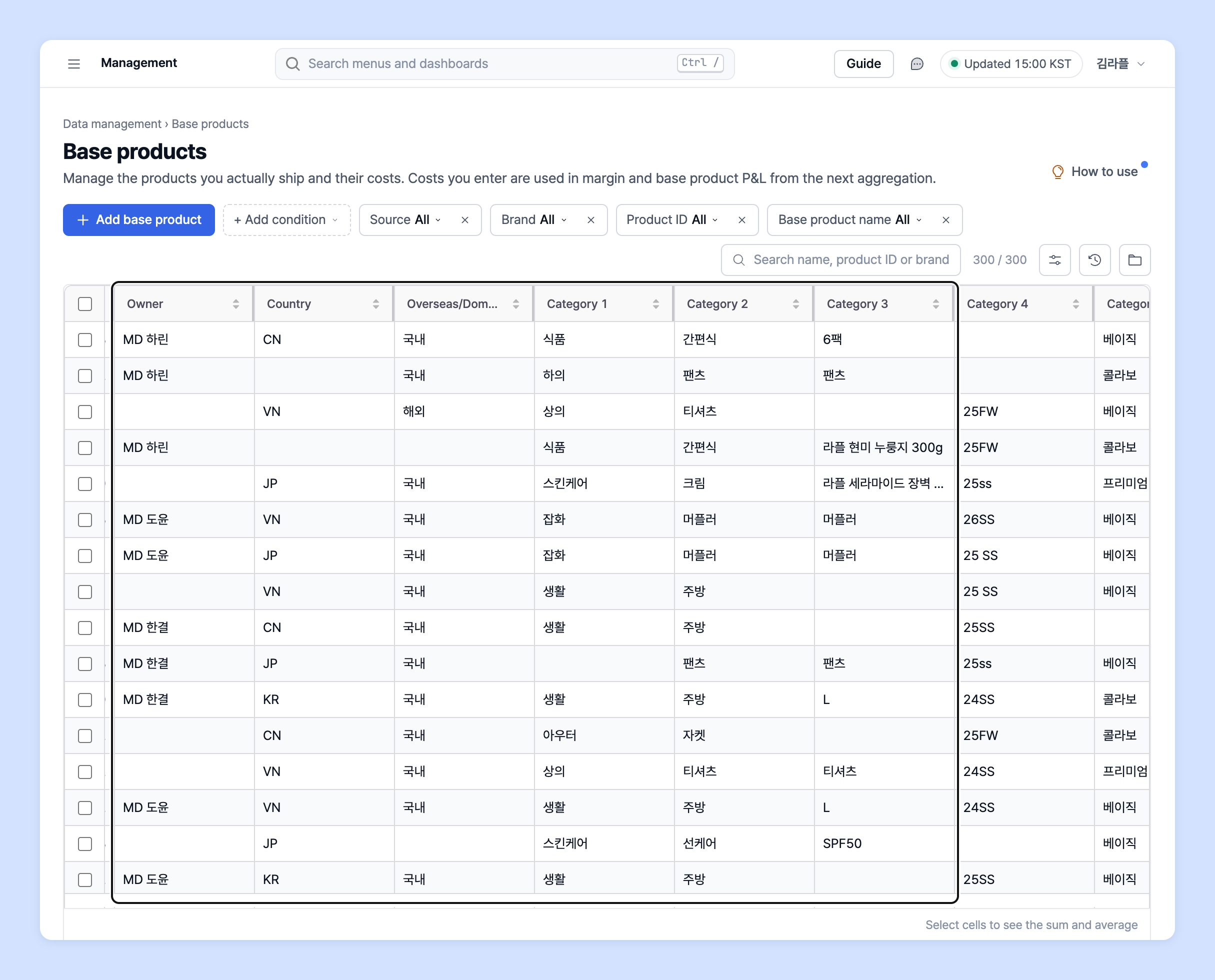
Classification cells such as category · owner · country can be edited directly in the table, like in Excel.
1. Click the cell to edit, then type a value or choose from the list. Typing a value not in the list adds it as a new value. Move between cells with Enter · Tab · arrow keys.
2. Copy several rows from Excel, select a cell and paste (⌘V, Ctrl+V on Windows) to open **Paste preview**. Check the rows that will change and click **Apply n rows**.

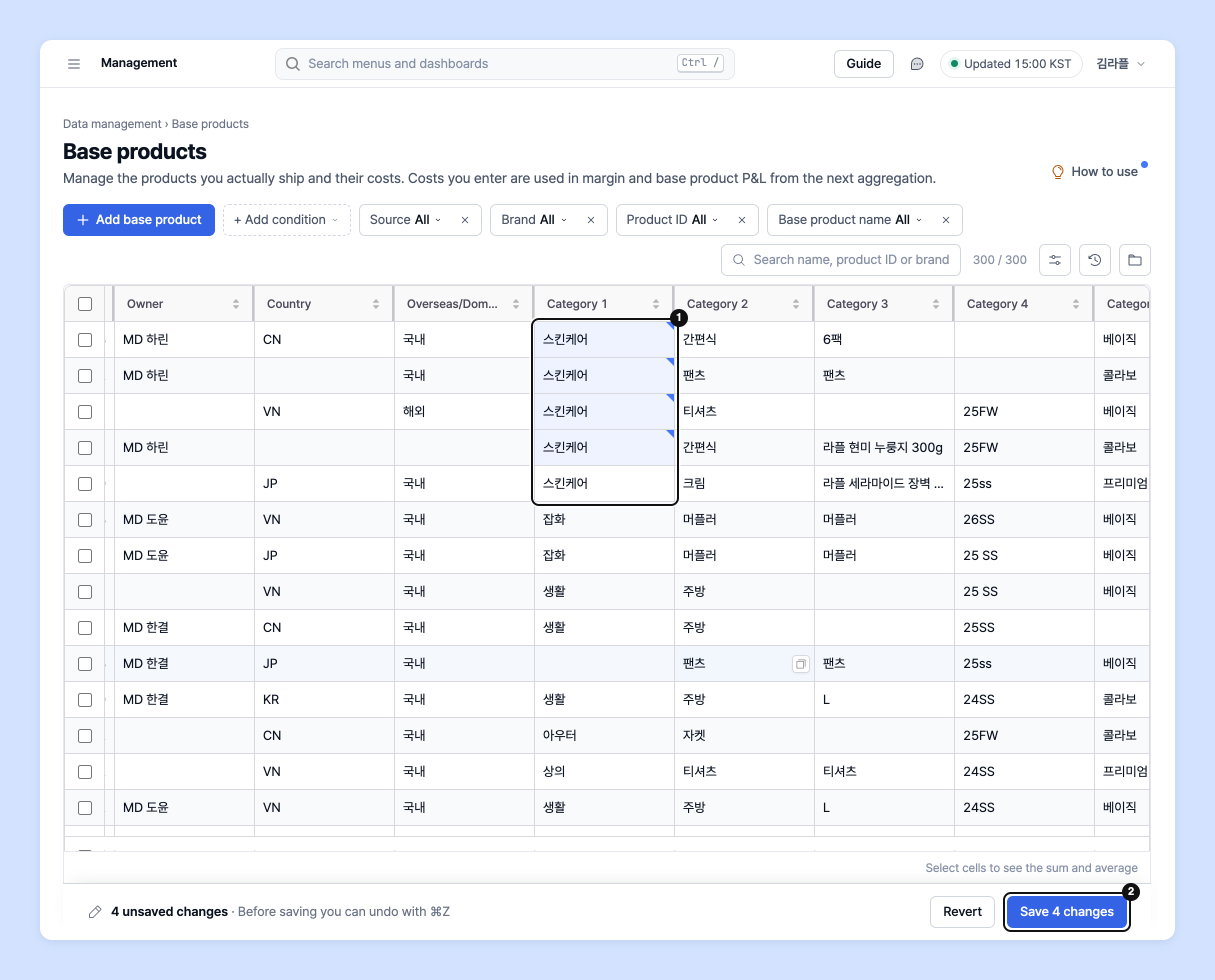
3. Drag the dot at the bottom right of a cell downward to fill the same value.
4. Edited cells are shown in blue. Before saving, you can undo with ⌘Z (Ctrl+Z on Windows). When you're done, click **Save n changes** in the save bar.
{% hint style="info" %}
Pasting doesn't work for the cost · brand · product ID · product name columns. Edit those cells in the right panel. Paste and fill are available only on desktop.
{% endhint %}
## Base product FAQ
**What are base product categories?**
Register categories to classify base products. Mark whether a base product is overseas/domestic only, who owns it, or whether it belongs to a specific line, and then see metrics by those categories in the base product analysis charts.
{% hint style="info" %}
**Category definitions**
* **Category 1: Category 6**: Set categories that classify the base product. You can register whether it represents a specific line, is part of a promotion, and so on.
* **Overseas/Domestic**: Register whether the base product is overseas-only or domestic-only.
* **Country**: Register whether the base product is exclusive to a specific country.
* **Owner**: Assign an owner to the base product to measure that owner's performance.
* **Online/Offline**: Register whether the base product is online-only or offline-only.
* **Box conversion factor**: The value used to convert to box units.
{% endhint %}
**How do I put the same category on many products at once?**
1. Check products in the left column of the table. A bulk action bar appears above the table.
2. Click **Add category**, then choose the **Category to change** and the value to set. A preview shows how many will change.
3. Click **Apply to n**. To remove values, use **Clear category**.

{% hint style="info" %}
Bulk category add · clear is **saved immediately** without going through the save bar. You can undo it from **Change history** in the toolbar.
{% endhint %}
**How do I delete base products?**
Check products in the table, then click **Delete** in the bulk action bar. Deleting also removes the cost history, labels and option matches linked to that base product.
{% hint style="warning" %}
Products with integrated costs imported from Sabangnet · EasyAdmin and similar tools can't be deleted on this screen. Delete them in the integrated source.
{% endhint %}
**How do I download the list as a file?**
From **Upload / download files** in the toolbar, choose and download **Current view** (.csv) · **All base products** (.xlsx) · **Full cost history** (.xlsx) · **Upload template** as needed.
## Ask your dedicated manager
Have questions about base products?
Contact us through the page below or by email. Your manager will help you.
> 💬 [Contact us on our website](https://www.analytics.laplacetec.com/contact)
**Email:** [**product@laplacetec.com**](mailto:product@laplacetec.com)