> For the complete documentation index, see [llms.txt](https://www.analytics-docs.laplacetec.com/guide/llms.txt). Markdown versions of documentation pages are available by appending `.md` to page URLs; this page is available as [Markdown](https://www.analytics-docs.laplacetec.com/guide/en/datamanage/product_identity.md).
# Product ID basis
{% hint style="info" %}
This screen sets whether Amazon products are identified by **ASIN** or by **seller product code**. The value you choose here goes into **Product ID** in dashboards. Right now you can choose it **only if you've connected Amazon**.
{% endhint %}
## Which value is used?
Even for the same product, the number Amazon assigns (ASIN) and the code the seller assigns are different. Choose one of them as the basis for grouping products in dashboards.
| Basis | Description | Example |
| ----------------------- | ------------------------------------------------------------------------------------------------------------- | ------------ |
| **ASIN** | Uses the product number assigned by Amazon (ASIN). This is the **default**. | `B0CXK2M7QD` |
| **Seller product code** | Uses the product code assigned by the seller (SKU). Useful when you align several stores under the same code. | `MY-SKU-01` |
The numbers are examples for illustration.
{% hint style="warning" %}
Changing the basis **swaps the dashboard product ID and the managed product ID (the unified product ID on Data management screens).** Existing product matches (option ↔ base product links, matching rules) must be moved to the new basis first so they don't come apart.
{% endhint %}
## Open the screen
Click **Data management** in the left rail, then click **Customers · standards** › **Product ID basis** in the navigation panel.
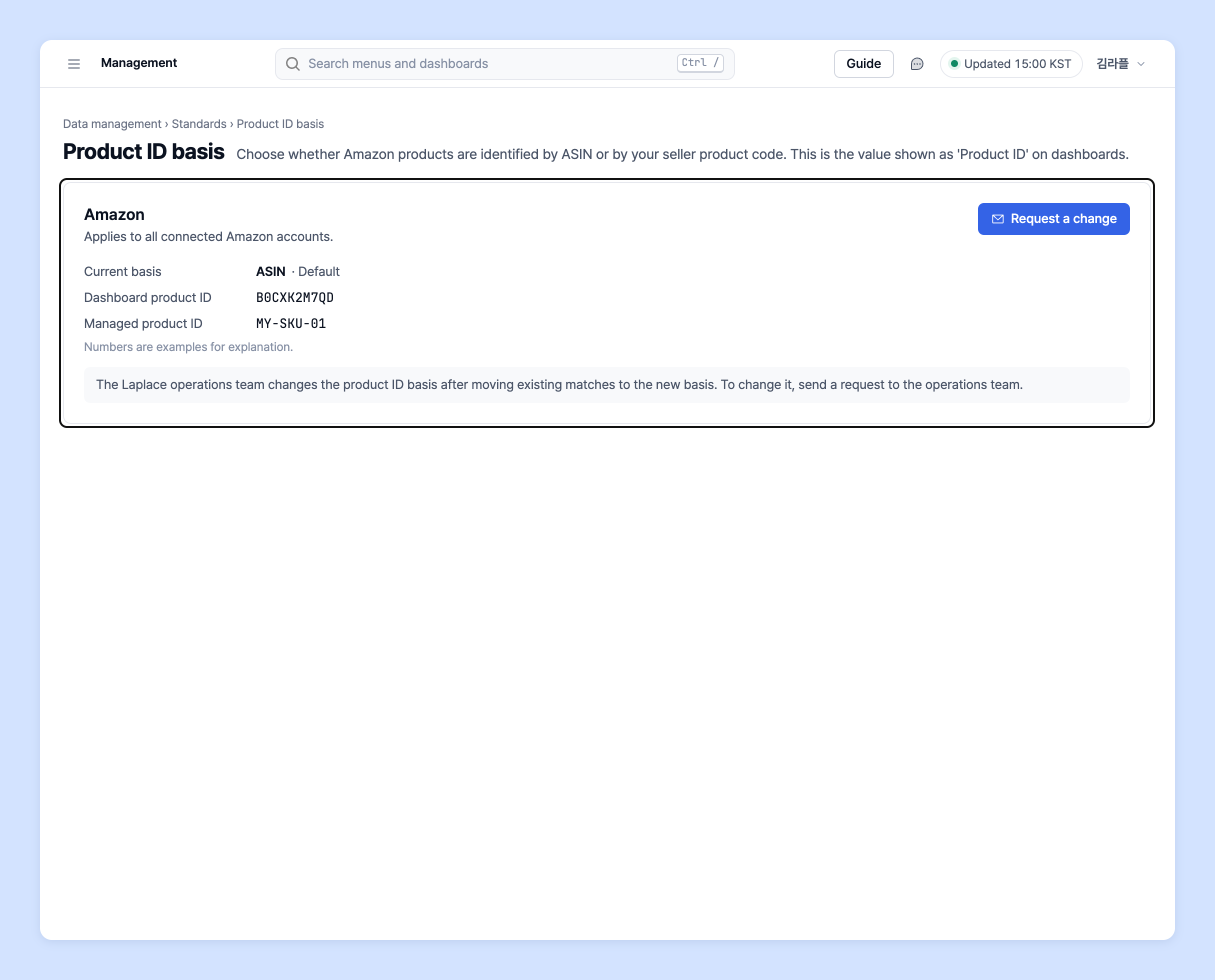
One card appears for each connected Amazon account. Each card shows the following.
| Item | Description |
| -------------------- | ----------------------------------------------------------------------------------- |
| Current basis | **ASIN** or **Seller product code**. Shows **Default** if it has never been changed |
| Dashboard product ID | An example of the value shown in **Product ID** in dashboards |
| Managed product ID | An example of the value shown in the unified product ID on Data management screens |
{% hint style="info" %}
The basis **applies to all connected Amazon accounts together**.
{% endhint %}
## Change the product ID basis
The Laplace operations team changes the product ID basis after moving existing matches to the new basis. To change it, send a request to the operations team as follows.
1. Click **Request a change** on the Amazon card.

2. The request message is copied and a chat window opens. Send the copied message as is.
3. Once the operations team moves existing matches and changes the basis, **Current basis** on the card changes.
{% hint style="info" %}
If the chat window doesn't open, send the copied message to the contact channels under "Ask your dedicated manager" below. The **Request a change** button appears only if you have write permission for **Data management › Product ID basis**.
{% endhint %}
## When you can't choose a product ID basis
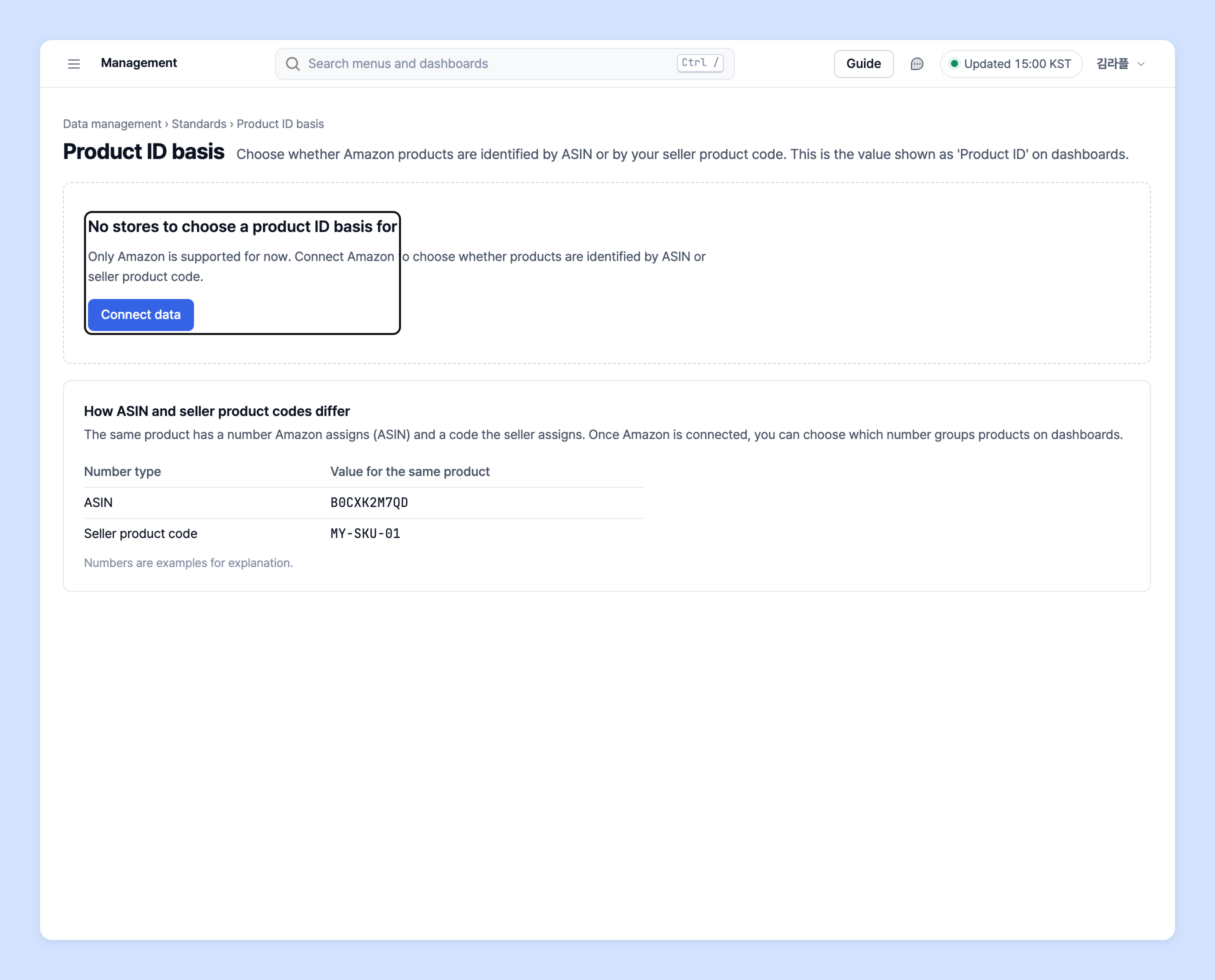
* If you see **No stores to choose a product ID basis for**, Amazon isn't connected yet. Click **Connect data** to [connect Amazon first](/guide/en/startguide/connect.md).
* If you see **No stores connected**, connect your order data first.
## When does the change take effect?
{% hint style="warning" %}
A product ID basis change **takes effect from the next data refresh.** Dashboard numbers don't change right away.
{% endhint %}
## Ask your dedicated manager
Have questions about the product ID basis?
Contact us through the page below or by email. Your manager will help you.
> 💬 [Contact us on our website](https://www.analytics.laplacetec.com/contact)
**Email:** [**product@laplacetec.com**](mailto:product@laplacetec.com)