> For the complete documentation index, see [llms.txt](https://www.analytics-docs.laplacetec.com/guide/llms.txt). Markdown versions of documentation pages are available by appending `.md` to page URLs; this page is available as [Markdown](https://www.analytics-docs.laplacetec.com/guide/en/datamanage/segment.md).
# User segments
{% hint style="info" %}
On this screen you build groups of customers (segments) from conditions and reuse them for analysis and for pulling marketing audiences. Compare user counts across segments in one table, create new segments from templates or copies, and clean up segments you no longer need.
{% endhint %}
## Open the screen
Click **Data management** in the left rail, then click **Customers · standards** › **User segments** in the navigation panel.
Each saved segment appears on its own row, with a condition summary and user counts.
| Column | Description |
| --------------------------- | --------------------------------------------------------------------------------------------- |
| Segment name · description | The name and description set when the segment was saved |
| Condition summary | The conditions used in the segment. Shows **No conditions (all customers)** if there are none |
| Total users | Total number of users in the segment |
| Purchasers · non-purchasers | Of those, users with (without) a purchase history |
| Male · female | Users whose gender is known |
| Email opt-in · SMS opt-in | Users who agreed to receive marketing |
| Registered members | Users who signed up as members |
| 1 · 2 · 3 purchase users | Users by number of purchases |
| Modified · created | When the segment was last edited and when it was created |

{% hint style="info" %}
Segment **names appear right away, but user counts may fill in a little later.** It's normal for names to show first with number cells briefly empty; they fill in automatically when aggregation finishes.
{% endhint %}
## Create a segment
There are three ways to create a segment.
{% embed url="" %}
Download the video
{% file src="/files/fhmppTtl0HSgNtrOFamB" %}
### 1. Create a new segment
1. Click **New segment** in the toolbar. The [User segment analysis](/guide/en/dashboard/dashboard/strategy/user.md) screen opens.
2. Choose the user base to analyze in **Profile conditions**, then add behavior conditions with **Filter** in **Segment conditions**. (e.g. 2 or more purchases · email opt-in)
3. Check the remaining count in **Target users**, click **Save segment**, enter a **name** and **description** (optional), then click **Save**.

4. The saved segment appears in the **User segments** list.
### 2. Start from a template
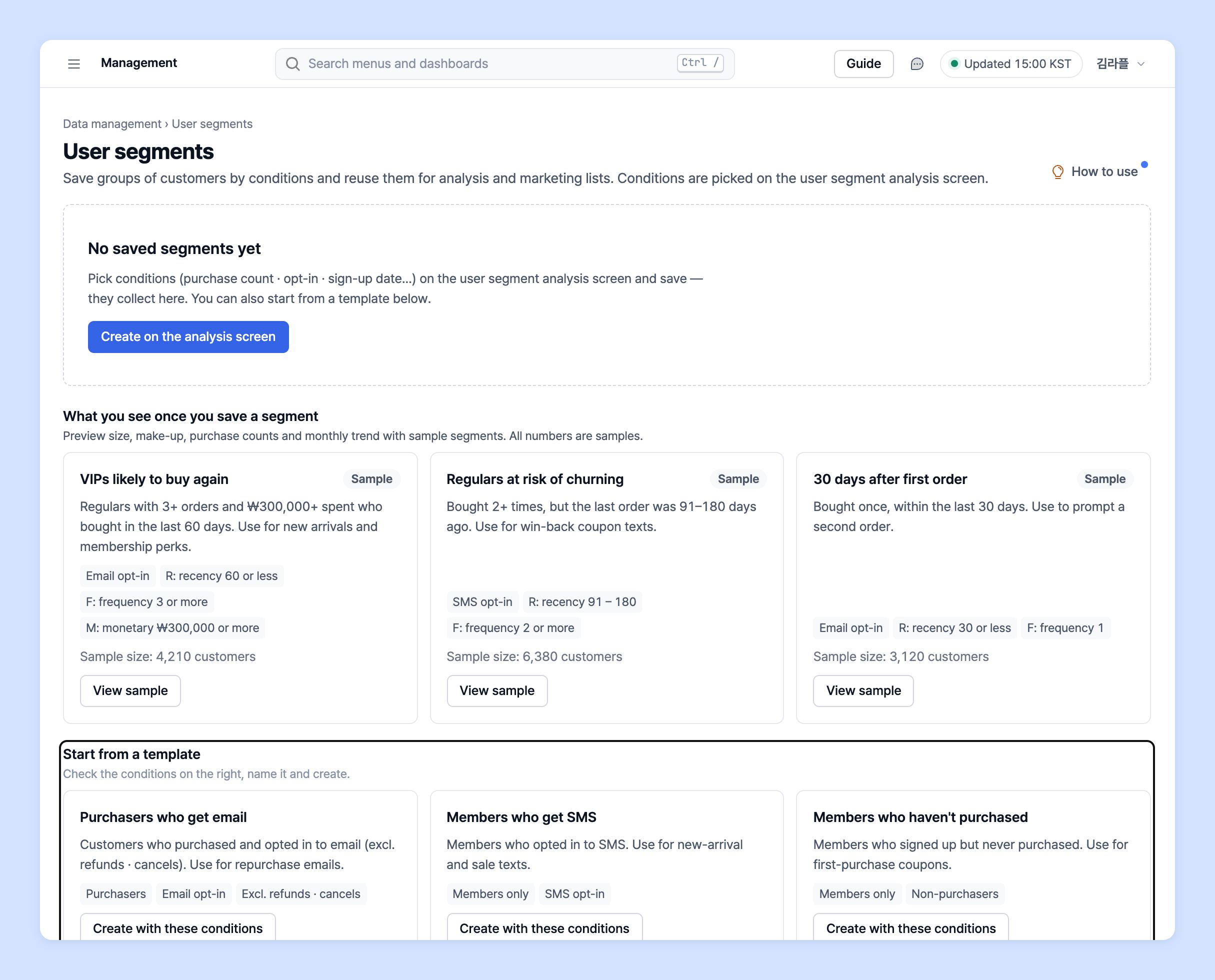
If you haven't saved any segments yet, **Start from a template** appears in place of the list.
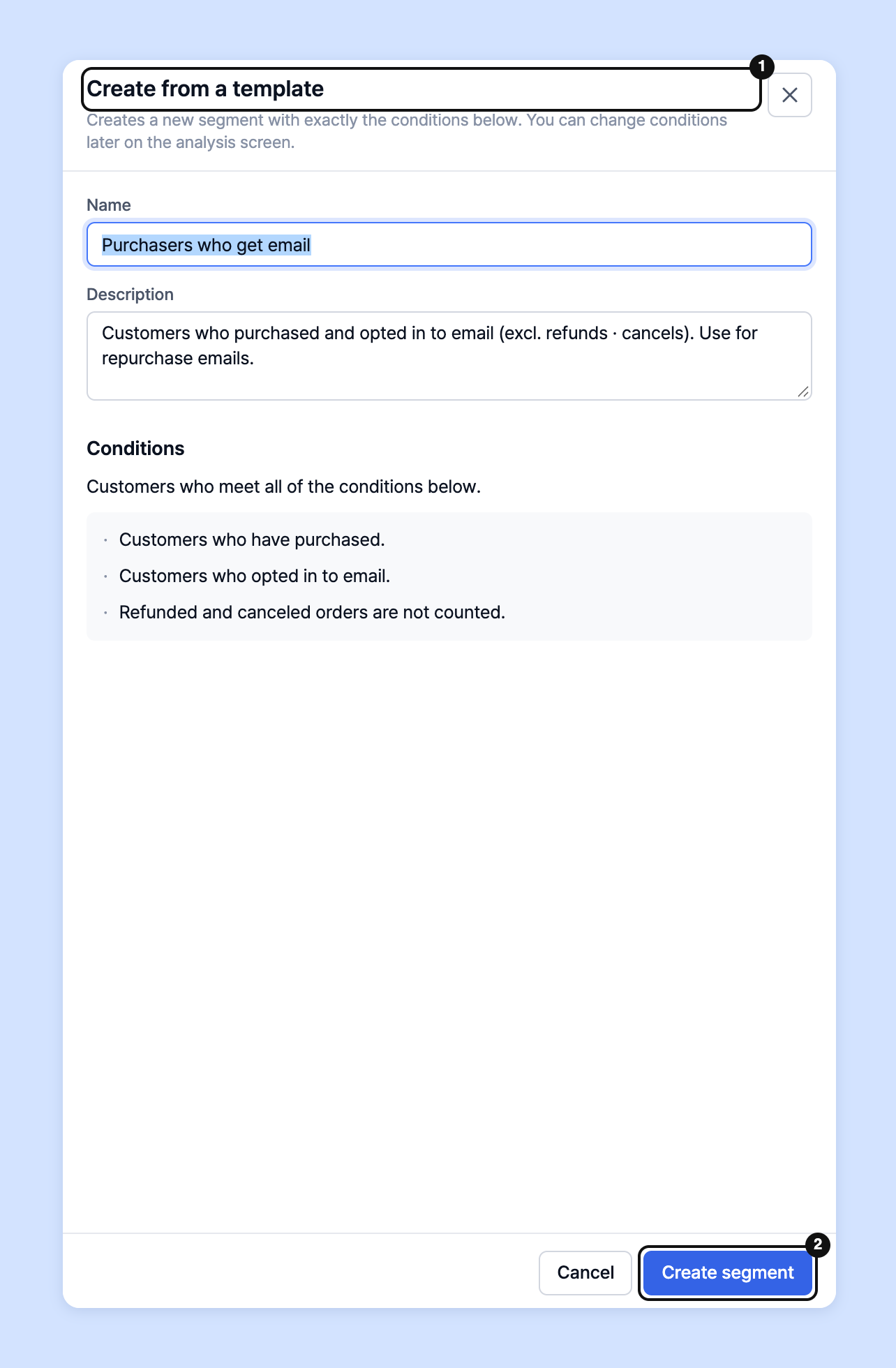
1. Click **Create with these conditions** on the template you want: **Purchasers who get email** · **Members who get SMS** · **Members who haven't purchased**.
2. In the **Create from a template** panel on the right, check the conditions and set a name and description.
3. Click **Create segment**.
{% hint style="info" %}
* **Purchasers who get email**: Customers who have purchased and agreed to receive email (excluding refunds · cancellations). Use for repurchase reminder emails.
* **Members who get SMS**: Members who agreed to receive SMS. Use for new product · discount texts.
* **Members who haven't purchased**: Members who signed up but have never purchased. Use for first-purchase coupons.
* On the same screen, click **View sample** in **What you see once you save a segment** to preview headcount · composition · purchase count · monthly trend with a sample segment. All numbers are samples.
{% endhint %}
### 3. Create from a copy
If you need conditions similar to an existing segment, copying it is faster.
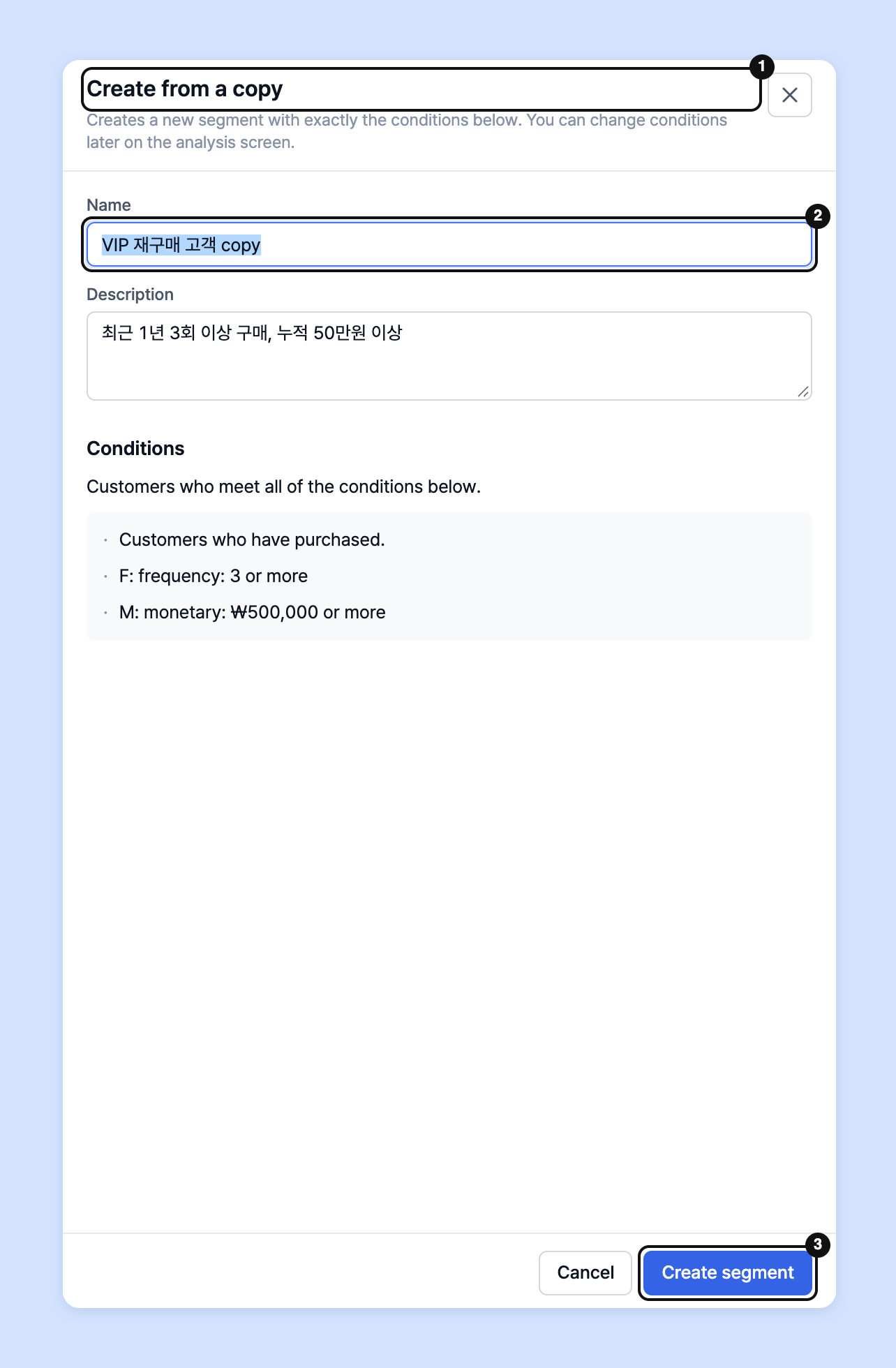
1. Click the **⋯** menu on the segment's row in the list, then click **Duplicate**.
2. The **Create from a copy** panel on the right is filled in with "(original name) copy". Edit the name and description.
3. Click **Create segment**.
{% hint style="info" %}
Segments created from a template or copy keep the same conditions. You can change the conditions on the analysis screen after creating them.
{% endhint %}
## View segment details
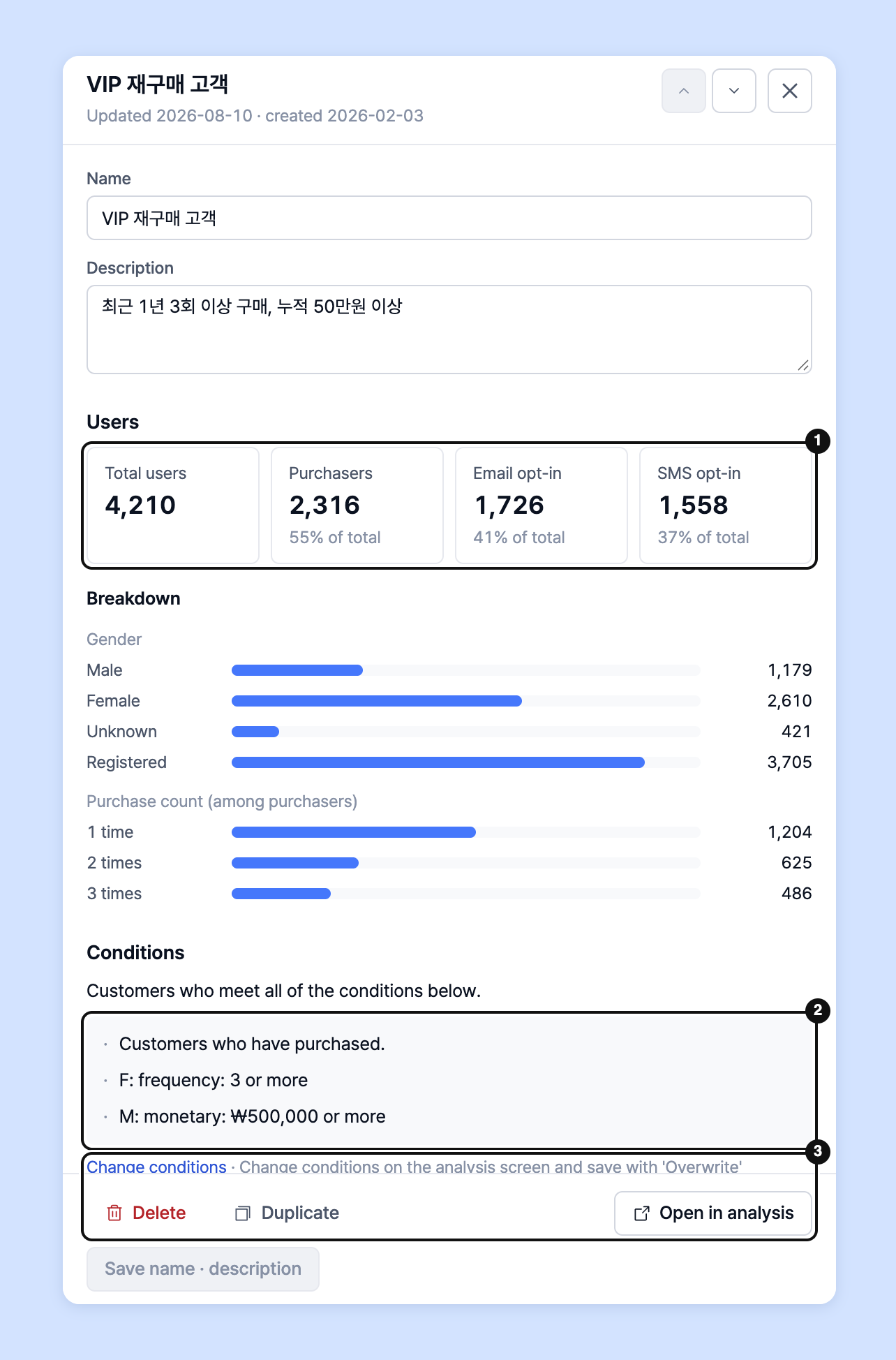
Click a segment name in the list to see its headcount · composition · condition sentence in the right panel.
* Click **Open in analysis** to continue on the User segment analysis screen with these conditions.
* To change conditions, click **Change conditions**, edit them on the analysis screen, then save with **Overwrite**.
## Rename or change the description
* Double-click the name cell in the list or press Enter to edit it in place. Press Enter to save and Esc to cancel.
* You can also edit the name and description together in the right panel and click **Save name · description**.
## Keep only the columns you want
With many segments, the table gets wide. Use **Column settings** in the toolbar to keep only the columns you want or reorder them.
To search by name, use the **Find name · description** box at the top. You can also add conditions such as **No description** · **Has advanced conditions** with **+ Add condition**.
## Delete segments
Check the segments to delete in the list, and **Delete** appears above the table. Click it, then click **Delete n** in the confirmation dialog. To delete a single segment, you can also click **Delete** in the row's **⋯** menu.
{% hint style="info" %}
You can delete up to 500 at a time.
{% endhint %}
{% hint style="warning" %}
Deleted segments **can't be restored** and can no longer be loaded on the analysis screen. If you need the same conditions again, set them up in User segment analysis and save a new segment.
{% endhint %}
Deleting a segment doesn't delete user data. Only the saved **conditions** are removed.