> For the complete documentation index, see [llms.txt](https://www.analytics-docs.laplacetec.com/guide/llms.txt). Markdown versions of documentation pages are available by appending `.md` to page URLs; this page is available as [Markdown](https://www.analytics-docs.laplacetec.com/guide/en/datamanage/shop_country.md).
# Store country
{% hint style="info" %}
This screen sets **which country each store belongs to**. For stores without a manually set country, Laplace uses the country it detects automatically.
{% endhint %}
## Which value is used?
A store's country is decided in the following order. Higher items take priority.
1. **The country set manually on this screen** (**Set manually**)
2. The country reported by the store's (marketplace · online store) API (**Automatic**)
3. If neither of the above decides it and the store is **Qoo10(Japan)**, **Japan (JP)**
4. Otherwise, **Korea (KR)**
If automatic detection picks a country different from where you actually sell, or picks nothing and the default is used, correct it on this screen.
{% hint style="warning" %}
**Right now only three stores actually read this setting: Amazon · Shopify · Shopline.** Other stores appear in the list and can be saved, but the saved value isn't reflected in the data yet. Those stores are handled by items 3 and 4 above (Qoo10(Japan) as Japan, all others as Korea).
{% endhint %}
## Open the screen
Click **Data management** in the left rail, then click **Customers · standards** › **Store country** in the navigation panel.
**Every connected store** appears on its own row. Stores without a country yet are listed too, so you can start setting them right from the list. Above the table, the current state is summarized, such as "n of n stores set manually · n automatic".
| Column | Description |
| ---------------------------- | ----------------------------------------------------------- |
| Store | Store name |
| Store type · connection name | Which channel the store is connected through |
| How applied | **Set manually** or **Automatic** |
| Last changed | When the country was last changed |
| Country | The country currently applied. Choose it right in this cell |

## Set a country
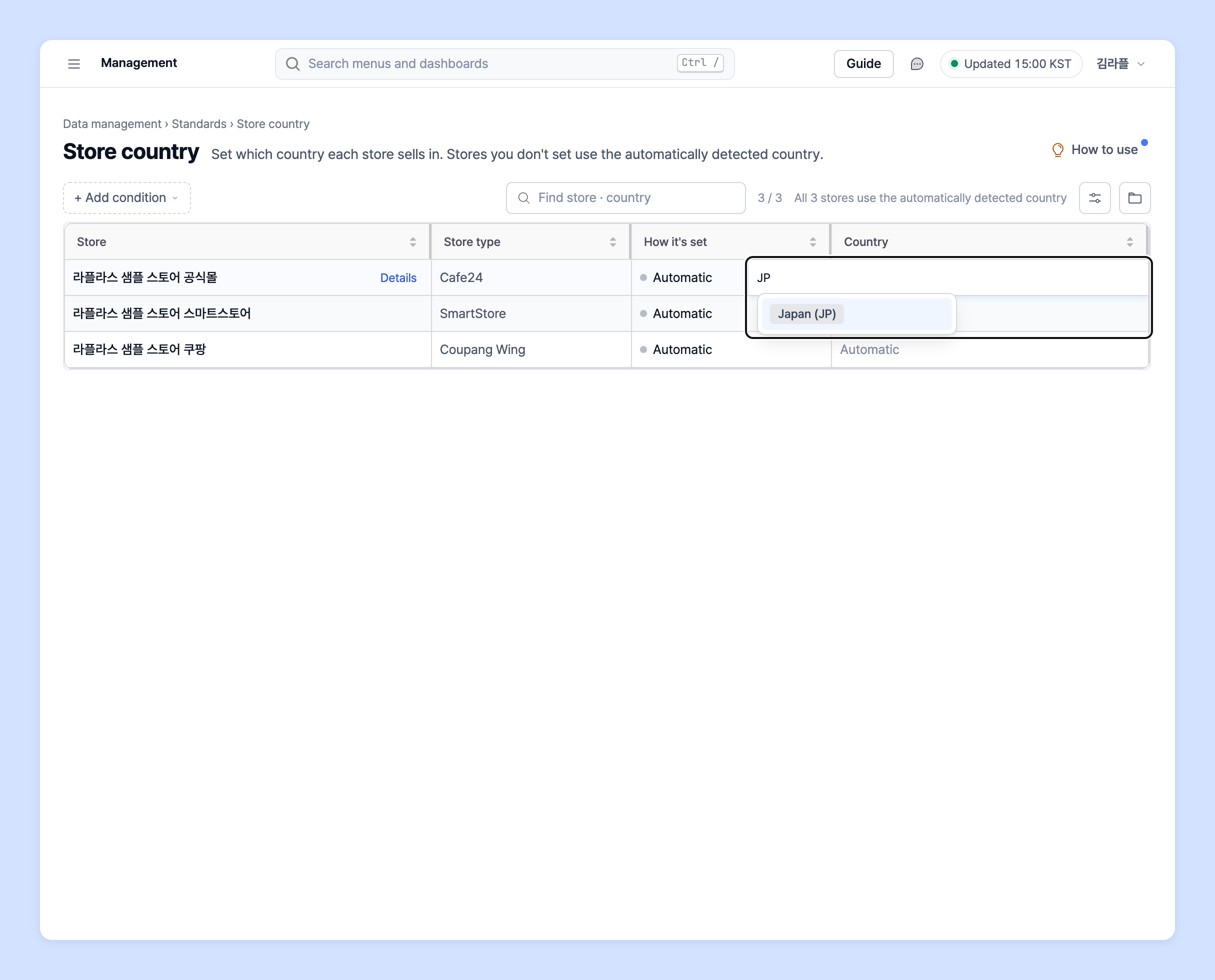
1. Click the **Country** cell at the right end of a store's row. The country list opens.
2. Choose a country. Type a country name or code (e.g. `United States`, `US`, `JP`) to find it quickly.
3. To put the same country on several stores, drag the cell corner down to fill, or paste country names · codes copied from Excel.
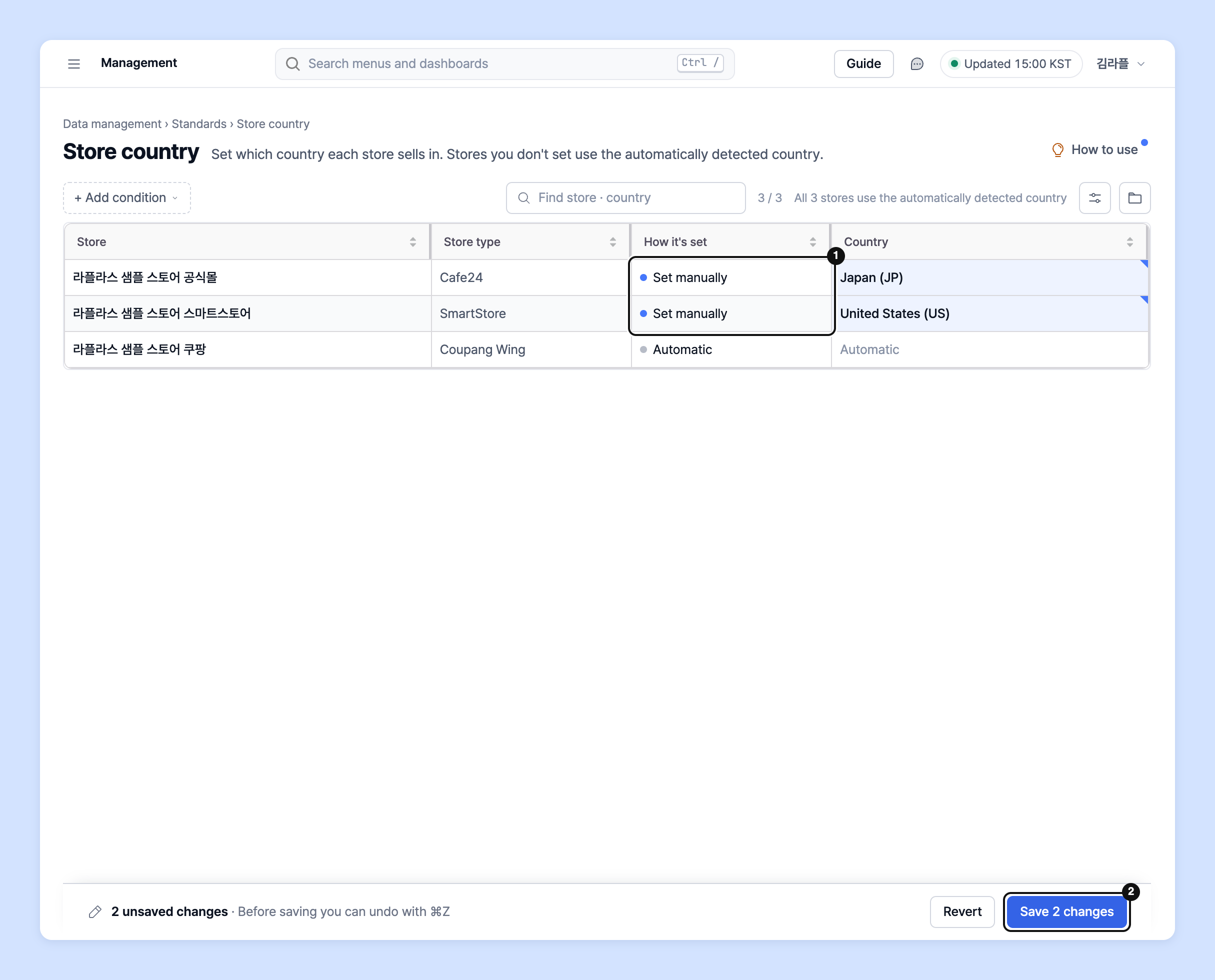
4. Edited cells are marked **Not saved**. When you're done, click **Save n changes** in the save bar at the bottom of the screen. Before saving, you can undo with ⌘Z (Ctrl+Z on Windows).
{% hint style="info" %}
* Click **Details** next to a store name to change it one at a time with **Pick a country** in the right panel. **What this changes** previews which analyses will change.
* Pasted cells whose country can't be found are skipped. Enter a country name or code (JP).
* Paste and fill are available on desktop.
{% endhint %}
## Back to automatic
To remove a manually set country, select that store's **Country** cell, press **Delete**, then save. You can also click **Back to automatic** in the **Details** panel. Once saved, the manual setting is removed and the store uses the automatically detected country again.
## Stores that can't have a country set
Stores connected the old way can't have a country set per store, so they're shown separately as **n stores can't have a country set**. Click **Go to data connection** and reconnect to set the country on this screen. Until then, the automatically detected country is used.
## Search and download
* Type a name in the **Find store · country** box to filter right away.
* Use **+ Add condition** to add conditions such as **Set manually** · **Automatic** · **Edited only**.
* Use **Download files** › **Download current view (CSV)** in the toolbar to download with the same columns and order shown on screen.
## When does the change take effect?
{% hint style="warning" %}
Store country **takes effect from the next aggregation.** Dashboard numbers don't change the moment you save.
{% endhint %}