> For the complete documentation index, see [llms.txt](https://www.analytics-docs.laplacetec.com/guide/llms.txt). Markdown versions of documentation pages are available by appending `.md` to page URLs; this page is available as [Markdown](https://www.analytics-docs.laplacetec.com/guide/en/etc/plan/card.md).
# Add / change card
{% hint style="info" %}
All prices are in US dollars and exclude applicable taxes.
Subscribe to a paid plan at a reasonable fee that fits the size of your business!
{% endhint %}
## Add a payment method
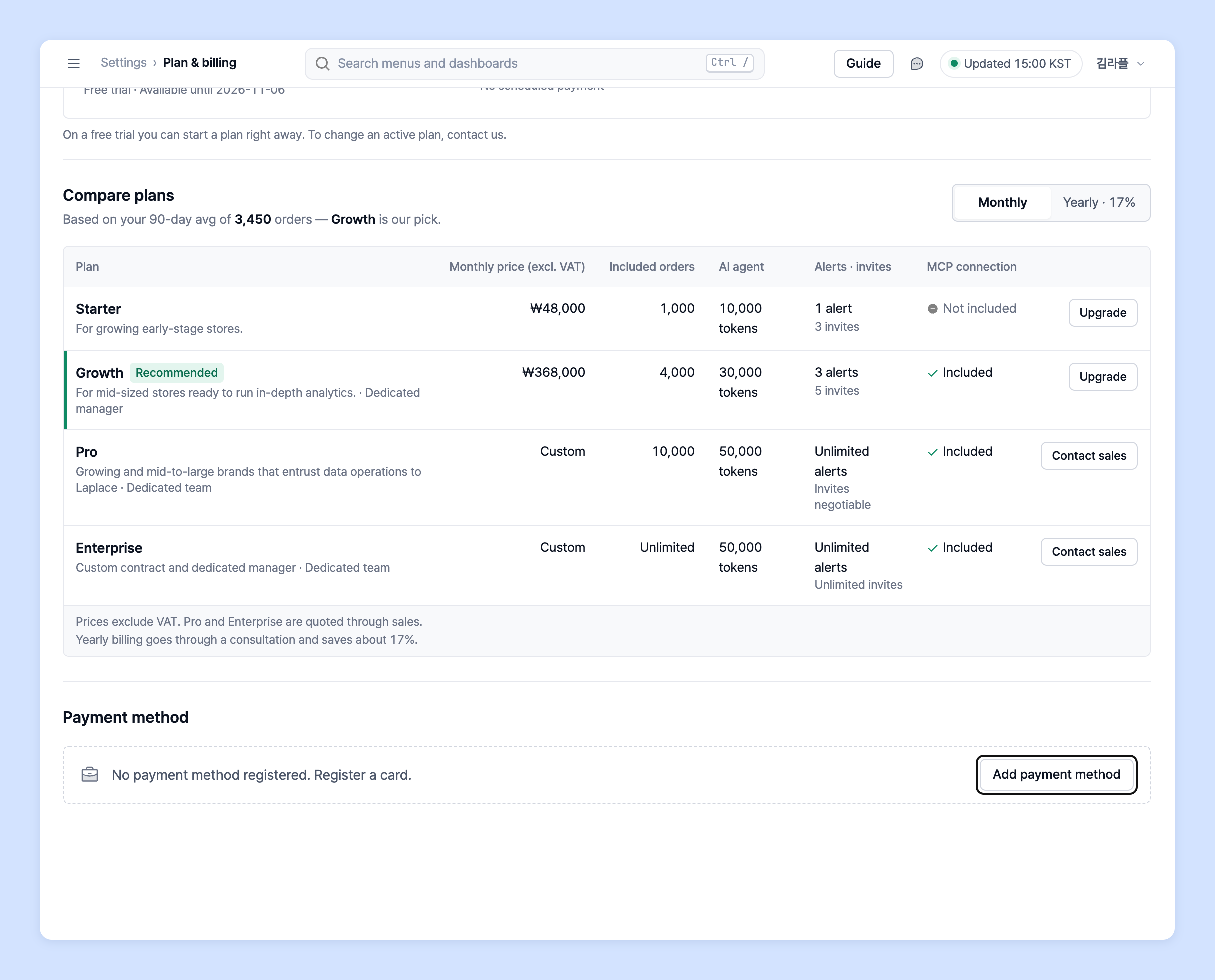
1. On the **Settings** › **Project & billing** › **Plan & billing** screen, click **Add payment method** under **Payment method**.
If you haven't added a card yet, it shows **"No payment method registered. Please add a payment method."**
2. Choose the **Card type** (**Personal** / **Business**), enter your card information such as **Card number**, **Expires** and **First 2 letters of password**, then click **Add payment method** at the bottom.

{% hint style="info" %}
**When adding a corporate card**
The last field differs between personal and corporate cards.
* Personal card: **6-digit date of birth**
* Corporate card: **10-digit business registration number**
{% endhint %}
## Replace your payment card
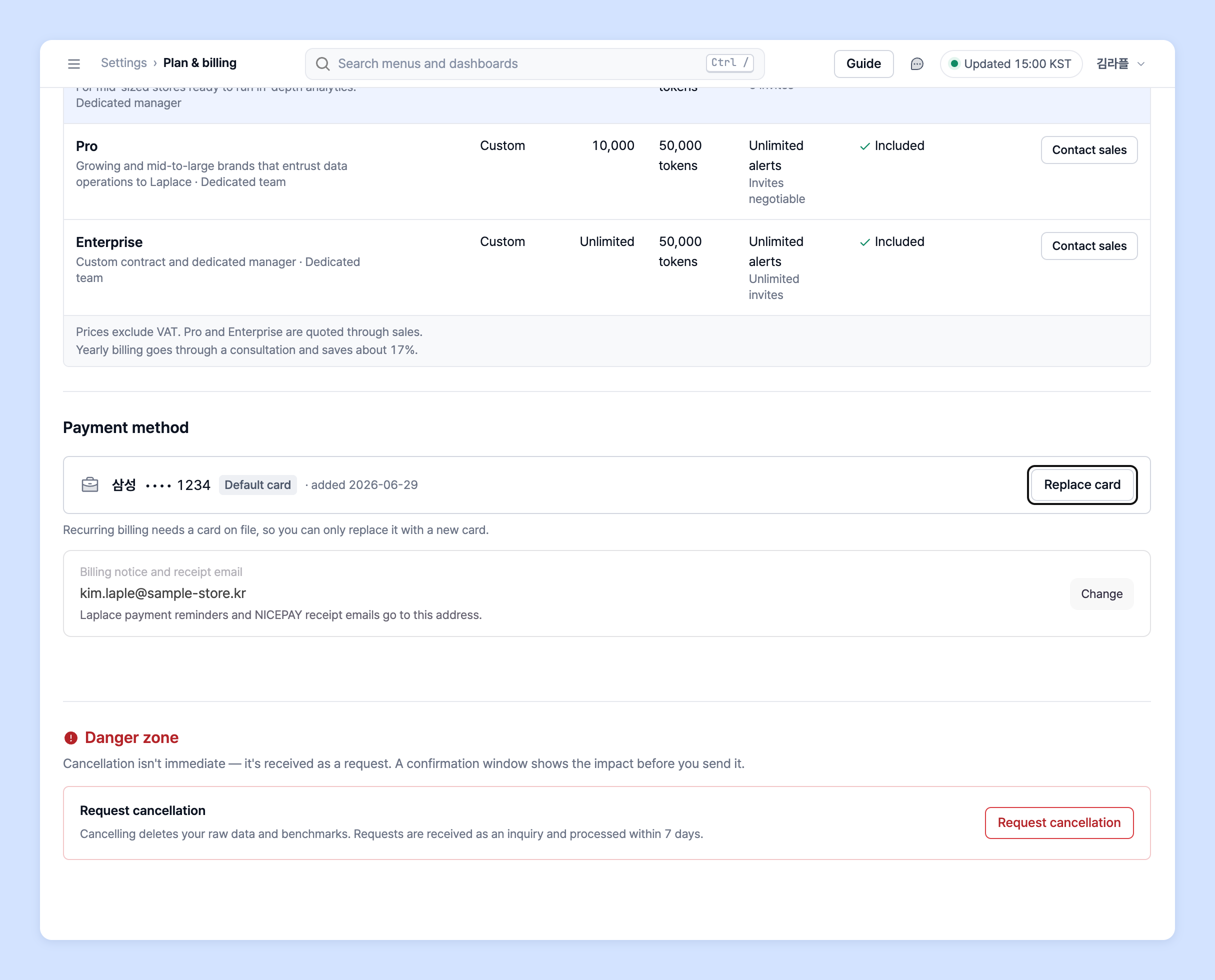
1. On the **Plan & billing** screen, click **Replace card** under **Payment method**.
2. Enter the new card information and click **Replace card**. After replacement, recurring payments are charged to the new card.
{% hint style="info" %}
**Changing your payment card**
* Because payments are recurring, you can't leave the card empty; you can only replace it with a new card.
* You can also change it with **Use another card** in the **Payment method** step of checkout.
{% endhint %}
{% hint style="warning" %}
* Only the project owner can add and change cards. Non-owners see the notice "Only the owner can change the card."
* Entering the wrong card password several times may get the card locked by the card issuer. Check your password in the card issuer's app or customer center, then try again.
{% endhint %}
## Ask your dedicated manager
Have questions about Laplace plans?
Contact us through the page below or by email. Your manager will help you.
> 💬 [Contact us on our website](https://www.analytics.laplacetec.com/contact)
**Email:** [**product@laplacetec.com**](mailto:product@laplacetec.com)