> For the complete documentation index, see [llms.txt](https://www.analytics-docs.laplacetec.com/guide/llms.txt). Markdown versions of documentation pages are available by appending `.md` to page URLs; this page is available as [Markdown](https://www.analytics-docs.laplacetec.com/guide/en/etc/plan/subscribe.md).
# Subscribe to a paid plan
{% hint style="info" %}
All prices are in US dollars and exclude applicable taxes.
Subscribe to a paid plan at a reasonable fee that fits the size of your business!
{% endhint %}
## How to subscribe to a paid plan
1. Go to **Settings** › **Project & billing** › **Plan & billing**.
2. Click the button on the row of the plan you want in the **Compare plans** table. It shows **Upgrade** during a free trial, or **Pay for this plan** after your subscription has ended. You can also click **Start subscription** at the top of the screen.

* Switch between **Monthly** / **Yearly · 17%** in **Billing cycle to show** to compare prices.
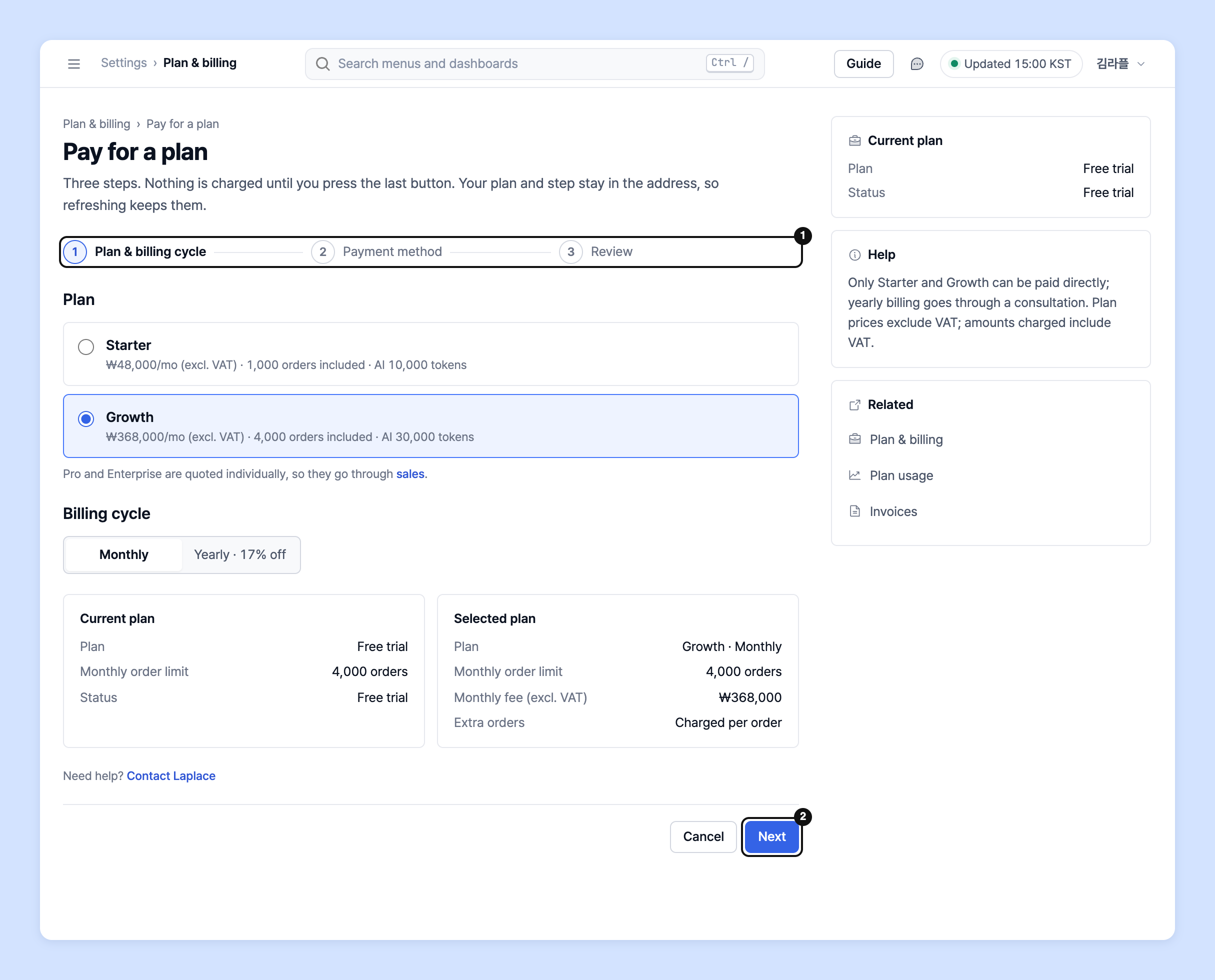
3. Payment takes three steps: **Plan & billing cycle** → **Payment method** → **Review**. In the first step, choose a plan and billing cycle (**Monthly** / **Yearly · 17% off**), then click **Next**.
4. In the **Payment method** step, check the card to pay with and click **Next**. If no card is registered, click **Add payment method** to add one first. To pay with a different card, click **Use another card**.
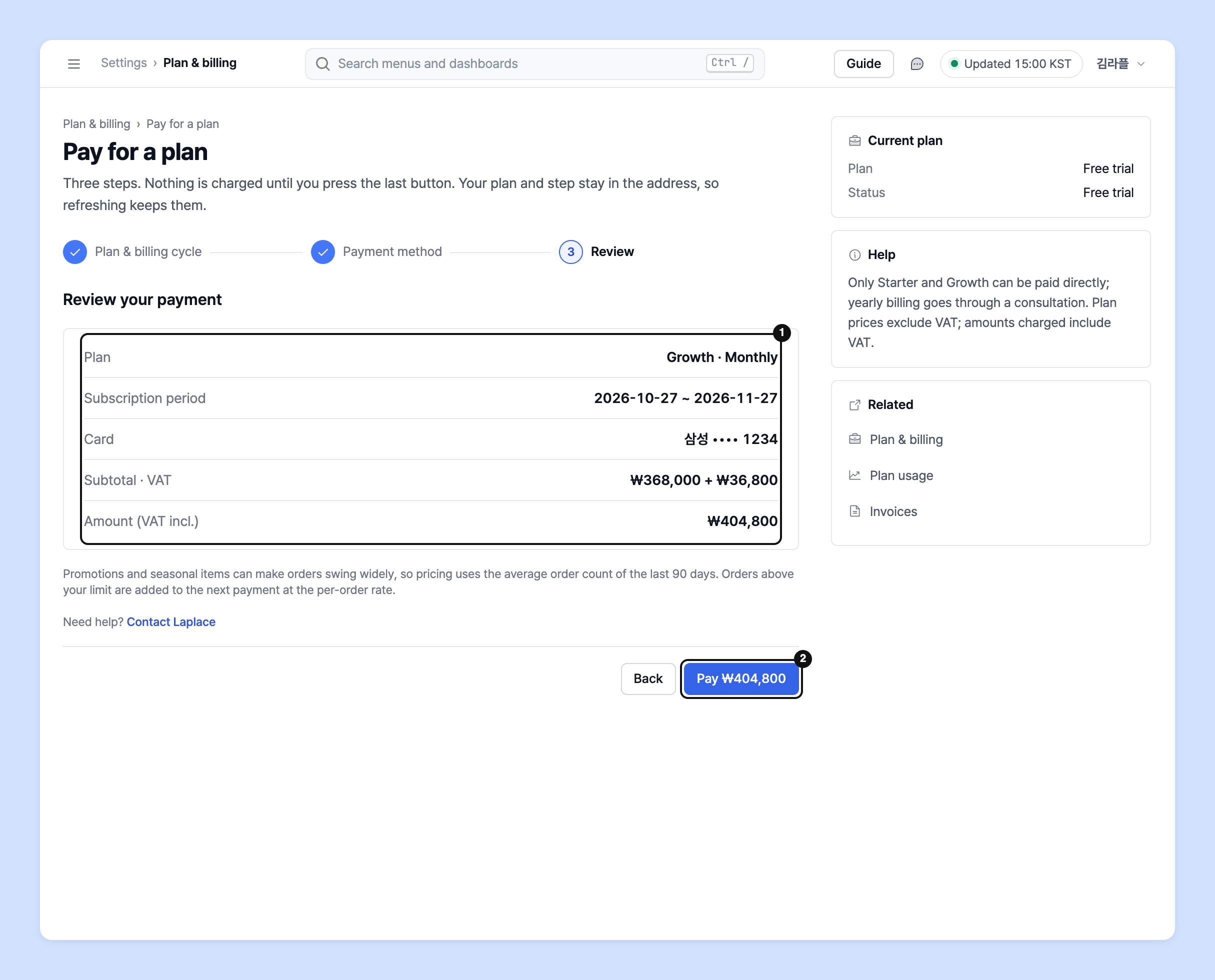
5. In **Review your payment** in the **Review** step, check the plan, subscription period, payment card and payment amount (VAT incl.), then click the pay button showing the amount. When **Payment complete** appears, you're done.
{% hint style="info" %}
* No payment is made until you click the final pay button.
* Starter and Growth can be paid for right away. Pro and Enterprise are custom-quoted, so go through **Contact sales**.
* Yearly billing proceeds after a consultation. If you choose yearly billing, the last step's button changes to **Request a consultation**, and clicking it doesn't charge you.
* Instant payment is available during a free trial or after your subscription has ended. To change a paid plan you're already using, click **Ask to change plan**. 👉 [Plan changes and refund policy](/guide/en/etc/plan/refund.md)
* Only the project owner can add cards and make payments.
{% endhint %}
{% hint style="info" %}
Laplace is a monthly subscription service, and payment renews automatically on your billing date each month. For billing questions such as payment cancellations or refunds, contact the Laplace team.
👉 See the Laplace [Plan changes and refund policy](/guide/en/etc/plan/refund.md)
{% endhint %}
## Check payment history and receipts
1. Go to **Settings** › **Project & billing** › **Invoices**.
2. In the payment history, see the payment date (KST), item, amount (VAT incl.), payment method and status. Click **Show details** to expand payment details.
3. Click **View receipt** to open the card issuer's receipt in a new window.
{% hint style="info" %}
* Ask your manager for a tax invoice.
* If you see a notice that the payment result couldn't be confirmed, don't pay again; check whether the payment went through in **Invoices** first.
{% endhint %}
## Ask your dedicated manager
Have questions about Laplace plans?
Contact us through the page below or by email. Your manager will help you.
> 💬 [Contact us on our website](https://www.analytics.laplacetec.com/contact)
**Email:** [**product@laplacetec.com**](mailto:product@laplacetec.com)