> For the complete documentation index, see [llms.txt](https://www.analytics-docs.laplacetec.com/guide/llms.txt). Markdown versions of documentation pages are available by appending `.md` to page URLs; this page is available as [Markdown](https://www.analytics-docs.laplacetec.com/guide/en/startguide/connect/columns.md).
# Column mapping guide
When you connect data, you need to map each field in your store's data to a Laplace standard field, one by one. This is called **column mapping**.
This document explains **what value each field means**. If you're unsure which name to choose on the connection screen, check here first.
In this document, the columns you select on the connection screen are called **fields**.
{% hint style="info" %}
**The field names in this document are the same as the names shown on the connection screen.** Find each name on the screen and map it to your store's data.
**You don't need to rename the columns in your store.** Just specify the correspondence on the connection screen.
{% endhint %}
## How to map on screen
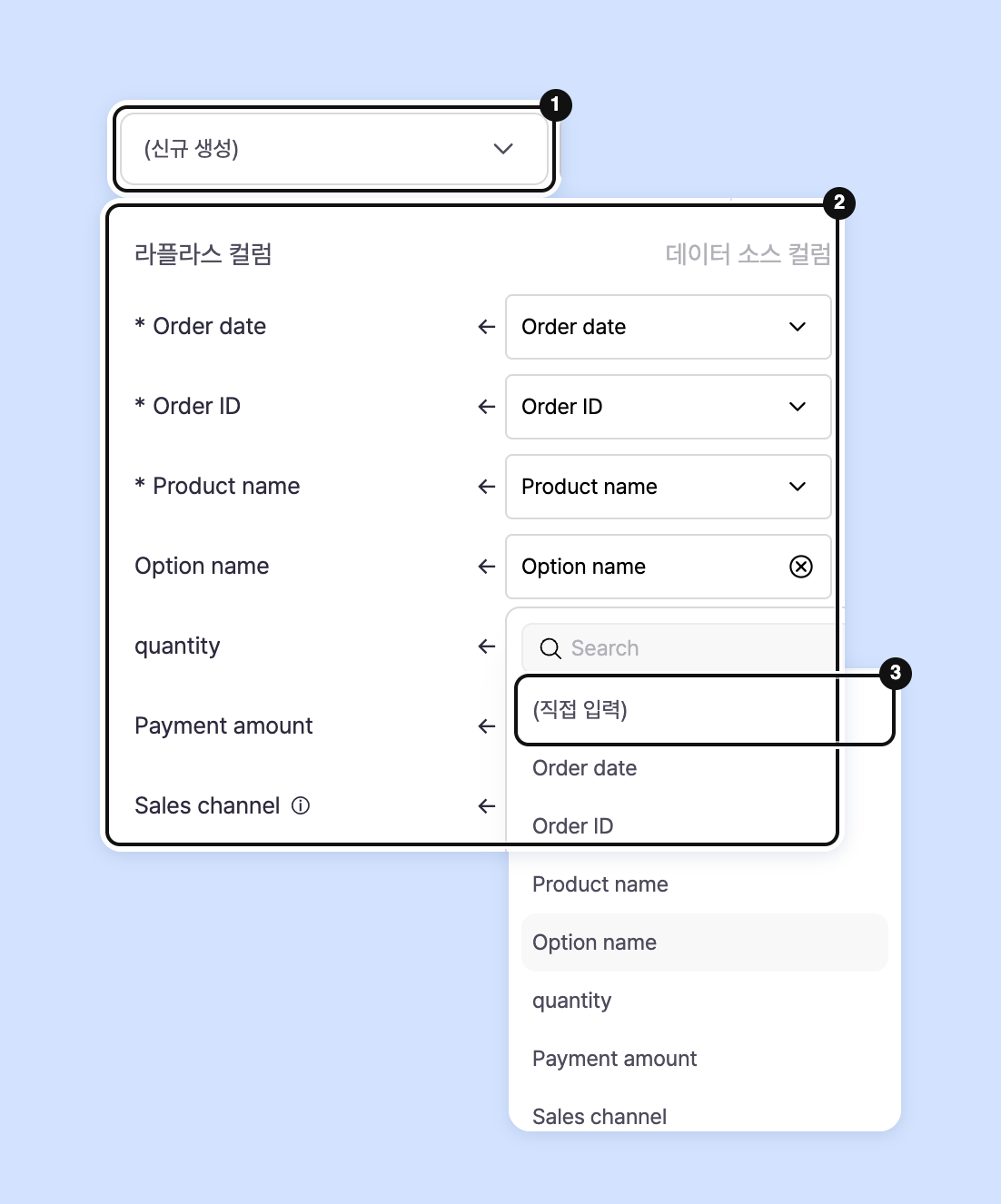
On the column matching screen, check the Laplace field in **Laplace column** and select the key from your store's data in **Data source column**. If you have a previously saved mapping, you can load it all at once with **Load column map**.
* **When connecting with a spreadsheet**: Click **Matching** in the tab list of the connection window to open this screen. To fix the mapping after connecting, click ⋯ (**More actions**) › **Column map settings** at the right of the sheet row in the connector screen table.
* **EZAdmin**: You can also open it via **Map the columns** in the EZAdmin row menu under **Settings** › **Data** › **Data source**.
## What data can I connect?
| What you send | Upload via spreadsheet |
| ------------------------------------------------------------------------------------------------------------------------------------------------------------- | ---------------------- |
| [Orders](/guide/en/startguide/connect/columns/order.md): what sold, when, and for how much (42) | Yes |
| [Ads](/guide/en/startguide/connect/columns/ad.md): ad spend and impressions/clicks/conversions by channel (23) | Yes |
| [Base products (cost)](/guide/en/startguide/connect/columns/cogs.md): cost per product (5) | Yes |
| [Base product option matching](/guide/en/startguide/connect/columns/cogs_relation.md): which base products, and how many of each, make up a sales option (11) | No |
The numbers in parentheses are the number of mappable fields. You don't need to fill them all; most are optional.
## Three things to know before you start
### 1. Send values that match the meaning Laplace defines
If you interpret a field's meaning by your store's own standards and map it that way, dashboard figures will be off.
Dashboard metrics are calculated assuming each field's defined meaning. If the standard differs, **the connection succeeds with no error message, and only the figures are wrong.**
For example, if you put a value excluding shipping fees in `Payment amount`, sales will appear lower than they really are, and no warning is shown on screen. Even if you later notice the figures look strange, tracing the cause is very difficult.
### 2. Check the fields that distinguish records
Each type of data has **reference fields that determine "whether two rows are the same record or different records."** In this document, these are called **identifier keys**.
* Orders: `Order ID` + `Product order ID`
* Base products: `Brand` + `Base product ID` + `Base product name` + `Apply start date/time`
* Base product option matching: `Brand` + `Sales channel` + `Product ID` + `Product name` + `Option ID` + `Option name` + `Base product brand` + `Base product ID` + `Base product name`
The identifier keys for each category are listed at the top of each page.
Spreadsheets replace the entire sheet every time, so rows aren't merged even if these fields are empty. However, if the order ID is empty, order-level metrics (payment amount per order, cross-selling) can't be calculated, so we recommend filling it in.
### 3. Cancellations and edits are applied when you fix the sheet
**When uploading via spreadsheet**, **the entire sheet content is applied fresh every time.** Previous content isn't kept, and to make an edit you simply fix that row.
## How to read the tables on each page
Find the names in the tables below on screen and map them to the corresponding fields.
| Column | Meaning |
| -------------- | ----------------------------------------------------------------------------------------------------------------------------------------------------------------------------------------------------------------- |
| Display name | The name exactly as shown on the connection screen. Search by this name |
| Type | The value format. See [Value formats](#value-format) below |
| Required | **Required** means the connection can't be saved without this field. \*\*Required (identifier key)\*\* marks fields where rule 2 above applies; in spreadsheets you can still save the connection with them empty |
| Constant input | **Yes** means you can enter a fixed value directly instead of mapping a field |
### What is constant input?
For fields that have no corresponding value in your store, instead of choosing a field to map, **you can enter a fixed value once that goes into every row.** Choose **(Enter directly)** on the column matching screen.
A typical case is when you have only one brand and enter your company name in `Brand`.
In principle, identifier keys can't use constant input. If you enter a fixed value, every row gets the same key and the data is merged into one record. Ads are the only exception, so see the [Ads page](/guide/en/startguide/connect/columns/ad.md).
For identifier keys that don't allow constant input, you need to map a store column that has a different value in each row. For example, connect `category_code` to `Category ID`, and `sales_channel` to `Sales channel`.
### Fields that aren't saved
If the connection screen shows **a field with its raw English key instead of a display name**, that field isn't actually saved. Mapping it won't keep any value, so you can leave it empty.
## Value formats
### Dates and times
These are fields ending in `date/time`. All of the following formats are recognized.
```
2026-08-24
2026-08-24 14:06
2026-08-24 14:06:28
2026-08-24T14:06:28
20260824
20260824140628
```
`.`, `/`, and `-` are all accepted as separators, and single-digit months and days such as `2026-8-4` are recognized. Formats like `2026-08-24T14:06:28.123+09:00` are also supported.
{% hint style="warning" %}
**Time zone offsets (`+09:00`) are stripped and not used in calculations.** Even if one is attached, the time before it is used as is, so **you must send times in Korea time (KST)** for dashboard dates to be correct.
{% endhint %}
Values that can't be recognized are treated as empty.
### Numbers
Most values are recognized automatically, even with mixed display formats.
| Value you send | Value Laplace reads |
| ---------------------- | -------------------------------------------------------------------------------------- |
| `1,234` | 1234 |
| `₩1,234` · `1 234 KRW` | 1234 |
| `(500)` | -500 (parentheses are the accounting notation for negative numbers) |
| `1.234.567` | 1234567 |
| `12.5%` | **Empty**: not accepted, because it can't be determined whether it means 12.5 or 0.125 |
**For percentages or multiples, remove the symbol and send only the number.** Values with units other than currency symbols can't be read.
## Status changes
For order cancellations, refunds, returns, and exchanges, see [Order columns](/guide/en/startguide/connect/columns/order.md).
## Which metrics are missing if I leave fields empty?
The connection still works if you leave fields empty, but metrics that use those fields aren't calculated. Below are the fields each metric needs. All names are the same as the connection screen display names.
| Metric | Required fields |
| ---------------------------------------------------------------------- | ------------------------------------------------------------------------------------------------------------------- |
| Payment amount | `Payment amount` · `Payment date/time` |
| Actual payment amount | `Payment amount` · `Payment date/time` · `Reward points used` · `Deposit used` |
| Net sales | `Payment amount` · `Payment date/time` · `Cancellation date/time` · `Refund date/time` |
| Payment amount per order (AOV) | `Payment amount` · `Payment date/time` · `Order ID` (the order ID is the unit for counting orders) |
| Product purchase amount | `Product price` · `Option price` · `Quantity` |
| Average revenue per paying user (ARPPU) · Repurchase rate · Cohort LTV | `Payment amount` · `Payment date/time` · a value that identifies the buyer (see below) |
| Cross-selling | `Order ID` · `Product ID` (rows are grouped by order ID to count combinations) |
| Sales by product | `Payment amount` · `Product ID` |
| Sales by category | `Payment amount` · `Category ID` or `Category name` |
| Click-through rate (CTR) · Cost per mille (CPM) | `Impressions` · `Clicks` · `Ad spend (incl. VAT)` |
| Cost per acquisition (CPA) | `Ad spend (incl. VAT)` · `Conversions` |
| Click-to-conversion rate (CVR) | `Clicks` · `Conversions` |
| Impression-to-conversion rate (CVR) | `Impressions` · `Conversions` |
| Return on ad spend (ROAS) | `Ad spend (incl. VAT)` + the order's `Payment amount` (conversion ROAS uses `Conversion value`) |
| Margin | `Payment amount` + the base product's `Cost of goods sold` |
| POAS | `Payment amount` · `Ad spend (incl. VAT)` + the base product's `Cost of goods sold` |
| Contribution margin | `Payment amount` · the base product's `Cost of goods sold` · `Ad spend (incl. VAT)` · `Commission` · `Delivery fee` |
**A value that identifies the buyer**: Metrics that count "one person," such as repurchase rate or ARPPU, need a value that identifies the buyer. When you upload via spreadsheet, the first filled value is used in the order `Buyer phone` → `Member ID` → `Buyer email`. Even without a member ID, the metric is calculated if there's a phone number or email.
For the full formulas, see [Understanding formulas](/guide/en/dashboard/formula.md).
## Ask your dedicated manager
Have more questions about column mapping?
> 💬 [Contact us on our website](https://www.analytics.laplacetec.com/contact)
**Email:** [**product@laplacetec.com**](mailto:product@laplacetec.com)