> For the complete documentation index, see [llms.txt](https://www.analytics-docs.laplacetec.com/guide/llms.txt). Markdown versions of documentation pages are available by appending `.md` to page URLs; this page is available as [Markdown](https://www.analytics-docs.laplacetec.com/guide/en/startguide/connect/spreadsheet/ads/coupangads.md).
# Coupang Ads
{% hint style="info" %}
This connector is for stores operating in Korea.
{% endhint %}
## How to connect
1. In Coupang Marketplace, click 「광고센터」(Ad Center) in the left menu bar to go to the Ad Center.

2. Click 「광고 보고서」(Ad reports) in the left menu bar, then click 「맞춤 보고서」(Custom report) at the top.

3. Under report selection, select 「맞춤 보고서」(Custom report), then 「캠페인 선택」(Select campaign).
1. Period: You can select a period of up to 1 month. To upload several months of data, download multiple times and merge the files.
2. Period breakdown: Select "일별" (Daily).
3. Campaign type: Check all types.
4. Campaign selection: Select "전체" (All), then click the 「확인」(OK) button.

4. Custom report
If you just download it as is, the Excel file may be so large that it lags or, in some cases, won't open. Be sure to exclude unnecessary metrics in the metric settings.
1. Metric settings
1. Dimensions: 캠페인 이름 (Campaign name), 광고그룹 (Ad group), 광고명 (Ad name), 광고 유형 (Ad type), 소재ID (Creative ID), 광고 집행 옵션 ID (Advertised option ID), 광고 집행 상품명 (Advertised product name), 광고 전환 매출 발생 옵션 ID (Converting option ID), 광고 전환 매출 발생 상품명 (Converting product name)
2. Performance: 노출수 (Impressions), 클릭수 (Clicks), 클릭률 (CTR), 광고비 (Ad spend), 총 주문수(1일) (Total orders, 1 day), 직접 주문수(1일) (Direct orders, 1 day), 간접 주문수(1일) (Indirect orders, 1 day), 총 전환 매출액(1일) (Total conversion revenue, 1 day), 직접 전환 매출액(1일) (Direct conversion revenue, 1 day), 간접 전환 매출액(1일) (Indirect conversion revenue, 1 day)
3. After setting the required metrics above, download the file.

5. Return to Laplace. Click **Data Connect** on the left rail, go to **Connect with Spreadsheet** › **Ad data** in the navigation panel, and click the **Data Connect** button on the right of the **Connect ad data from Google Sheets** screen header. You can create a sheet with **Create spreadsheet** in the connection window.

6. Use **Shortcuts** next to **Spreadsheet URL** to open the created sheet, then move the data you downloaded from Coupang into that sheet.

7. Once you've finished moving the data, return to Laplace and click the **Next** button.

8. You need to match the uploaded data to the columns defined by Laplace. Click the **Matching** button to the right of the uploaded sheet.

9. For each **Laplace column**, select the matching **Data source column**.

* **Refreshing data:** If the data you uploaded to the spreadsheet changes, click the **Reload data** button to refresh it and apply the changes.
{% hint style="info" %}
After you edit the spreadsheet, it can take up to about 2 minutes for the change to show in Laplace, because the spreadsheet reports changes once a minute. So after clicking **Reload data**, you may need to click it again once the 1:00 timer ends for the changes to be applied correctly. After refreshing, check that your changes came through correctly, then save!
{% endhint %}
* **Load column map:** If you've done the same column mapping before, you can load it. For data from the same channel, or with the same column names, you can map everything at once with Load column map.
* **Column matching:** Select the column that corresponds to each column defined by Laplace.
1. **Required columns:** Ad date/time, Ad account name, Campaign name, Ad group name, Ad creative name, Ad channel, Ad spend
2. **Optional columns**: Ad account ID, Campaign ID, Ad group ID, Ad creative ID, Impressions, Clicks, Conversion Count, Conversion Revenue
{% hint style="info" %}
For accurate analysis and access to more charts, we recommend matching as many of the available columns as possible.
{% endhint %}
* Table loaded from the spreadsheet: Review the data imported from the spreadsheet to check that the matching is correct and that refreshed data was applied.
8. Click the **Save** button, set a column map name in the **Save column map** window, then click **Save**. Once you save a column map, you can load the matched column map the next time you do the same work.

9. Select the sheets you finished matching, then click the **Connect** button to connect the data.

* Laplace imports all data since the store opened, so **with a large amount of data it can take more than 30 minutes**. You can track progress in **Jobs & data status** on the right of the top bar.
## How to refresh data
Once it's set up as above, refreshing the data (daily updates) is a bit easier.
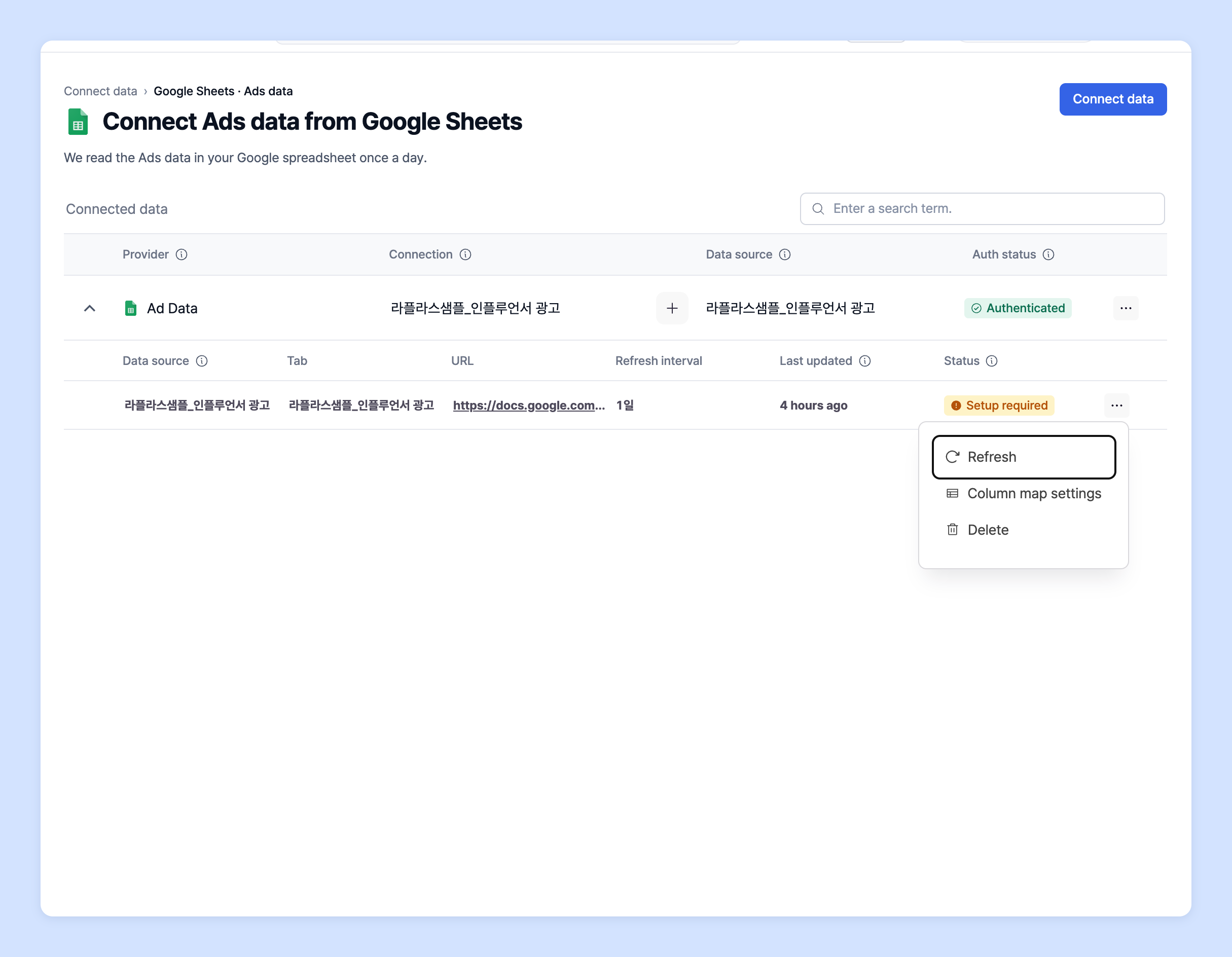
1. Expand the connection row in the table on the **Connect ad data from Google Sheets** screen to see the list of connected sheets, as shown below. Click the URL to go to the connected sheet.
2. Paste the new data below the existing data in that sheet.
3. Return to Laplace, click ⋯ (**More actions**) on the right of the uploaded sheet's row, and click **Refresh**.
4. It usually takes about 30 minutes to 1 hour for the data to be fully reflected.
## Ask your dedicated manager
Having trouble connecting a spreadsheet?
Contact us through the inquiry page below. Your manager will help you.
> 💬 [Contact us on our website](https://www.analytics.laplacetec.com/contact)
**Email:** [**product@laplacetec.com**](mailto:product@laplacetec.com)