> For the complete documentation index, see [llms.txt](https://www.analytics-docs.laplacetec.com/guide/llms.txt). Markdown versions of documentation pages are available by appending `.md` to page URLs; this page is available as [Markdown](https://www.analytics-docs.laplacetec.com/guide/en/startguide/connect/spreadsheet/ads/influencer.md).
# Connect viral/influencer data
{% hint style="info" %}
Connect your viral and influencer ad spend data to track and manage its performance in Laplace. Follow the guide below to connect the data.
{% endhint %}
## How to connect
1. First, create a sheet to upload the data to. To create one:
* Click **Data Connect** on the left rail, go to **Connect with Spreadsheet** › **Ad data** in the navigation panel, click **Data Connect** on the right of the **Connect ad data from Google Sheets** screen header, and click **Create spreadsheet** in the connection window.
2. Go to the created sheet.
3. Fill it in according to Method 1 or Method 2 in the bottom tabs. Since there are multiple channels, we recommend Method 1.
4. To use Method 1, create a sheet for the channel you're connecting in the bottom tabs, e.g. "Viral/Influencer".
5. Enter your data in that sheet.
1. Here's an example sheet.
1. You can match by ad channel/campaign/ad group/ad creative according to each category.
2. To allocate ad spend accurately, for the landing URL: if the campaign lands on your homepage's main page, enter the homepage URL; if it's set to land on a specific product, enter that product's URL.
| Ad channel | Date | Campaign name | Ad group name | Ad creative name | Ad spend | prep. landing url |
| ---------------- | ---------- | ------------- | ----------------- | ---------------------- | --------- | ----------------- |
| Influencer | 2025.01.01 | YT Shorts | Laplace | May 2025 collaboration | ₩ 250,000 | url |
| Reviewer program | 2025.01.01 | IG Feed | Laplace | May 2025 collaboration | ₩ 250,000 | url |
| Press | 2025.01.01 | Press | Olive Young Festa | May 2025 collaboration | ₩ 250,000 | url |
| Viral | 2025.01.01 | Twitter | D2 Group | May 2025 collaboration | ₩ 250,000 | url |
| Seeding | 2025.01.01 | YT long-form | Laplacian | May 2025 collaboration | ₩ 250,000 | url |
* Once you connect ad spend data as above, you can build dashboards of ad spend and contribution margin by channel and campaign.
* Then, by matching ad creatives → sales products/stores, you can see performance data at whatever level of analysis you want, such as ad performance and contribution margin for a single product.
6. Return to Laplace and click the **Next** button.

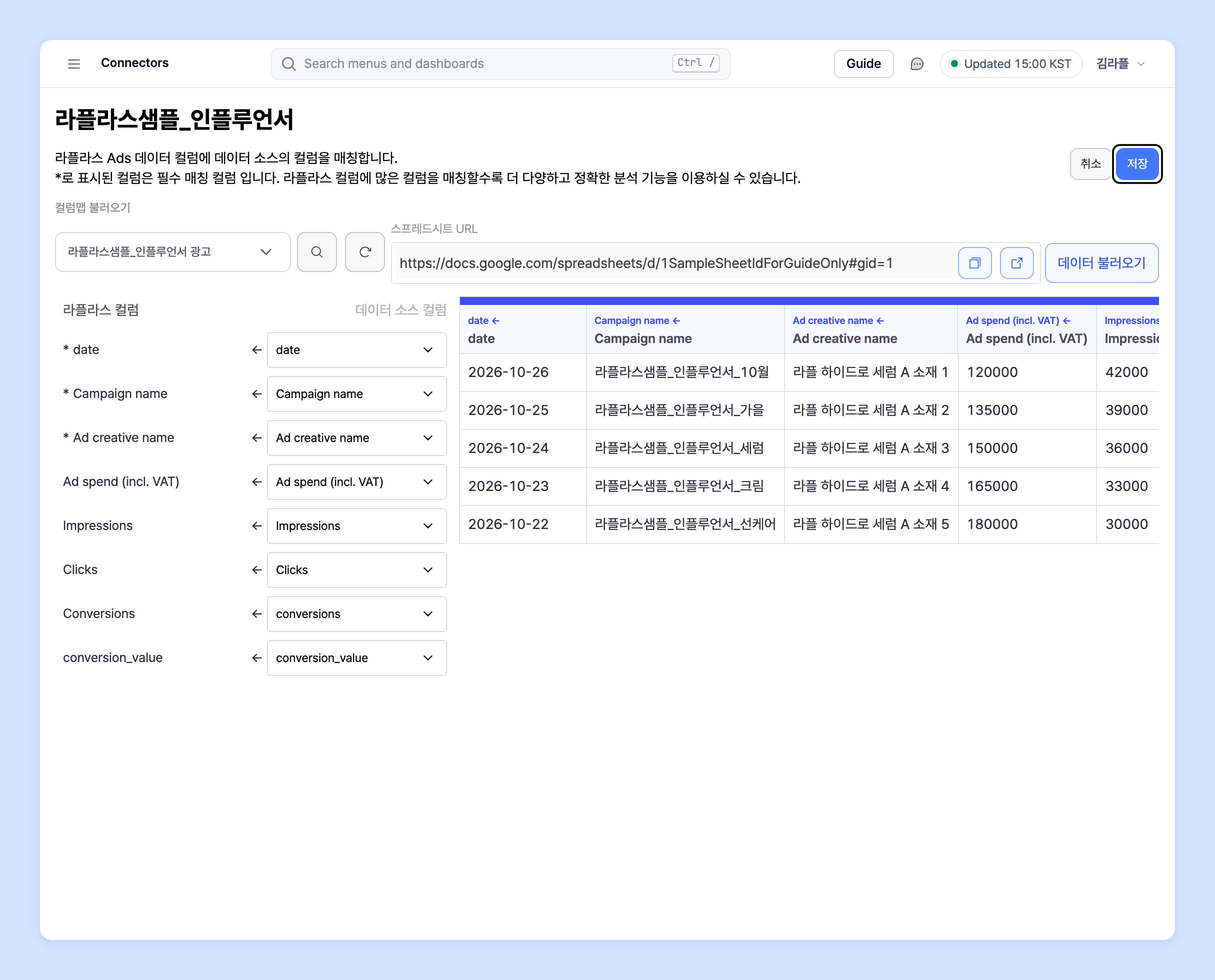
7. You need to match the uploaded data to the columns defined by Laplace. Click the **Matching** button to the right of the uploaded sheet.

8. Once you've finished matching, click **Save** on the column matching screen to start the sync.
## How to refresh data
Once it's set up as above, refreshing the data (daily updates) is a bit easier.
1. Expand the connection row in the table on the **Connect ad data from Google Sheets** screen to see the list of connected sheets, as shown below. Click the URL to go to the connected sheet.
2. Paste the new data below the existing data in that sheet.
3. Return to Laplace, click ⋯ (**More actions**) on the right of the uploaded sheet's row, and click **Refresh**.
4. It usually takes about 30 minutes to 1 hour for the data to be fully reflected.
If this is difficult, upload your raw data to the spreadsheet and contact Laplace manager Eungyu Baek, who will walk you through it again.