> For the complete documentation index, see [llms.txt](https://www.analytics-docs.laplacetec.com/guide/llms.txt). Markdown versions of documentation pages are available by appending `.md` to page URLs; this page is available as [Markdown](https://www.analytics-docs.laplacetec.com/guide/en/startguide/connect/spreadsheet/ads/naverbs.md).
# Naver Brand Search (BS)
{% hint style="info" %}
This connector is for stores operating in Korea.
{% endhint %}
{% hint style="info" %}
Naver BS is a contract-based ad, so ad spend can't be collected automatically through the API. (Metrics such as conversion revenue and impressions are collected, but ad spend isn't, so you need to enter it separately.)\
Fill it in the same way as the sheet, but set up the rows by amount/period.\
For example, if the ad spend for a 7-day contract period (2025.06.01 \~ 2025.06.07) is KRW 1.4 million, split it into daily ad spend.\
Campaign names and ad group names must match the campaign and group names used on the ad platform.
{% endhint %}
{% hint style="success" %}
**You can also apply contract fees without entering them in a sheet.** If you've connected [Naver Search Ad](/guide/en/startguide/connect/ad/searchad.md) to Laplace, ask your manager and the Brand Search contract fee can be split by day over the contract period and applied automatically.\
After switching to automatic application, don't enter any more Naver BS ad spend in this sheet. If you use both, the same contract fee may be counted twice.
{% endhint %}
## How to connect
1. First, create a sheet to upload the data to. To create one:
* Click **Data Connect** on the left rail, go to **Connect with Spreadsheet** › **Ad data** in the navigation panel, click **Data Connect** on the right of the **Connect ad data from Google Sheets** screen header, and click **Create spreadsheet** in the connection window.
2. Go to the created sheet.
3. Fill it in according to Method 1 or Method 2 in the bottom tabs. We recommend Method 1.
4. To use Method 1, create a sheet for the channel you're connecting in the bottom tabs, e.g. "Naver BS".
5. In the sheet you created, enter the ad spend for the contract period split by day. For an example, see the table in step 8 below.
6. Return to Laplace and click the **Next** button.

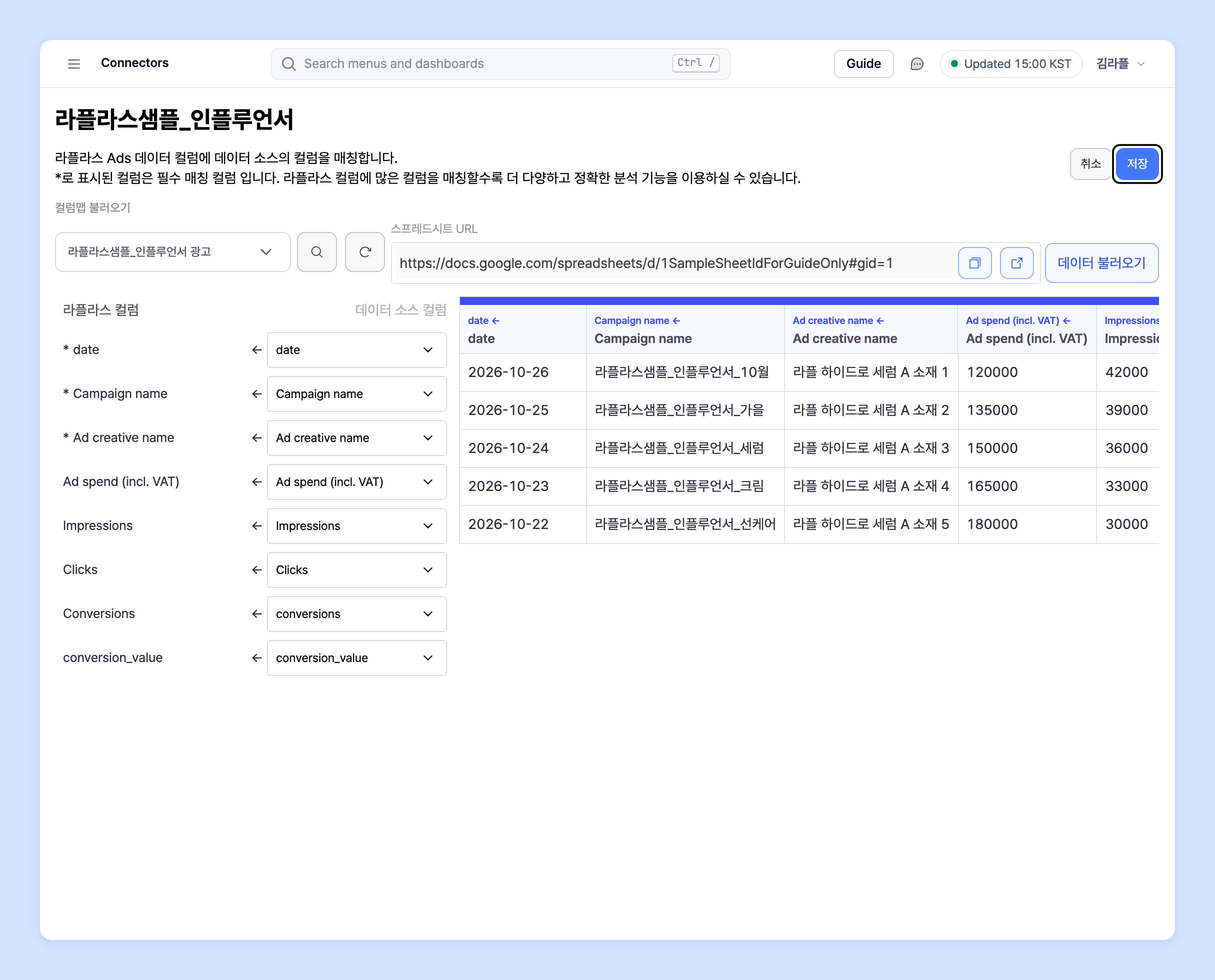
7. You need to match the uploaded data to the columns defined by Laplace. Click the **Matching** button to the right of the uploaded sheet.

8. **Laplace column** lists the columns Laplace will use. You must match every column marked as required with `*`. In particular, ad spend and ad date/time must always be filled in.
* Some channels don't have certain columns (for example, no separate ad account name, or the campaign and ad group are the same or only one concept is used). In that case, it's fine to map those columns to the same column.
* You can enter the ad channel name with **(Enter directly)**.
* If any other non-required columns can be matched, match them all. Example >
| Date | Campaign name | Ad group name | Ad spend | Description |
| ---------- | ----------------------------- | ----------------------------------- | --------- | --------------------- |
| 2025.06.01 | {Brand name}\_brandsearch\_mo | **{Brand name}\_2024 new creative** | ₩ 200,000 | (Contract start date) |
| 2025.06.02 | {Brand name}\_brandsearch\_mo | **{Brand name}\_2024 new creative** | ₩ 200,000 | |
| 2025.06.03 | {Brand name}\_brandsearch\_mo | **{Brand name}\_2024 new creative** | ₩ 200,000 | |
| 2025.06.04 | {Brand name}\_brandsearch\_mo | **{Brand name}\_2024 new creative** | ₩ 200,000 | |
| 2025.06.05 | {Brand name}\_brandsearch\_mo | **{Brand name}\_2024 new creative** | ₩ 200,000 | |
| 2025.06.06 | {Brand name}\_brandsearch\_mo | **{Brand name}\_2024 new creative** | ₩ 200,000 | |
| 2025.06.07 | {Brand name}\_brandsearch\_mo | **{Brand name}\_2024 new creative** | ₩ 200,000 | (Contract end date) |
9. Once it's set up as above, click **Save** on the column matching screen to start the sync.
## How to refresh data
Once it's set up as above, refreshing the data (daily updates) is a bit easier.
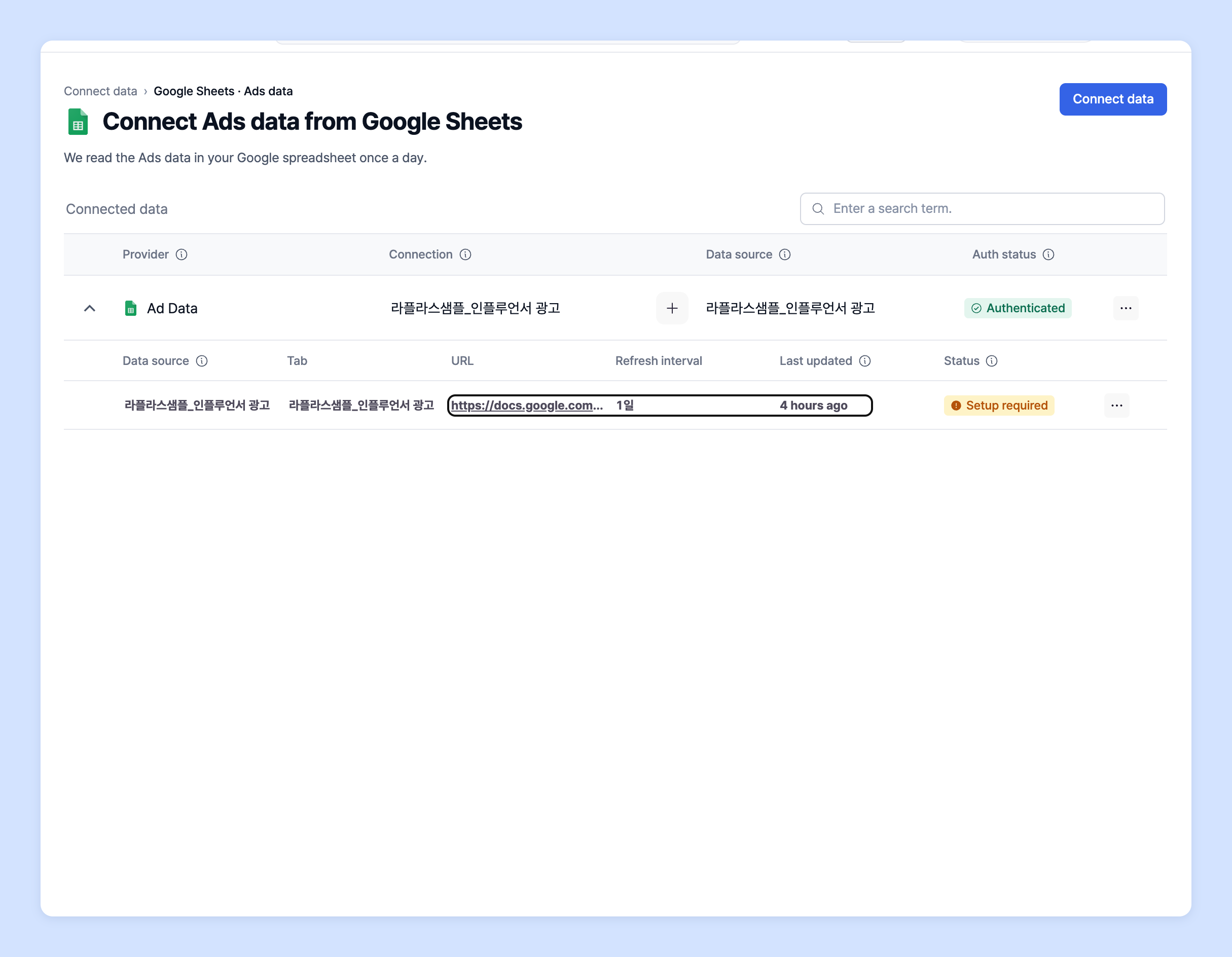
1. Expand the connection row in the table on the **Connect ad data from Google Sheets** screen to see the list of connected sheets, as shown below. Click the URL to go to the connected sheet.
2. Paste the new data below the existing data in that sheet.
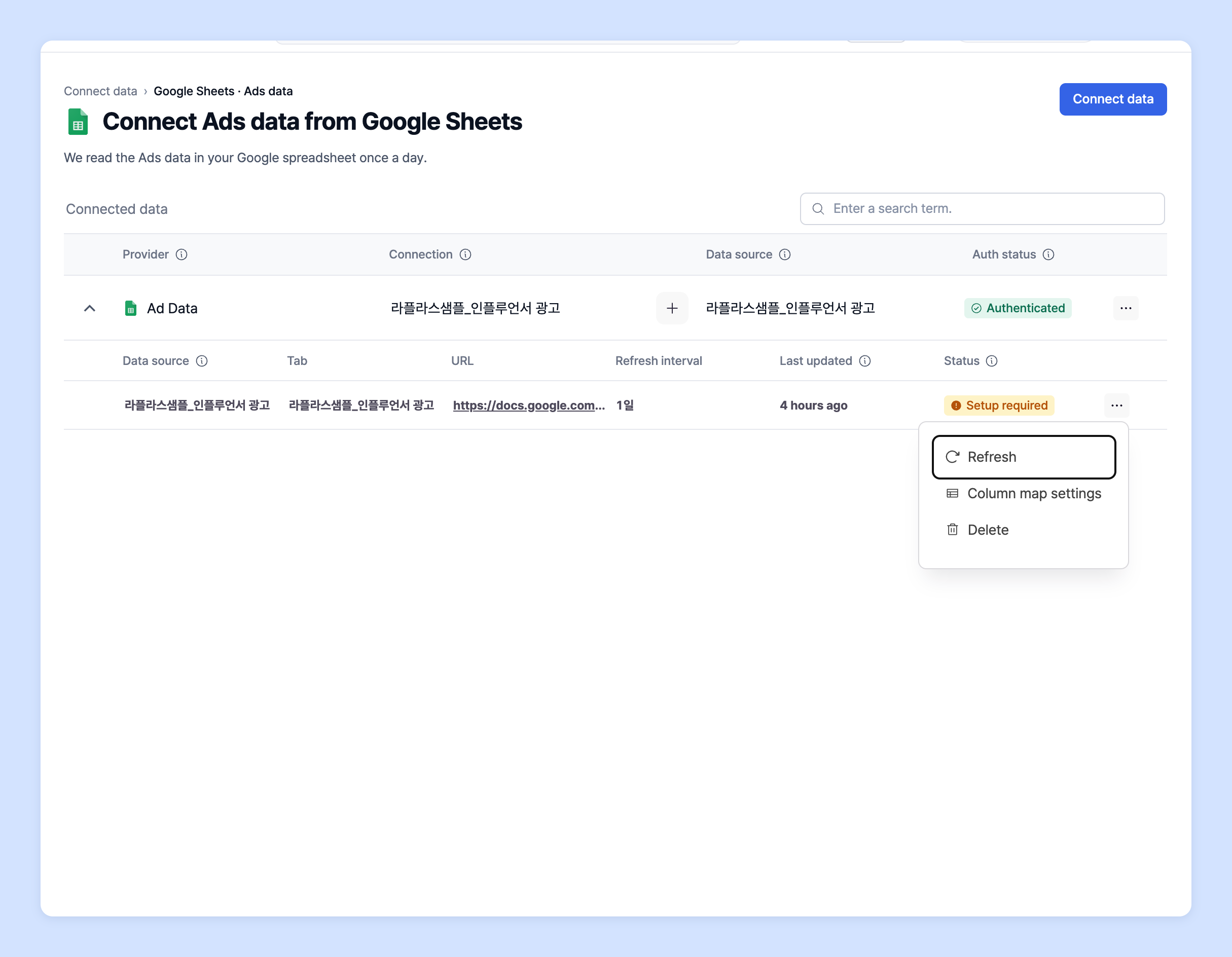
3. Return to Laplace, click ⋯ (**More actions**) on the right of the uploaded sheet's row, and click **Refresh**.
4. It usually takes about 30 minutes to 1 hour for the data to be fully reflected.
## Ask your dedicated manager
Having trouble connecting a spreadsheet?
Contact us through the inquiry page below. Your manager will help you.
> 💬 [Contact us on our website](https://www.analytics.laplacetec.com/contact)
**Email:** [**product@laplacetec.com**](mailto:product@laplacetec.com)