> For the complete documentation index, see [llms.txt](https://www.analytics-docs.laplacetec.com/guide/llms.txt). Markdown versions of documentation pages are available by appending `.md` to page URLs; this page is available as [Markdown](https://www.analytics-docs.laplacetec.com/guide/en/startguide/connect/spreadsheet/ads/sgna.md).
# Set up SG\&A expenses
{% hint style="info" %}
Laplace lets you fold SG\&A (selling, general & administrative) expenses into ad spend so you can view your data as "contribution margin". Organize your expense data and upload it to a spreadsheet, and it will be reflected in your charts.
{% endhint %}
## How to connect
1. First, create a sheet to upload the data to. To create one:
* Click **Data Connect** on the left rail, go to **Connect with Spreadsheet** › **Ad data** in the navigation panel, click **Data Connect** on the right of the **Connect ad data from Google Sheets** screen header, and click **Create spreadsheet** in the connection window.
2. Go to the created sheet.
3. Fill it in according to Method 1 or Method 2 in the bottom tabs. Since there are multiple channels, we recommend Method 1.
4. To use Method 1, create a sheet for the channel you're connecting in the bottom tabs, e.g. "SG\&A".
5. Enter your data in that sheet.
1. Split the entries into categories: campaign (top level) / ad group (mid level) / ad creative (lowest level). If you only have one or two levels, leave the rest blank.
2. Example table
| Date | Campaign | Ad group | Ad creative | Cost (incl. VAT) |
| ---------- | --------------- | -------------- | ------------------ | ---------------- |
| 2025-05-02 | Equipment | Computers | Gildong Hong | 3000000 |
| 2025-05-02 | Detail pages | Forest Group | Own store | 1300000 |
| 2025-05-08 | Subscriptions | HR management | flex | 95000 |
| 2025-05-09 | Rent | Corner Space | Unit 01 | 402000 |
| 2025-05-09 | Website | Imweb | MMS | 110000 |
| 2025-05-14 | Subscriptions | Images & video | Getty Images Korea | 715000 |
| 2025-05-14 | Subscriptions | Voice | Typecast | 39000 |
| 2025-05-14 | Subscriptions | BGM | Artlist | 285000 |
| 2025-05-15 | Subscriptions | Fonts | Sandoll Cloud | 44000 |
| 2025-05-15 | General affairs | Supplies | Business cards | 44000 |
| 2025-05-16 | Subscriptions | Images & video | Getty Images Korea | 99000 |
6. Return to Laplace and click the **Next** button.

7. You need to match the uploaded data to the columns defined by Laplace. Click the **Matching** button to the right of the uploaded sheet.

8. For **Ad channel**, click **(Enter directly)** and enter "SG\&A" or another name to classify it under.

9. Once it's set up as above, click **Save** on the column matching screen to start the sync.
## How to refresh data
Once it's set up as above, refreshing the data (daily updates) is a bit easier.
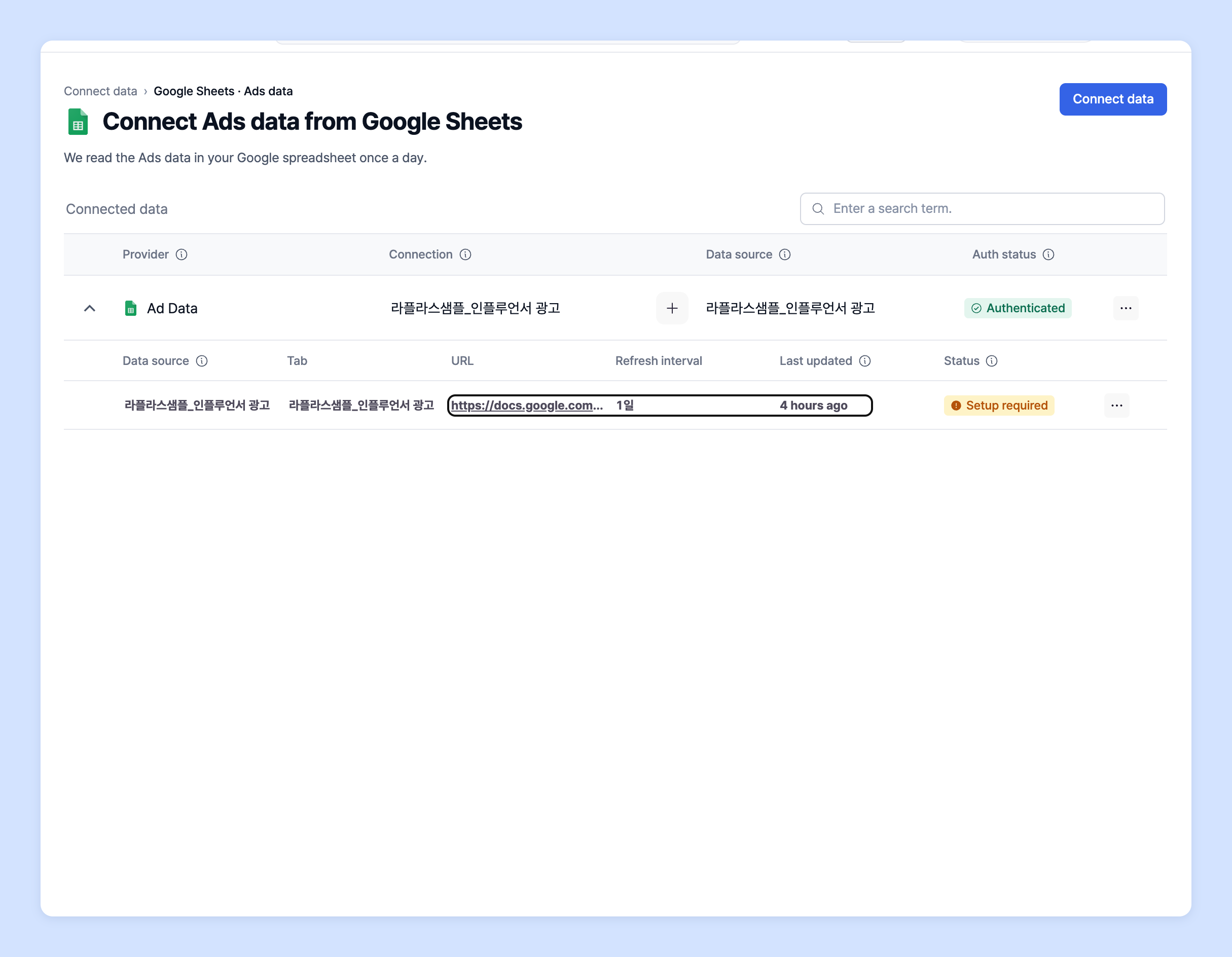
1. Expand the connection row in the table on the **Connect ad data from Google Sheets** screen to see the list of connected sheets, as shown below. Click the URL to go to the connected sheet.
2. Paste the new data below the existing data in that sheet.
3. Return to Laplace, click ⋯ (**More actions**) on the right of the uploaded sheet's row, and click **Refresh**.
4. It usually takes about 30 minutes to 1 hour for the data to be fully reflected.
If this is difficult, upload your raw data to the spreadsheet and contact Laplace manager Eungyu Baek, who will walk you through it again.