> For the complete documentation index, see [llms.txt](https://www.analytics-docs.laplacetec.com/guide/llms.txt). Markdown versions of documentation pages are available by appending `.md` to page URLs; this page is available as [Markdown](https://www.analytics-docs.laplacetec.com/guide/ja/customdashboard/custom/table.md).

# テーブルビュー

{% hint style="info" %}
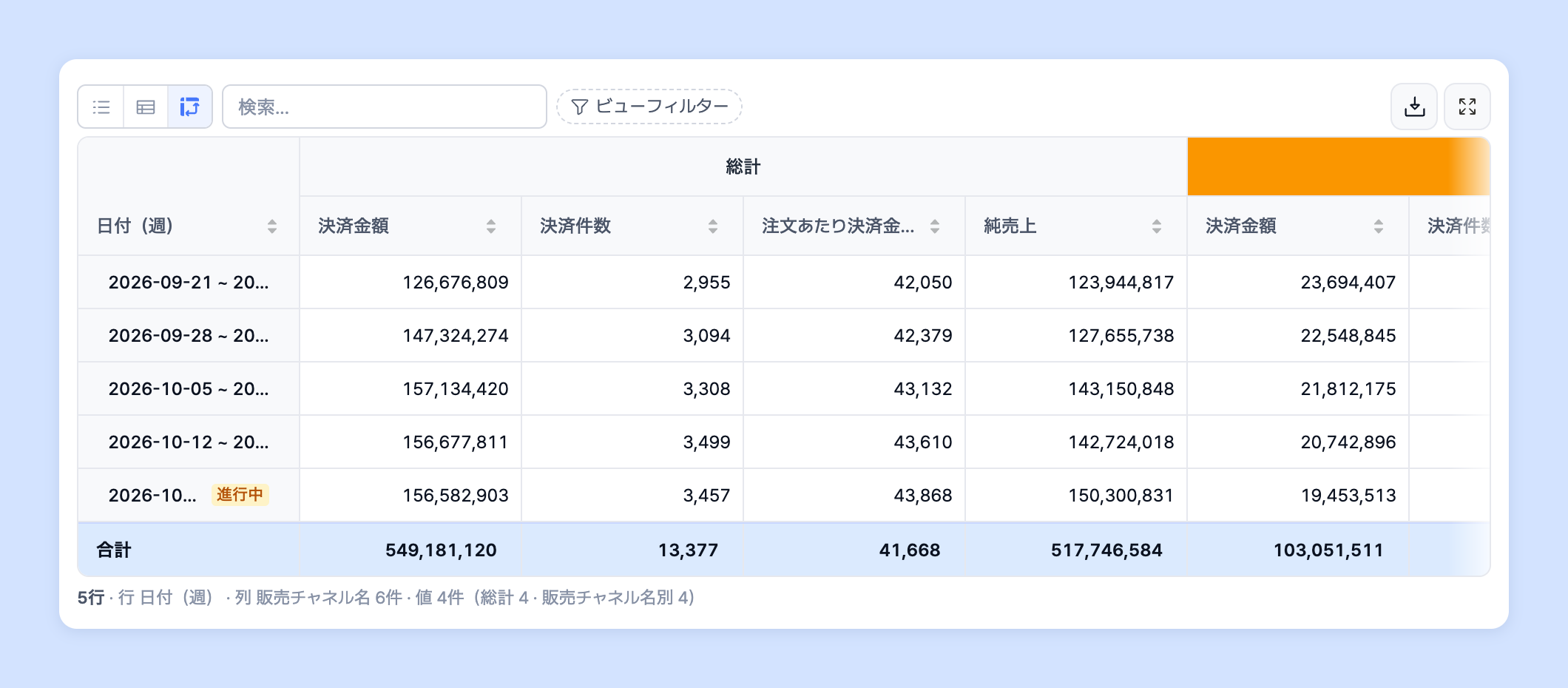
チャート編集画面の右側にある設定パネルの **「テーブル」** タブで、**「テーブルタイプ」** をリスト · スナップショット · ピボットの3種類から切り替えられます。3種類は別々のチャートではなく、同じテーブルの表示方法であり、ビューごとに目的の分析に合わせてカスタマイズして使えます。チャートタイプで [テーブル](/guide/ja/customdashboard/custom/chart/table.md) を選ぶと、チャートなしで表だけが表示されます。
{% endhint %}

* 以下でラプラスが提供するテーブルを確認し、使い方とヒントをチェックしてみてください。

<table data-view="cards"><thead><tr><th align="center"></th><th data-hidden data-card-target data-type="content-ref"></th><th data-hidden data-card-cover data-type="files"></th></tr></thead><tbody><tr><td align="center">リストテーブル</td><td><a href="/guide/ja/customdashboard/custom/table/list.md">リストテーブル</a></td><td><a href="https://1689889301-files.gitbook.io/~/files/v0/b/gitbook-x-prod.appspot.com/o/spaces%2FXSnF6RixhZ8AqU0DBfmd%2Fuploads%2Fgit-blob-fb5976f505ea21d59bd66c6d1a67e3ada0f3e49c%2Fcustomdashboard__custom__table__01.png?alt=media">customdashboard__custom__table__01.png</a></td></tr><tr><td align="center">スナップショットテーブル</td><td><a href="/guide/ja/customdashboard/custom/table/snapshot.md">スナップショットテーブル</a></td><td><a href="https://1689889301-files.gitbook.io/~/files/v0/b/gitbook-x-prod.appspot.com/o/spaces%2FXSnF6RixhZ8AqU0DBfmd%2Fuploads%2Fgit-blob-9e778c2cf804324ea73a6da98d54f53f9ea0a517%2Fcustomdashboard__custom__table__02.png?alt=media">customdashboard__custom__table__02.png</a></td></tr><tr><td align="center">ピボットテーブル</td><td><a href="/guide/ja/customdashboard/custom/table/pivot.md">ピボットテーブル</a></td><td><a href="https://1689889301-files.gitbook.io/~/files/v0/b/gitbook-x-prod.appspot.com/o/spaces%2FXSnF6RixhZ8AqU0DBfmd%2Fuploads%2Fgit-blob-e71bc24532094c850486cd17604f998413601554%2Fcustomdashboard__custom__table__03.png?alt=media">customdashboard__custom__table__03.png</a></td></tr></tbody></table>

## テーブルタイプを切り替える <a href="#type" id="type"></a>

1. チャート編集画面の右側にある設定パネルで **「テーブル」** タブをクリックし、**「テーブルタイプ」** で **「リスト」**、**「スナップショット」**、**「ピボット」** のいずれかを選択してください。

   ![テーブルタブのテーブルタイプ](https://1689889301-files.gitbook.io/~/files/v0/b/gitbook-x-prod.appspot.com/o/spaces%2FXSnF6RixhZ8AqU0DBfmd%2Fuploads%2Fgit-blob-8a6c5a7160a6f930fb01f40e2410e11632b7d519%2Fcustomdashboard__custom__table__04.png?alt=media)

{% hint style="info" %}
**「テーブルビュー」** では、**「標準」**、**「ツリーマップ」**、**「結合ビュー」** から表の形を選べます。分析軸の構成によって選べないビューは、無効の状態で表示されます。
{% endhint %}