> For the complete documentation index, see [llms.txt](https://www.analytics-docs.laplacetec.com/guide/llms.txt). Markdown versions of documentation pages are available by appending `.md` to page URLs; this page is available as [Markdown](https://www.analytics-docs.laplacetec.com/guide/zh-cn/customdashboard/custom/download.md).
# 将图表·表格数据下载为 Excel
{% hint style="info" %}
可以将自定义仪表板的图表·表格数据下载为 Excel(XLSX)文件(数据导出)。单个图表可在图表编辑页面的 **「下载」** 选项卡中下载;仪表板中的所有图表可通过 **「全部下载」** 下载到一个文件中。表格的设置方法请参阅 [**表格指南**](/guide/zh-cn/customdashboard/custom/chart/table.md)。
{% endhint %}
## 使用指南
1. 在图表编辑页面右侧设置面板中点击 **「下载」** 选项卡,然后在 **「下载设置」** 中选择下载范围。

{% hint style="info" %}
* **「表格数据」**:仅下载当前图表中选中的细分。表格图表中无法选择。
* **「全部数据」**:下载查询到的所有细分及合计行。
两种范围的期间和指标相同,且都不包含在表格设置中隐藏的列。
{% endhint %}
2. 选择 **「表格类型」**(列表、快照、透视表)。如果有多个分析维度,还可以选择 **「表格视图」**(标准、树状图、合并视图)。

3. 快照表格默认下载全部期间。如果只想保留需要的日期,请选择日期(可多选)。
4. 点击 **「下载文件」** 按钮,即可保存为 Excel(XLSX)文件。

{% hint style="info" %}
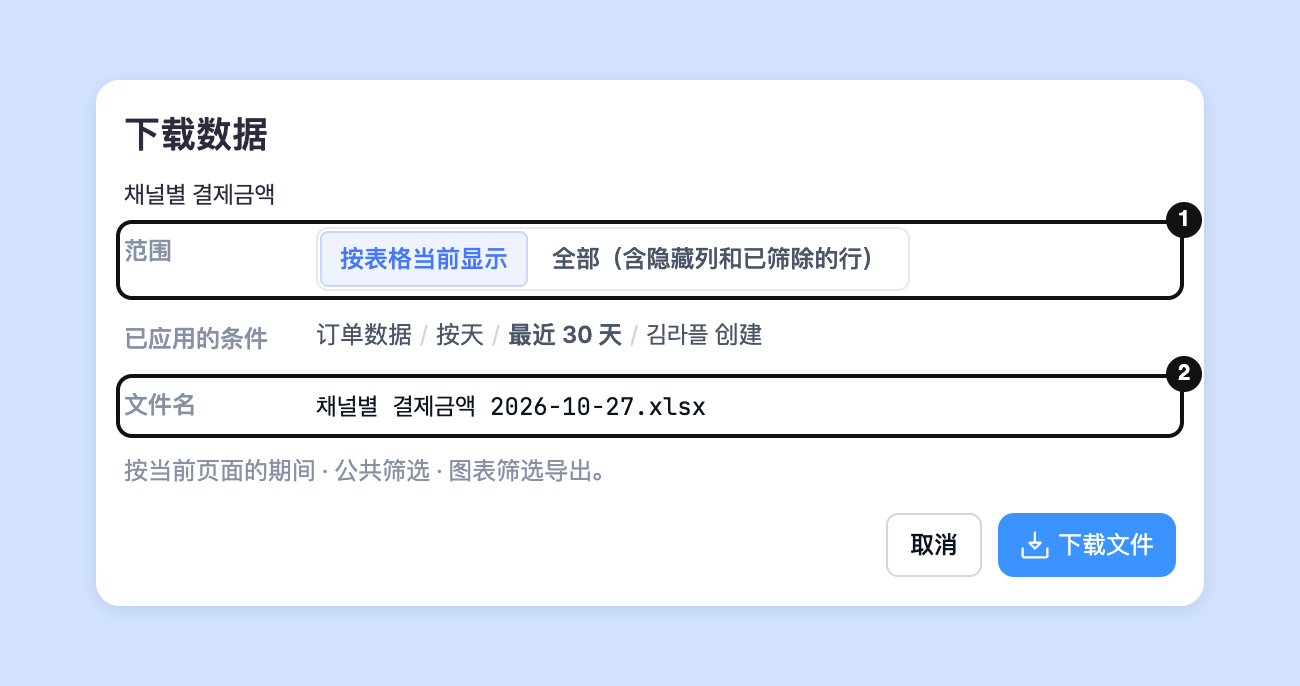
也可以不进入编辑页面,直接在仪表板中下载。在图表卡片的 ⋯ **「更多图表操作」** 中点击 **「下载数据」**,然后设置 **「范围」**(**「按表格当前显示」** 或 **「全部(含隐藏列和已筛除的行)」**)和 **「文件名」**。将按当前页面的期间 · 公共筛选 · 图表筛选原样下载。
 {% endhint %}
## 下载整个仪表板
可以将仪表板中的图表以**每个图表一个工作表**的形式下载到一个文件中。
1. 点击仪表板顶部的 ⋯ **「更多仪表板设置」**,然后点击 **「全部下载」**。

2. 在 **「下载整个仪表板」** 窗口中确认 **「包含的图表」** 和 **「已应用的条件」**。文本和图片不会包含在内。

3. 设置 **「文件名」** 后点击 **「下载」**,系统会生成工作表并保存为一个文件。
{% hint style="info" %}
* 不应用仪表板公共期间 · 筛选的图表,会按图表中保存的期间 · 筛选导出。
* 如果只想下载一个图表,请在列表中点击 **「单独下载」**。
* 部分分析不支持在卡片中下载,会显示为 **「在编辑页面下载」**。此类图表请使用图表编辑页面的 **「下载」** 选项卡。
{% endhint %}
## 联系专属经理
使用自定义仪表板时遇到困难了吗?
请通过下方的咨询页面或电子邮件联系我们。负责的经理将为您提供帮助。
> 💬 [在官网咨询](https://www.analytics.laplacetec.com/contact)
**邮件咨询:** [**product@laplacetec.com**](mailto:product@laplacetec.com)
{% endhint %}
## 下载整个仪表板
可以将仪表板中的图表以**每个图表一个工作表**的形式下载到一个文件中。
1. 点击仪表板顶部的 ⋯ **「更多仪表板设置」**,然后点击 **「全部下载」**。

2. 在 **「下载整个仪表板」** 窗口中确认 **「包含的图表」** 和 **「已应用的条件」**。文本和图片不会包含在内。

3. 设置 **「文件名」** 后点击 **「下载」**,系统会生成工作表并保存为一个文件。
{% hint style="info" %}
* 不应用仪表板公共期间 · 筛选的图表,会按图表中保存的期间 · 筛选导出。
* 如果只想下载一个图表,请在列表中点击 **「单独下载」**。
* 部分分析不支持在卡片中下载,会显示为 **「在编辑页面下载」**。此类图表请使用图表编辑页面的 **「下载」** 选项卡。
{% endhint %}
## 联系专属经理
使用自定义仪表板时遇到困难了吗?
请通过下方的咨询页面或电子邮件联系我们。负责的经理将为您提供帮助。
> 💬 [在官网咨询](https://www.analytics.laplacetec.com/contact)
**邮件咨询:** [**product@laplacetec.com**](mailto:product@laplacetec.com)