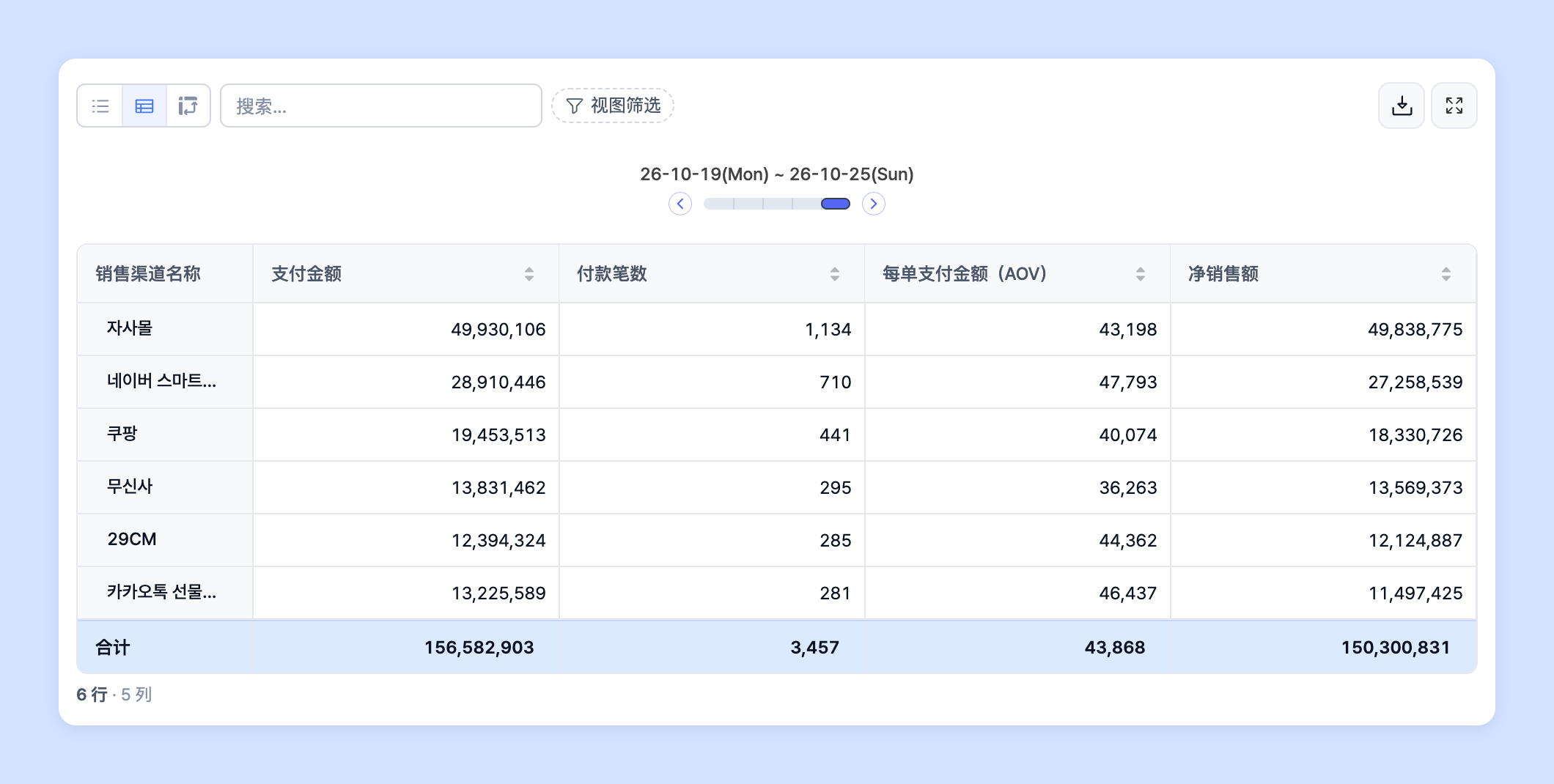
> For the complete documentation index, see [llms.txt](https://www.analytics-docs.laplacetec.com/guide/llms.txt). Markdown versions of documentation pages are available by appending `.md` to page URLs; this page is available as [Markdown](https://www.analytics-docs.laplacetec.com/guide/zh-cn/customdashboard/custom/table.md).

# 表格视图

{% hint style="info" %}
在图表编辑页面右侧设置面板的 **「表格」** 选项卡中，可以将 **「表格类型」** 切换为列表 · 快照 · 透视表三种之一。这三种并不是不同的图表，而是同一表格的不同显示方式，每种视图都可以按所需分析进行自定义使用。如果将图表类型选为[表格](/guide/zh-cn/customdashboard/custom/chart/table.md)，则只显示表格而不显示图表。
{% endhint %}

* 请查看以下 Laplace 提供的表格，了解使用方法和技巧。

<table data-view="cards"><thead><tr><th align="center"></th><th data-hidden data-card-target data-type="content-ref"></th><th data-hidden data-card-cover data-type="files"></th></tr></thead><tbody><tr><td align="center">列表表格</td><td><a href="/guide/zh-cn/customdashboard/custom/table/list.md">列表表格</a></td><td><a href="https://3137825292-files.gitbook.io/~/files/v0/b/gitbook-x-prod.appspot.com/o/spaces%2F0TsgqYeDkgxa5xtWTHTb%2Fuploads%2Fgit-blob-3a122af90575ba51ceded95a91d239aad869a2a0%2Fcustomdashboard__custom__table__01.png?alt=media">customdashboard__custom__table__01.png</a></td></tr><tr><td align="center">快照表格</td><td><a href="/guide/zh-cn/customdashboard/custom/table/snapshot.md">快照表格</a></td><td><a href="https://3137825292-files.gitbook.io/~/files/v0/b/gitbook-x-prod.appspot.com/o/spaces%2F0TsgqYeDkgxa5xtWTHTb%2Fuploads%2Fgit-blob-cd093c915d862c3933c4a6d8b97a7d923404630e%2Fcustomdashboard__custom__table__02.png?alt=media">customdashboard__custom__table__02.png</a></td></tr><tr><td align="center">透视表</td><td><a href="/guide/zh-cn/customdashboard/custom/table/pivot.md">透视表</a></td><td><a href="https://3137825292-files.gitbook.io/~/files/v0/b/gitbook-x-prod.appspot.com/o/spaces%2F0TsgqYeDkgxa5xtWTHTb%2Fuploads%2Fgit-blob-c751ae1e85fd04d5cb1f1bd4441dfb585a65e482%2Fcustomdashboard__custom__table__03.png?alt=media">customdashboard__custom__table__03.png</a></td></tr></tbody></table>

## 切换表格类型 <a href="#type" id="type"></a>

1. 在图表编辑页面右侧设置面板中点击 **「表格」** 选项卡，然后在 **「表格类型」** 中选择 **「列表」**、**「快照」**、**「透视表」** 之一。

   ![表格选项卡中的表格类型](https://3137825292-files.gitbook.io/~/files/v0/b/gitbook-x-prod.appspot.com/o/spaces%2F0TsgqYeDkgxa5xtWTHTb%2Fuploads%2Fgit-blob-84586f0f5faaf2aa12783212bd1f7eb82c3c1e7c%2Fcustomdashboard__custom__table__04.png?alt=media)

{% hint style="info" %}
在 **「表格视图」** 中，可以从 **「标准」**、**「树状图」**、**「合并视图」** 中选择表格样式。根据分析维度的构成，无法选择的视图会显示为不可用。
{% endhint %}