> For the complete documentation index, see [llms.txt](https://www.analytics-docs.laplacetec.com/guide/llms.txt). Markdown versions of documentation pages are available by appending `.md` to page URLs; this page is available as [Markdown](https://www.analytics-docs.laplacetec.com/guide/en/mcp/start.md).
# Getting started with MCP
{% hint style="info" %}
What is Laplace MCP integration?\
It isn't a new AI tool to adopt. It connects Laplace's cleaned-up data to the AI you already use (Claude, ChatGPT, etc.).\
Once connected, you can ask questions like these right in your usual chat window: "What were sales last week?", "Find products with poor ad efficiency", "Pull this month's top 10 best sellers".
{% endhint %}
## Requirements
| Plan | MCP access |
| ------------------------- | ---------------------------------- |
| Free trial | ✅ Up to 100 calls during the trial |
| Starter | ❌ Not available |
| Growth · Pro · Enterprise | ✅ |
* The plan is checked based on the **project owner**. Invited members follow the owner's plan.
* If you're on a free trial, connect right away using the **Laplace account login** method below.
* If the requirements aren't met, the AI shows a notice instead of an answer. Fixes for each notice are listed in [Troubleshooting](/guide/en/mcp/troubleshooting.md).
* Laplace's **Settings** › **Developer** menus (**API key** · **MCP usage** · **Tools**) are visible regardless of plan. On a plan that can't use them, a lock reason such as **Plan upgrade required** appears below the menu name.
## Which connection method should I use?
There are two ways to connect. Choose the one that fits your AI.
| Method | Best for | What you need |
| ---------------------------------------------- | ------------------------------------------------------------- | ---------------------------- |
| **Laplace account login (OAuth, recommended)** | Using Claude, ChatGPT, or Perplexity on the web or app | Just a Laplace account |
| **API key** | Using developer tools such as Claude Code, Cursor, or VS Code | An API key issued in Laplace |
In most cases, **Laplace account login** is all you need. You don't have to issue an API key.
{% hint style="info" %}
You can also jump straight to each guide using the Claude · ChatGPT · Perplexity connection buttons in the info box at the top of the **Settings** › **Developer** › **API key** screen.
{% endhint %}
## Which AIs can I use it with?
| AI tool | Supported | Connection method | Notes |
| ----------------- | ------------- | ----------------- | ---------------------------------------------------------------------------------------------- |
| Claude (web/app) | ✅ Recommended | Account login | Easiest to set up, so we recommend Claude if you're new |
| ChatGPT | ✅ Recommended | Account login | Turn on developer mode in settings, then register |
| Perplexity | ✅ Paid | Account login | Available on Pro or higher paid plans |
| Claude Code (CLI) | ✅ | API key | Developer tool. Register with a single command |
| Cursor / VS Code | ✅ | API key | Developer tool. Usable if you have a developer on hand |
| Gemini | ⚠️ Partial | API key | Only available in the developer **`Gemini CLI`**; the regular app and web aren't supported yet |
## Supported MCP clients
Choose the AI you'll connect with Laplace account login, then follow its guide.
## Issuing an API key
You only need this when using developer tools such as Claude Code, Cursor, or VS Code.
1. Click **Settings** at the bottom of the left rail, then click **Developer** › **API key** in the navigation panel.

2. Click **Issue key** at the top right. In the **Issue a new API key** window, fill in **Name** and **Description**, choose an **Expiry** period (**30 days**, **90 days**, **1 year**, **Never**), and click **Issue key**.
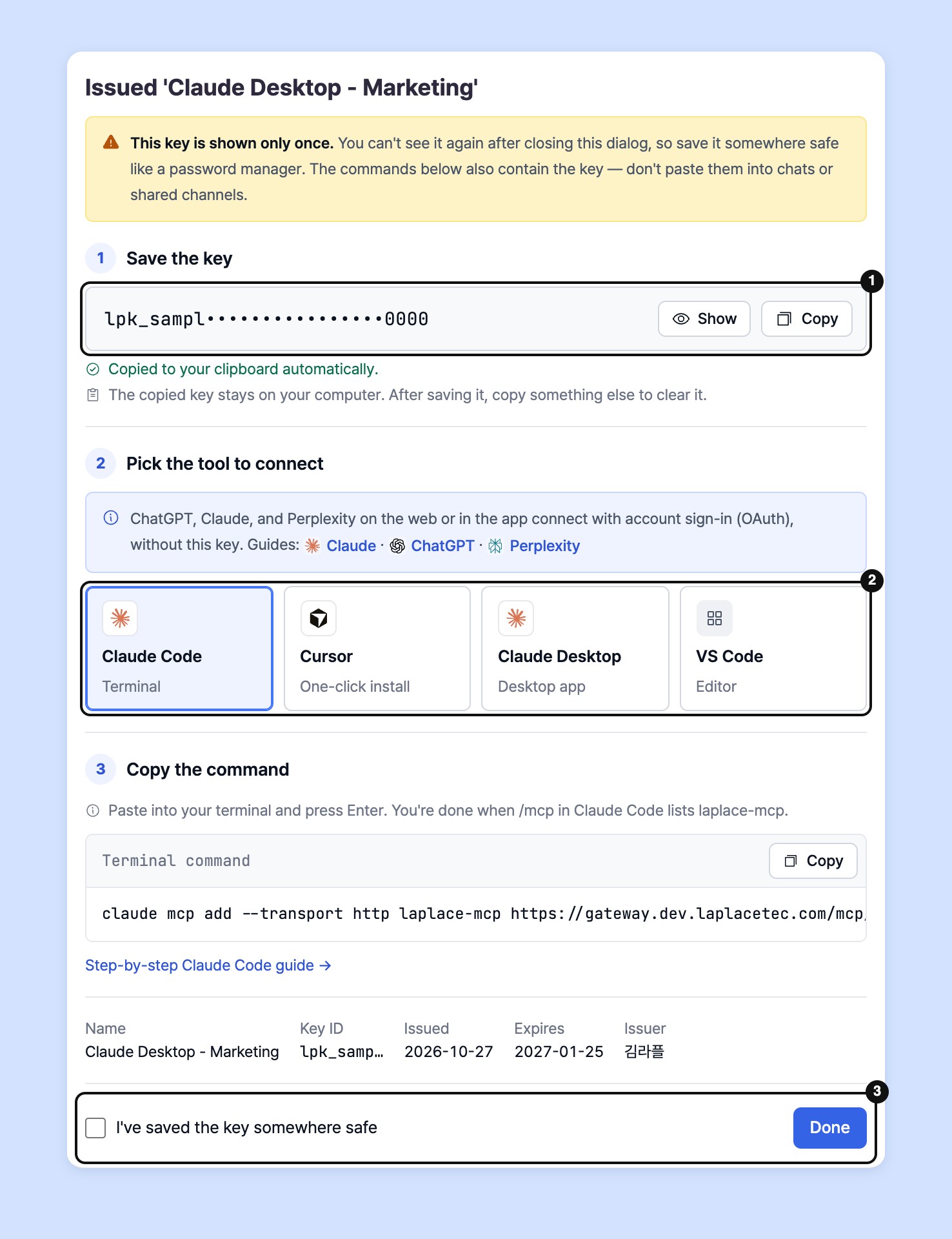
3. In the completion window, click **Copy** and store the API key somewhere safe. Check **I've saved the key somewhere safe**, then click **Done**.
{% hint style="warning" %}
You can only view the API key right after it's issued. If you lose it, click **Revoke key** from the menu on the existing key's row and issue a new one.\
An API key connects to only the one project it was issued in. We recommend an expiry of 90 days.
{% endhint %}
## Registering MCP
After you issue an API key, **Claude Code, Cursor, Claude Desktop, and VS Code** appear under **Pick the tool to connect** in the completion window. Choose your tool, then copy and paste the command from the **Copy the command** step to finish registering. For Cursor, you can also install in one click with the **Install in Cursor** button.
{% hint style="info" %}
The MCP server address is **`https://gateway.laplacetec.com/mcp`**.
{% endhint %}
## After connecting
* [Try asking these after connecting](/guide/en/mcp/use.md): first questions, example questions by role, and what the AI can do
* [Troubleshooting](/guide/en/mcp/troubleshooting.md): when you can't connect or a notice appears
* [Security and permissions](/guide/en/mcp/security.md): the scope of data the AI can see and how to disconnect
## Ask your dedicated manager
Have a question about MCP integration?
Contact us through the inquiry page below. Your account manager will help you connect.
> 💬 [Contact us on our website](https://www.analytics.laplacetec.com/contact)
**Email:** [**product@laplacetec.com**](mailto:product@laplacetec.com)
.png?alt=media)